Introduction
- Created: 11/01/2013
- Latest update: 23/01/2014
- By: MagenTech
- Email: themeforest@magentech.com
When you download theme from our store and unzip, you will be got full of main files for theme installation. They're:
-
Theme Package: Use this package to install to your current site. This contains the theme files only.
-
QuickStart Installation Package: This package included modules, theme, sample data.
-
Extension Packages: Modules in-house which we used for the demo.
-
PSD Sources: All PSD design themes
-
Documentation: Detail userguide to install and configure theme
INSTALLATION GUIDE
There are two ways to install a MagenTech theme:
-
Install quickstart: By using this package, you will set the theme exactly as Demo. This is applied when you need a fresh Magento with our theme.
-
Install Theme and Extensions: This is applied when you have already installed a Magento instance on your server. You will need only be using the zipped files in “Extensions” and “Theme” folders mentioned above. Please follow below instruction about how to install theme and extensions:
System Requirements
Magento Community Edition 1.7.x and 1.8.x
Download: http://www.magentocommerce.com/download
Magento Quickstart Installation
Magentech provides SM Quickstart package for each template which aims to ease the installation for users. It will help you save much time of installing and configuring if you plan to start your site from the beginning.
Please following steps below (we used images of SM Glasses theme installation to illustrate for general installations – Magento Quickstart Installation – Magento Theme Installation – Magento Extension Installation):
-
Step 1: Download the quickstart package
-
Step 2: Extract and Upload the whole Quickstart package to your server. In Quickstart folder you will see the extracted folder that include all sample data
-
Step 3: Create a database for your Magento
-
Step 4: Start installation by opening browser and navigate to your url (where the quickstart uploaded) to load default Magento installer.

-
Step 5: Finish installation
Magento Theme Installation
Before you start the installation process of this theme, we recommend to back up your current live Magento files and database. If your store has not been available yet, get it quickly following Magento Installation Guide
The installation of our theme is quite simple. You just need follow steps below to get our theme ready for your Magento store:
-
Step 1: Upload folders skin and app from our download package to your Web server's document root (from here on, referenced as {docroot}). These files will overwrite default folders skin and app in your Magento folder, you should see a directory layout like this:
{docroot} /magento/
app/
index.php
js/
lib/
LICENSE.txt
media/
pear/
skin/
var/
-
Step 2: Login your Magento Admin area (ex: access Magento Admin area on a stage localhost: http://yourdomain/index.php/admin/)
-
Step 3: Navigate to System =>Configuration =>Design as per screenshot below (steps in following images used SM Glasses theme for example)

-
Step 4: Fill texts to the "Package" and "Themes" sections as per screenshot below:

-
Step 5: Finally, Refer here to configure Theme and then save your configuration
Magento Extension Installation
Before you begin the SM Gameshop installation process, we recommend to back up your current live Magento files and database. If your store has not been available yet, get it quickly following Magento Installation Guide
You just need following steps below to get our extensions ready for your Magento store:
-
Step 1: Upload folders skin and app from our download package to your Web server's document root (from here on, referenced as {docroot}). These files will overwrite default folders skin and app in your Magento folder, you should see a directory layout like this:
{docroot} /magento/
app/
index.php
js/
lib/
LICENSE.txt
media/
pear/
skin/
var/
-
Step 2: Login your Magento Admin area (ex: access Magento Admin area on a stage localhost: http://yourdomain/index.php/admin/)
-
Step 3: Navigate to System =>Configuration (steps in following images used SM Glasses theme for example)

-
Step 4: You will see installed extension, click extension's name tab to go to extension configuration page.
Important Note:
- After install extension or theme, you should logout first and then login Admin Panel to ensure all functions work normally.
- You should disable all caches in cache management in the installation and configuration process.
General Configuration
Configure homepage
1. Select the homepage from CMS Pages
2. Select Homepage >> Design on the left-hand menu.
3. In the Layout Update XML box, add the code as you want, this is our demo homepage:
<reference name="slideshow">

	    <block type="slideshow/list" name="slideshow.list">

                       <action method="setConfig">

 				<values>

					<theme>theme1</theme>

                                        <product_limitation>3</product_limitation>

                                        <product_description_max_characters>100</product_description_max_characters>

				</values>

			</action>

            </block>

</reference>

<reference name="right-slideshow">

                    <block type="basicproducts/home" name="right-pro" template="sm/basicproducts/home.phtml">

			<action method="setConfig">

 				<values>

					<title>Best Sales</title>

                                        <product_source>catalog</product_source>

                                        <product_category>87</product_category>

					<product_order_by>price</product_order_by>

                                        <num_columns>2</num_columns>

                                        <product_limitation>4</product_limitation>

					<product_image_width>170</product_image_width>

					<product_image_height>113</product_image_height>

				</values>

			</action>

                  </block>

</reference>


<reference name="news">

			<block type="cms/block" name="block-news">

				<action method="setBlockId"><block_id>block-news</block_id></action>

			</block>

</reference>


<reference name="banner">

			<block type="cms/block" name="block-banner">

				<action method="setBlockId"><block_id>block-banner</block_id></action>

			</block>

</reference>


<reference name="slider">

	   <block type="slider/list" name="slider.list" template="sm/slider/default.phtml">

			<action method="setConfig">

 				<values>

					<block_title></block_title>

					<slider_title_text>Latest Products</slider_title_text>

                                        <product_image_width>270</product_image_width>

                                        <product_image_height>180</product_image_height>

                                        <product_limitation>10</product_limitation>

                                        <duration>300</duration>

                                        <deviceclass_sfx>preset01-4 preset02-4 preset03-2 preset04-1 preset05-1</deviceclass_sfx>

				</values>

			</action>

           </block>

</reference>


<reference name="brands">

			<block type="cms/block" name="block-brands">

				<action method="setBlockId"><block_id>block-brands</block_id></action>

			</block>

</reference>


<reference name="product-left">

                    <block type="basicproducts/home" name="abc" template="sm/basicproducts/home2.phtml">

			<action method="setConfig">

 				<values>

					<title> Featured Offers and Deals </title>

                                        <product_source>catalog</product_source>

                                        <product_category>74</product_category>

					<product_order_by>price</product_order_by>

                                        <num_columns>2</num_columns>

                                        <product_limitation>1</product_limitation>

					<product_image_width>360</product_image_width>

					<product_image_height>240</product_image_height>

				</values>

			</action>

                  </block>

</reference>


<reference name="extraslider">

	   <block type="extraslider/list" name="extraslider.list" template="sm/extraslider/extraslider.phtml">

			<action method="setConfig">

 				<values>

                                              <title_slider_display>0</title_slider_display>

                                              <item_title_max_characs>15</item_title_max_characs>

                                              <product_category>80</product_category>

                                              <product_limitation>16</product_limitation>

				              <num_rows>2</num_rows>

				               <num_cols>4</num_cols>

                                               <item_image_width>170</item_image_width>

				               <item_image_height>113</item_image_height>

				</values>

			</action>

           </block>

</reference>
4. Click the Save Page button.
Configure theme using admin back end
For easing the theme configuration, we has been created Cpanel in both backend and frontend, this is SM Gameshop configuration in backend:
1. Under Magento admin panel, go to System >> Configuration
2. Select SM Gameshop Theme on the left-hand menu
3. Tweak the theme as you want

Configure theme using Cpanel front end
This is fontend, identical to what has in backend:

Color Sample
4 presets to be chosen
1 Body
Background, Link and Text color, Background image
2 Footer
Background image and color
3 Menu Style
3 options to be chosen: Mega, CSS or Split
4 Typography
Google Font, various font-size and font-family
How to configure Mega Menu
1. Position
To replace default main menu
2. Configuration
To config General settings, module parameters, Advance, login your administrator, go to SM Mega Menu >> Configuration

To view more guide about how to install, set up and configure SM Mega Menu as you want, please click HERE
3. Mega Menu Items
In order to add menu items, Go to SM Mega Menu >> Menu items Manager
You must create add new Menu Group.
The settings below belong to SM Gameshop group. Other group has similar settings menu item
3.1 XBOX360 Menu
Front-end appreance

Backend Settings: Click here
Category/87: (To config: Go to Catalog >> Manager Categories > Xbox360 > Display Settings > Display Mode = “Products Only”)
Xbox360 Menu Items Tree:

Xbox360-1: Backend
Xbox360-2: Backend
Onx Game Playtion: Backend
Menu type: CMS Block
CMS Block: Menu Product 1 ( To config: Go to CMS >> Statistic Block ): Click here
Code of content used in Menu Product 1:
<div class="menu-product-wrap">

<div class="menu-product-image"><img src="/index.php/admin/cms_wysiwyg/directive/___directive/e3tza2luIHVybD0iaW1hZ2VzL21lbnUtcHJvZHVjdC8xLnBuZyJ9fQ,,/key/b066397ae48d69bad365dd0499abbf97/" alt="image" /></div>

<div class="menu-product-content">

<div class="menu-product-title"><a href="#">Onx Gaames playtion</a></div>

<div class="menu-product-description">Lorem ipsum dolor sit amet, conse end ctetuerandon adipiscing elit sed diam nonummy nibh euismod tincidunt ut one laoreet dolore magna aliquam erat lang gontel fucing beon</div>

</div>

</div>
Clicshee Gaames hot 2013: Backend
Menu type: CMS Block
CMS Block: Menu Product 2 ( To config: Go to CMS >> Statistic Block ): Click here
Code of content used in Menu Product 2:
<div class="menu-product-wrap">

<div class="menu-product-image"><img src="/index.php/admin/cms_wysiwyg/directive/___directive/e3tza2luIHVybD0iaW1hZ2VzL21lbnUtcHJvZHVjdC8yLnBuZyJ9fQ,,/key/b066397ae48d69bad365dd0499abbf97/" alt="image" /></div>

<div class="menu-product-content">

<div class="menu-product-title"><a href="#">Onx Gaames playtion</a></div>

<div class="menu-product-description">Lorem ipsum dolor sit amet, conse end ctetuerandon adipiscing elit sed diam nonummy nibh euismod tincidunt ut one laoreet dolore magna aliquam erat lang gontel fucing beon</div>

</div>

</div>
3.2 PS3 Menu
Front-end appreance

Backend Settings: Click here
Category/74: (To config: Go to Catalog >> Manager Categories > Ps3 > Display Settings > Display Mode = “Products Only”)
Ps3 Menu Items Tree:

Ps3-1: Backend
Ps3-2: Backend
Ps3-3: Backend
Menu type: CMS Block
CMS Block: Menu Product 3 ( To config: Go to CMS >> Statistic Block ): Click here
Code of content used in Menu Product 3:
<div class="menu-product-wrap">

<div class="menu-product-image"><img src="/index.php/admin/cms_wysiwyg/directive/___directive/e3tza2luIHVybD0iaW1hZ2VzL21lbnUtcHJvZHVjdC8zLnBuZyJ9fQ,,/key/b066397ae48d69bad365dd0499abbf97/" alt="image" /></div>

<div class="menu-product-content">

<div class="menu-product-title"><a href="#">Games playtion</a></div>

<div class="menu-product-description">Lorem ipsum dolor sit amet, conse end ctetuerandon adipiscing elit sed diam nonummy nibh euismod tincidunt ut one laoreet dolore magna aliquam erat lang gontel fucing beon</div>

</div>

</div>
Ps3-4: Backend
Menu type: CMS Block
CMS Block: Menu Product 4 ( To config: Go to CMS >> Statistic Block ): Click here
Code of content used in Menu Product 4:
<div class="menu-product-wrap">

<div class="menu-product-image"><img src="/index.php/admin/cms_wysiwyg/directive/___directive/e3tza2luIHVybD0iaW1hZ2VzL21lbnUtcHJvZHVjdC80LnBuZyJ9fQ,,/key/d96fc365c6a696aa2275b42cb1a41883/" alt="image" /></div>

<div class="menu-product-content">

<div class="menu-product-title"><a href="#">Sollicitudin venenatis ibulum</a></div>

<div class="menu-product-description">Lorem ipsum dolor sit amet, conse end ctetuerandon adipiscing elit sed diam nonummy nibh euismod tincidunt ut one laoreet dolore magna aliquam erat lang gontel fucing beon</div>

</div>

</div>
3.3 WIIU Menu
Front-end appreance

Backend Settings: Click here
Category/80: (To config: Go to Catalog >> Manager Categories > WIIU > Display Settings > Display Mode = “Products Only”)
WIIU Menu Items Tree:

Hot wii u: Backend
Wii U Game: Backend
Wii-3: Backend
Menu type: CMS Block
CMS Block: Menu Product 2 ( To config: Go to CMS >> Statistic Block ): Click here
Code of content used in Menu Product 2:
<div class="menu-product-wrap">

<div class="menu-product-image"><img src="/index.php/admin/cms_wysiwyg/directive/___directive/e3tza2luIHVybD0iaW1hZ2VzL21lbnUtcHJvZHVjdC8yLnBuZyJ9fQ,,/key/b066397ae48d69bad365dd0499abbf97/" alt="image" /></div>

<div class="menu-product-content">

<div class="menu-product-title"><a href="#">Onx Gaames playtion</a></div>

<div class="menu-product-description">Lorem ipsum dolor sit amet, conse end ctetuerandon adipiscing elit sed diam nonummy nibh euismod tincidunt ut one laoreet dolore magna aliquam erat lang gontel fucing beon</div>

</div>

</div>
Wii-4: Backend
Menu type: CMS Block
CMS Block: Menu Product 3 ( To config: Go to CMS >> Statistic Block ): Click here
Code of content used in Sub cat:
<div class="menu-product-wrap">

<div class="menu-product-image"><img src="/index.php/admin/cms_wysiwyg/directive/___directive/e3tza2luIHVybD0iaW1hZ2VzL21lbnUtcHJvZHVjdC8zLnBuZyJ9fQ,,/key/b066397ae48d69bad365dd0499abbf97/" alt="image" /></div>

<div class="menu-product-content">

<div class="menu-product-title"><a href="#">Games playtion</a></div>

<div class="menu-product-description">Lorem ipsum dolor sit amet, conse end ctetuerandon adipiscing elit sed diam nonummy nibh euismod tincidunt ut one laoreet dolore magna aliquam erat lang gontel fucing beon</div>

</div>

</div>
3.4 WII Menu
Front-end appreance

Backend Settings: Click here
WII Menu Items Tree:

Wii 1: Backend
Wii 2: Backend
Wii 3: Backend
Menu type: CMS Block
CMS Block: Menu Product 2 ( To config: Go to CMS >> Statistic Block ): Click here
Code of content used in Menu Product 2:
<div class="menu-product-wrap">

<div class="menu-product-image"><img src="/index.php/admin/cms_wysiwyg/directive/___directive/e3tza2luIHVybD0iaW1hZ2VzL21lbnUtcHJvZHVjdC8yLnBuZyJ9fQ,,/key/b066397ae48d69bad365dd0499abbf97/" alt="image" /></div>

<div class="menu-product-content">

<div class="menu-product-title"><a href="#">Onx Gaames playtion</a></div>

<div class="menu-product-description">Lorem ipsum dolor sit amet, conse end ctetuerandon adipiscing elit sed diam nonummy nibh euismod tincidunt ut one laoreet dolore magna aliquam erat lang gontel fucing beon</div>

</div>

</div>
-
Wii 4: Backend
Menu type: CMS Block
CMS Block: Menu Product 3 ( To config: Go to CMS >> Statistic Block ): Click here
Code of content used in Menu Product 3:
<div class="menu-product-wrap">

<div class="menu-product-image"><img src="/index.php/admin/cms_wysiwyg/directive/___directive/e3tza2luIHVybD0iaW1hZ2VzL21lbnUtcHJvZHVjdC8zLnBuZyJ9fQ,,/key/b066397ae48d69bad365dd0499abbf97/" alt="image" /></div>

<div class="menu-product-content">

<div class="menu-product-title"><a href="#">Games playtion</a></div>

<div class="menu-product-description">Lorem ipsum dolor sit amet, conse end ctetuerandon adipiscing elit sed diam nonummy nibh euismod tincidunt ut one laoreet dolore magna aliquam erat lang gontel fucing beon</div>

</div>

</div>
3.5 3DS, PSVITA, TABLETS, PC and MOVIES Menu
Front-end appreance

Backend Setting:
-
3DS Backend Settings: Click here
-
PSVITA Backend Settings: Click here
-
TABLETS Backend Settings: Click here
-
PC Backend Settings: Click here
-
MOVIES Backend Settings: Click here
Layout Positions

How to configure Extensions
1. SM Cart Pro
1.1 Position
mini-cartpro
1.2 Front-end appreance

1.3 Configuration
Backend of SM Cart Pro: Click here
To view more guide about how to install, set up and configure SM Cart Pro as you want, please click HERE
2. SM Slideshow
2.1 Position:
slideshow
2.2 Front-end appreance

2.3 Configuration
Backend of SM Slideshow: Click here
To view more guide about how to install, set up and configure SM Dynamic Slideshow as you want, please click HERE
To get this extension to show onto the front page at the up top position, go to CMS > Pages >> Homepage >> In Design tab, please fill in Layout Update XML parameter -between tag as below :
<reference name="slideshow">

	    <block type="slideshow/list" name="slideshow.list">

                       <action method="setConfig">

 				<values>

					<theme>theme1</theme>

                                        <product_limitation>3</product_limitation>

                                        <product_description_max_characters>100</product_description_max_characters>

				</values>

			</action>

            </block>

</reference>
3. SM Basic Product
3.1 Position:
content-bottom
3.2 Front-end appreance

3.3 Configuration
Backend of SM Basic Product: Click here
To get this extension to show onto the front page at the up top position, go to CMS > Pages >> Homepage >> In Design tab, please fill in Layout Update XML parameter -between tag as below :
    <reference name="right-slideshow">

                    <block type="basicproducts/home" name="right-pro" template="sm/basicproducts/home.phtml">

			<action method="setConfig">

 				<values>

					<title>Best Sales</title>

                                        <product_source>catalog</product_source>

                                        <product_category>87</product_category>

					<product_order_by>price</product_order_by>

                                        <num_columns>2</num_columns>

                                        <product_limitation>4</product_limitation>

					<product_image_width>170</product_image_width>

					<product_image_height>113</product_image_height>

				</values>

			</action>

                  </block>

</reference>
4. SM Slider
4.1 Position:
slider
4.2 Front-end appreance

Backend of SM Slider: Click here
To view more guide about how to install, set up and configure SM Slider as you want, please click HERE
4.3 Configuration
To get this extension to show onto the front page at the up top position, go to CMS > Pages >> Homepage >> In Design tab, please fill in Layout Update XML parameter -between tag as below :
 <reference name="slider">

	   <block type="slider/list" name="slider.list" template="sm/slider/default.phtml">

			<action method="setConfig">

 				<values>

					<block_title></block_title>

					<slider_title_text>Latest Products</slider_title_text>

                                        <product_image_width>270</product_image_width>

                                        <product_image_height>180</product_image_height>

                                        <product_limitation>10</product_limitation>

                                        <duration>300</duration>

                                        <deviceclass_sfx>preset01-4 preset02-4 preset03-2 preset04-1 preset05-1</deviceclass_sfx>

				</values>

			</action>

           </block>

</reference>
5.SM Basic Product
5.1 Position
basic product
3.2 Front-end appreance

3.3 Configuration
Backend of SM Basic Product: Click here
To get this extension to show onto the front page at the up top position, go to CMS > Pages >> Homepage >> In Design tab, please fill in Layout Update XML parameter -between tag as below :
 <reference name="product-left">

                    <block type="basicproducts/home" name="abc" template="sm/basicproducts/home2.phtml">

			<action method="setConfig">

 				<values>

					<title> Featured Offers and Deals </title>

                                        <product_source>catalog</product_source>

                                        <product_category>74</product_category>

					<product_order_by>price</product_order_by>

                                        <num_columns>2</num_columns>

                                        <product_limitation>1</product_limitation>

					<product_image_width>360</product_image_width>

					<product_image_height>240</product_image_height>

				</values>

			</action>

                  </block>

</reference>
6.SM Extra Slider
6.1 Position
extra slider
6.2 Front-end appreance

6.3 Configuration
Backend of SM Extra Slider: Click here
To view more guide about how to install, set up and configure SM Extra Slider as you want, please click HERE
To get this extension to show onto the front page at the up top position, go to CMS > Pages >> Homepage >> In Design tab, please fill in Layout Update XML parameter – between tag as below :
<reference name="extraslider">

	   <block type="extraslider/list" name="extraslider.list" template="sm/extraslider/extraslider.phtml">

			<action method="setConfig">

 				<values>

                                              <title_slider_display>0</title_slider_display>

                                              <item_title_max_characs>15</item_title_max_characs>

                                              <product_category>80</product_category>

                                              <product_limitation>16</product_limitation>

				              <num_rows>2</num_rows>

				               <num_cols>4</num_cols>

                                               <item_image_width>170</item_image_width>

				               <item_image_height>113</item_image_height>

				</values>

			</action>

           </block>

</reference>
How to configure blocks
The SM Gameshop front-page has static blocks in the Theme:
-
block-news
-
block-banner-left
-
block-brands
-
block-yt-footer-content1
-
block-yt-footer-content2
-
block-yt-footer-content3
-
block-info-footer
-
block-services
-
block-contact-us
-
block-user5
-
block-payment
-
block-community
To create static blocks, go to CMS >> Static Blocks >> Add new block
1. block-news
1.1. Identifier
block-news
1.2. Front-end Appearance

1.3. Backend settings: Click here
1.4. Code to display as demo
<div class="clearfix">

<div class="block-title">Latest News</div>

<div class="row-fluid">

<div class="news-item border span6 no-margin">

<div class="news-image"><img src="/index.php/admin/cms_wysiwyg/directive/___directive/e3tza2luIHVybD0iaW1hZ2VzL25ld3MtY29udGVudC8xLnBuZyJ9fQ,,/key/cc74fa9f0fed75247fff7988a56e9947/" alt="image" /></div>

<div class="news-title"><a href="#">Donec sollicitudin venenatis ibulum fermentum risus a</a></div>

<div class="news-readmore"><a href="#">Read more </a><span class="icon-double-angle-right"><a href="#"> </a></span></div>

</div>

<div class="news-item border span6">

<div class="news-image"><img src="/index.php/admin/cms_wysiwyg/directive/___directive/e3tza2luIHVybD0iaW1hZ2VzL25ld3MtY29udGVudC8yLnBuZyJ9fQ,,/key/cc74fa9f0fed75247fff7988a56e9947/" alt="image" /></div>

<div class="news-title"><a href="#">Sollicitudin venenatis ibulum</a></div>

<div class="news-readmore"><a href="#">Read more </a><span class="icon-double-angle-right"><a href="#"> </a></span></div>

</div>

</div>

<div class="row-fluid">

<div class="news-item span6 no-margin">

<div class="news-image"><img src="/index.php/admin/cms_wysiwyg/directive/___directive/e3tza2luIHVybD0iaW1hZ2VzL25ld3MtY29udGVudC8zLnBuZyJ9fQ,,/key/cc74fa9f0fed75247fff7988a56e9947/" alt="image" /></div>

<div class="news-title"><a href="#">Aenean tempor nibh non lorem vulputate</a></div>

<div class="news-readmore"><a href="#">Read more </a><span class="icon-double-angle-right"><a href="#"> </a></span></div>

</div>

<div class="news-item span6">

<div class="news-image"><img src="/index.php/admin/cms_wysiwyg/directive/___directive/e3tza2luIHVybD0iaW1hZ2VzL25ld3MtY29udGVudC80LnBuZyJ9fQ,,/key/cc74fa9f0fed75247fff7988a56e9947/" alt="image" /></div>

<div class="news-title"><a href="#">Sometimes things in life are too</a></div>

<div class="news-readmore"><a href="#">Read more </a><span class="icon-double-angle-right"><a href="#"> </a></span></div>

</div>

</div>

</div>
2. banner-left
2.1. Identifier
block-banner-left
2.2. Front-end Appearance

2.3. Backend settings: Click here
2.4. Code to display as demo
<div class="banner-left"><a href="#"> <img src="/index.php/admin/cms_wysiwyg/directive/___directive/e3tza2luIHVybD0iaW1hZ2VzL2Jhbm5lci9iYW5lci1sZWZ0LnBuZyJ9fQ,,/key/cc74fa9f0fed75247fff7988a56e9947/" alt="image" /><span class="bg-hover-image"> </span></a></div>
3. block-brands
3.1. Identifier
block-brands
3.2. Front-end Appearance

3.3. Backend settings: Click here
3.4. Code to display as demo
<div class="brands-content row-fluid">

<p><a class="brands-stablet span6" href="#1"><img src="/index.php/admin/cms_wysiwyg/directive/___directive/e3tza2luIHVybD0iaW1hZ2VzL2JyYW5kcy9sb2dvZ2FtZTEucG5nIn19/key/cc74fa9f0fed75247fff7988a56e9947/" alt="image" /><span class="bg-hover-image"> </span></a><a class="brands-tablet span6" href="#2"> <img src="/index.php/admin/cms_wysiwyg/directive/___directive/e3tza2luIHVybD0iaW1hZ2VzL2JyYW5kcy9sb2dvZ2FtZTIucG5nIn19/key/cc74fa9f0fed75247fff7988a56e9947/" alt="image" /><span class="bg-hover-image"> </span></a></p>

</div>
4. block-yt-footer-content1
4.1. Identifier
block-yt-footer-content1
4.2. Front-end Appearance

4.3. Backend settings: Click here
4.4. Code to display as demo
<div class="footer-content-wrap">

<div class="icon-truck"> </div>

<div class="block-footer-content">

<div class="footer-content-title">Sample text</div>

<div class="footer-content-info">Nulla consequat massa quis enim. Donec pede justo, fringilla vel, aliquet nec, vulputate eget, arcu. In enim justo, rhoncus ut, imperdiet a, venenatis vitae, justo. Nullam</div>

<div class="footer-content-readmore"><a href="#"><span class="icon-caret-right"> </span> Read more</a></div>

</div>

</div>
5. block-yt-footer-content2
5.1. Identifier
block-yt-footer-content2
5.2. Front-end Appearance

5.3. Backend settings: Click here
5.4. Code to display as demo
<div class="footer-content-wrap">

<div class="icon-gift"> </div>

<div class="block-footer-content">

<div class="footer-content-title">Sample text</div>

<div class="footer-content-info">Nulla consequat massa quis enim. Donec pede justo, fringilla vel, aliquet nec, vulputate eget, arcu. In enim justo, rhoncus ut, imperdiet a, venenatis vitae, justo. Nullam</div>

<div class="footer-content-readmore"><a href="#"><span class="icon-caret-right"> </span> Read more</a></div>

</div>

</div>
6. block-yt-footer-content3
6.1. Identifier
block-yt-footer-content3
6.2. Front-end Appearance

6.3. Backend settings: Click here
6.4. Code to display as demo
<div class="footer-content-wrap">

<div class="icon-copy"> </div>

<div class="block-footer-content">

<div class="footer-content-title">Sample text</div>

<div class="footer-content-info">Nulla consequat massa quis enim. Donec pede justo, fringilla vel, aliquet nec, vulputate eget, arcu. In enim justo, rhoncus ut, imperdiet a, venenatis vitae, justo. Nullam</div>

<div class="footer-content-readmore"><a href="#"><span class="icon-caret-right"> </span> Read more</a></div>

</div>

</div>
7. block-info-footer
7.1. Identifier
block-info-footer
7.2. Front-end Appearance

7.3. Backend settings: Click here
7.4. Code to display as demo
<div class="block-footer-content">

<div class="block-title-footer">About Us</div>

<div class="block-content-info">

<ul>

<li class="nav-item"><span class="icon-caret-right"> </span> <a href="# ">Subscribe</a></li>

<li class="nav-item"><span class="icon-caret-right"> </span> <a href="#">Unsubscribe</a></li>

<li class="nav-item"><span class="icon-caret-right"> </span> <a href="#">Help</a></li>

<li class="nav-item"><span class="icon-caret-right"> </span> <a href="#">How to Uninstall</a></li>

<li class="nav-item"><span class="icon-caret-right"> </span> <a href="#">About Company </a></li>

<li class="nav-item last block-content-info-last"><span class="icon-caret-right"> </span> <a href="/index.php/admin/cms_wysiwyg/directive/___directive/e3tjb25maWcgcGF0aD0id2ViL3Vuc2VjdXJlL2Jhc2VfdXJsIn19/key/cc74fa9f0fed75247fff7988a56e9947/contacts">Contact Us</a></li>

</ul>

</div>

</div>
8. block-services
8.1. Identifier
block-services
8.2. Front-end Appearance

8.3. Backend settings: Click here
8.4. Code to display as demo
<div class="block-footer-content">

<div class="block-title-footer">Services</div>

<div class="block-content-info">

<p>Curo concerns hare thery important to suggestions</p>

<p>Phease incocal the following basic information</p>

<p class="block-content-info-last">Bonsage and be wal get back to you as soon as possible.</p>

</div>

</div>
9. block-contact-us
9.1. Identifier
block-contact-us
9.2. Front-end Appearance

9.3. Backend settings: Click here
9.4. Code to display as demo
<div class="block-footer-content">

<div class="block-title-footer">Contact us</div>

<div class="block-content-info">

<ul>

<li><span class="label">Add:</span> Lafayette has a great customer service</li>

<li><span class="label">Tel:</span> 02 8000 11 800</li>

<li><span class="label">Email:</span><span class="email"><a href="#"> hr@gameshop.com</a></span></li>

<li class="contact-end">Hotline: <span class="number-phone"> 647-507-1376</span></li>

</ul>

</div>

</div>
10. block-user5
10.1. Identifier
block-user5
10.2. Front-end Appearance

10.3. Backend settings: Click here
10.4. Code to display as demo
<div class="block-footer-content">

<div class="block-title-footer">Newsletter</div>

<div class="block-content-info"><form id="newsletter-validate-detail" action="newsletter/subscriber/new/" method="post"><span class="label-text">Subscribe to our newsletter massa In Curabitur id risus sit quis justo sed ovantil kenty</span>

<div class="input-box"><input id="newsletter" class="input-text required-entry validate-email" title="Sign up for our newsletter" onfocus="if(this.value=='Enter your email...') this.value='';" onblur="if(this.value=='') this.value='Enter your email...';" type="text" name="email" value="Enter your email..." />

<div class="actions"><button class="button" title="Subscribe" type="submit"><span class="icon-caret-right"> </span><span> Send</span></button></div>

</div>

</form></div>

</div>
11. block-payment
11.1. Identifier
block-payment
11.2. Front-end Appearance

11.3. Backend settings: Click here
11.4. Code to display as demo
<p><a href="#"><img src="/index.php/admin/cms_wysiwyg/directive/___directive/e3tza2luIHVybD0iaW1hZ2VzL3BheW1lbnQvcGF5cGFsLnBuZyJ9fQ,,/key/cc74fa9f0fed75247fff7988a56e9947/" alt="image" /> </a> <a href="#"><img src="/index.php/admin/cms_wysiwyg/directive/___directive/e3tza2luIHVybD0iaW1hZ2VzL3BheW1lbnQvbWFydGVyY2FyZC5wbmcifX0,/key/cc74fa9f0fed75247fff7988a56e9947/" alt="image" /> </a> <a href="#"><img src="/index.php/admin/cms_wysiwyg/directive/___directive/e3tza2luIHVybD0iaW1hZ2VzL3BheW1lbnQvdmlzYS5wbmcifX0,/key/cc74fa9f0fed75247fff7988a56e9947/" alt="image" /> </a></p>
12. block-community
12.1. Identifier
block-community
12.2. Front-end Appearance

12.3. Backend settings: Click here
12.4. Code to display as demo
<ul>

<li><a class="icon-facebook" href="http://www.facebook.com/MagenTech"> </a></li>

<li><a class="icon-twitter" href="https://twitter.com/magentech"> </a></li>

<li><a class="icon-google-plus" href="#"> </a></li>

<li><a class="icon-pinterest " href="#"> </a></li>

<li><a class="icon-linkedin" href="#"> </a></li>

</ul>
How to configure pages
Home Page
To config this page, please navigate to CMS >> Pages, create Home page, navigate to tab Design and update with the following settings:
-
Layout : select 1 column
-
Layout Update XML: Paste the code below
PHP Code:
<reference name="slideshow">

	    <block type="slideshow/list" name="slideshow.list">

                       <action method="setConfig">

 				<values>

					<theme>theme1</theme>

                                        <product_limitation>3</product_limitation>

                                        <product_description_max_characters>100</product_description_max_characters>

				</values>

			</action>

            </block>

</reference>

<reference name="right-slideshow">

                    <block type="basicproducts/home" name="right-pro" template="sm/basicproducts/home.phtml">

			<action method="setConfig">

 				<values>

					<title>Best Sales</title>

                                        <product_source>catalog</product_source>

                                        <product_category>87</product_category>

					<product_order_by>price</product_order_by>

                                        <num_columns>2</num_columns>

                                        <product_limitation>4</product_limitation>

					<product_image_width>170</product_image_width>

					<product_image_height>113</product_image_height>

				</values>

			</action>

                  </block>

</reference>


<reference name="news">

			<block type="cms/block" name="block-news">

				<action method="setBlockId"><block_id>block-news</block_id></action>

			</block>

</reference>


<reference name="banner">

			<block type="cms/block" name="block-banner">

				<action method="setBlockId"><block_id>block-banner</block_id></action>

			</block>

</reference>


<reference name="slider">

	   <block type="slider/list" name="slider.list" template="sm/slider/default.phtml">

			<action method="setConfig">

 				<values>

					<block_title></block_title>

					<slider_title_text>Latest Products</slider_title_text>

                                        <product_image_width>270</product_image_width>

                                        <product_image_height>180</product_image_height>

                                        <product_limitation>10</product_limitation>

                                        <duration>300</duration>

                                        <deviceclass_sfx>preset01-4 preset02-4 preset03-2 preset04-1 preset05-1</deviceclass_sfx>

				</values>

			</action>

           </block>

</reference>


<reference name="brands">

			<block type="cms/block" name="block-brands">

				<action method="setBlockId"><block_id>block-brands</block_id></action>

			</block>

</reference>


<reference name="product-left">

                    <block type="basicproducts/home" name="abc" template="sm/basicproducts/home2.phtml">

			<action method="setConfig">

 				<values>

					<title> Featured Offers and Deals </title>

                                        <product_source>catalog</product_source>

                                        <product_category>74</product_category>

					<product_order_by>price</product_order_by>

                                        <num_columns>2</num_columns>

                                        <product_limitation>1</product_limitation>

					<product_image_width>360</product_image_width>

					<product_image_height>240</product_image_height>

				</values>

			</action>

                  </block>

</reference>


<reference name="extraslider">

	   <block type="extraslider/list" name="extraslider.list" template="sm/extraslider/extraslider.phtml">

			<action method="setConfig">

 				<values>

                                              <title_slider_display>0</title_slider_display>

                                              <item_title_max_characs>15</item_title_max_characs>

                                              <product_category>80</product_category>

                                              <product_limitation>16</product_limitation>

				              <num_rows>2</num_rows>

				               <num_cols>4</num_cols>

                                               <item_image_width>170</item_image_width>

				               <item_image_height>113</item_image_height>

				</values>

			</action>

           </block>

</reference>
Contact us page:
- Backend Setting
-
Content: Paste the code below
To config this page, please navigate to CMS >> Pages, create About us page, navigate to Content tab and update with the following settings:
PHP Code:
<div class="contacts-index-index">{{block type="core/template" name="contactForm" form_action="/contacts/index/post" template="contacts/form.phtml"}}</div>
Navigate to tab Design and update with the following settings:
-
Layout : select 2 columns with left bar
Support
Support from MagenTech will be defined as following:
-
Support time: Monday – Friday 8:30AM to 5:30PM UTC+7
-
Response Time: Within 24 hours (1 business day)
Item support includes:
-
Responding to questions or problems regarding the item and its features
-
Fixing bugs and reported issues
-
Providing updates to ensure compatibility with new software versions
Item support does not include:
-
Customization and installation services
-
Support for 3rd parties' extensions
Installation Services-Quickstart installation services cost $25:
That's it. Now you are ready for using!
Thank you for purchasing our theme. If you have any questions that are beyond the scope of this help file, feel free to do the following steps to send us any question.here
SM Total – Responsive Magento Theme
Introduction
- Created: 09/24/2013
- Latest update: 10/28/2013
- By: MagenTech
- Email: themeforest@magentech.com
- Thank you for purchasing our theme. If you have any questions that are beyond the scope of this help file, feel free to do the following steps to send us any question:
- Step 1: Open a new ticket here
- Step 2: Send to Themeforest Department
Thanks so much!
Introduction
When you download theme from our store and unzip, you will be got full of main files for theme installation. They're:
-
Theme Package: Use this package to install to your current site. This contains the theme files only.
-
QuickStart Installation Package: This package included modules, theme, sample data.
-
Extension Packages: Modules in-house which we used for the demo.
-
PSD Sources: All PSD design themes
-
Documentation: Detail userguide to install and configure theme
INSTALLATION GUIDE
There are two ways to install a MagenTech theme:
-
Install quickstart: By using this package, you will set the theme exactly as Demo. This is applied when you need a fresh Magento with our theme.
-
Install Theme and Extensions: This is applied when you have already installed a Magento instance on your server. You will need only be using the zipped files in “Extensions” and “Theme” folders mentioned above. Please follow below instruction about how to install theme and extensions:
System Requirements
Magento Community Edition 1.7.x
Download: http://www.magentocommerce.com/download
Layout Positions
/position.png)
Magento Quickstart Installation
Magentech provides SM Quickstart package for each template which aims to ease the installation for users. It will help you save much time of installing and configuring if you plan to start your site from the beginning.
Please following steps below (we used images of SM Glasses theme installation to illustrate for general installations – Magento Quickstart Installation – Magento Theme Installation – Magento Extension Installation):
-
Step 1: Download the quickstart package
-
Step 2: Extract and Upload the whole Quickstart package to your server. In Quickstart folder you will see the extracted folder that include all sample data
-
Step 3: Create a database for your Magento (using phpmyadmin)

-
Step 4: Start installation by opening browser and navigate to your url (where the quickstart uploaded) to load default Magento installer.
-
Step 5: Finish installation
Important notes:
-
Do not use "localhost" in URL, otherwise you could not log in your admin (you should use your local IP if installing on your computer.).

-
At step 3 of installation – Configuration page: Leave "Tables prefix" blank
Magento Theme Installation
Before you start the installation process of this theme, we recommend to back up your current live Magento files and database. If your store has not been available yet, get it quickly following Magento Installation Guide
The installation of our theme is quite simple. You just need follow steps below to get our theme ready for your Magento store:
-
Step 1: Upload folders skin and app from our download package to your Web server's document root (from here on, referenced as {docroot}). These files will overwrite default folders skin and app in your Magento folder, you should see a directory layout like this:
{docroot} /magento/
app/
index.php
js/
lib/
LICENSE.txt
media/
pear/
skin/
var/
-
Step 2: Login your Magento Admin area (ex: access Magento Admin area on a stage localhost: http://localhost/magento/index.php/admin/)
-
Step 3: Navigate to System =>Configuration =>Design as per screenshort below (steps in following images used SM Glasses theme for example)
-
Step 4: Fill texts to the "Package" and "Themes" sections as per screenshorts below:

-
Step 5: Fianally, Click button "Save Config" to save your configuration
Magento Extension Installation
Before you begin the SM Total installation process, we recommend to back up your current live Magento files and database. If your store has not been available yet, get it quickly following Magento Installation Guide
You just need following steps below to get our extensions ready for your Magento store:
-
Step 1: Upload folders skin and app from our download package to your Web server's document root (from here on, referenced as {docroot}). These files will overwrite default folders skin and app in your Magento folder, you should see a directory layout like this:
{docroot} /magento/
app/
index.php
js/
lib/
LICENSE.txt
media/
pear/
skin/
var/
-
Step 2: Login your Magento Admin area (ex: access Magento Admin area on a stage localhost: http://localhost/magento/index.php/admin/)
-
Step 3: Navigate to System =>Configuration (steps in following images used SM Glasses theme for example)

-
Step 4: You will see installed extension, click extension's name tab to go to extension configuration page.
General Configuration
Configure homepage
1. Select the homepage from CMS Pages
2. Select Homepage >> Design on the left-hand menu.
3. In the Layout Update XML box, add the code as you want, this is our demo homepage:
<reference name="slideshow">


	<block type="dynamicslideshow/list" name="dynamicslideshow.list">


	</block>


</reference>


<reference name="slideshow-right">


        <block type="core/text_list" name="slideshow-right">


       </block>


</reference>


<reference name="topsl">


	<block type="cms/block" name="position-1">


			<action method="setBlockId"><block_id>position-1</block_id></action>


	</block>


	<block type="cms/block" name="position-2">


			<action method="setBlockId"><block_id>position-2</block_id></action>


	</block>


	<block type="cms/block" name="position-3">


			<action method="setBlockId"><block_id>position-3</block_id></action>


	</block>


</reference>


<reference name="logo">">


          <block type="cms/block" name="logo-content">


                       <action method="setBlockId"><block_id>logo-content</block_id></action>


	   </block>


</reference>


<reference name="base-news">">


        <block type="basenews/list" name="basenews"></block>


</reference>


<reference name="content-top">


	<block type="blocktabs/tabs" name="tab11">


		<block type="slider/list" name="Most Popular" template="sm/slider/default.phtml">


                        <action method="setConfig">


				<values>


					<block_title>most popular product</block_title>


                                        <product_order_by>most_reviewed</product_order_by>


				</values>


			</action>


		</block>


		<block type="slider/list" name="Best Seller" template="sm/slider/default.phtml">


                         <action method="setConfig">


				<values>


					<block_title>most popular product</block_title>


                                        <product_order_by>best_sales</product_order_by>


				</values>


			</action>


		</block>


		<block type="slider/list" name="New Arrivals" template="sm/slider/default.phtml">


                         <action method="setConfig">


				<values>


					<block_title>most popular product</block_title>


                                        <product_order_by>created_at</product_order_by>


				</values>


			</action>


		</block>


	</block>


</reference>


<reference name="content-bottom">


       <block type="blocktabs/tabs" name="tabs22">


                    <block type="slider/list" name="Featured Products" template="sm/slider/slider.phtml">


                      <action method="setConfig">


				<values>


					<block_title>most popular product</block_title>


                                        <product_order_by>created_at</product_order_by>


				</values>


			</action>


                   </block>


       </block>


</reference>
4. Click the Save Page button.
Configure theme using admin back end
For easing the theme configuration, we has been created Cpanel in both backend and frontend, this is SM Total configuration in backend:
1. Under Magento admin panel, go to System >> Configuration
2. Select SM Total Theme on the left-hand menu
3. Tweak the theme as you want
/module/theme.png)
Configure theme using Cpanel front end
This is fontend, identical to what has in backend:
/page/cpanel.png)
Color Sample
6 presets to be chosen
1 Body
Background, Link and Text color
2 Header
Background image and color
3 Footer
Background image and color
4 Menu Style
3 options to be chosen: Mega, CSS or Split
5 Typography
Google Font, various font-size and font-family
How to configure Mega Menu
1. Position
To replace default main menu
2. Configuration
To config General settings, module parameters, Advance, login your administrator, go to SM Mega Menu >> Configuration
/mega/mega.png)
3. Mega Menu Items
In order to add menu items, Go to SM Mega Menu >> Menu items Manager
You must create add new Menu Group.
The settings below belong to SM Total group. Other group has similar settings menu item
3.1 Home Menu
Front-end appreance
/mega/home1.png)
Backend Settings: Click here
3.2 Entertainment Menu
Front-end appreance
/mega/Entertainment1.png)
Backend Settings: Click here
Entertainment Items Tree:
/mega/Entertainment-tree.png)
Sub category1: Backend
-
Gift member: Click here
-
Column 02: Click here
Sub category2: Backend
-
Column 03: Click here
-
Most Popular: Click here
-
Code of Content used in of Most Popular:
-
/mega/column3.png)
{{block type="slider/list" name="menu_slider" template="sm/slider/default_menu.phtml" deviceclass_sfx="preset01-1 preset02-1 preset03-1 preset04-1 preset05-1" product_limitation="3" product_order_by="created_at"}}
3.3 Fashion Menu
Front-end appreance
/mega/fashion1.png)
Backend Settings: Click here
/mega/fashion.png)
Fashion Items Tree:
/mega/fashion-tree.png)
Slider: Backend
-
Code of content used in Slider
{{block type="slider/list" name="menu_slider1" template="sm/slider/default_fashion.phtml" deviceclass_sfx="preset01-1 preset02-1 preset03-1 preset04-1 preset05-1" product_limitation="3" product_order_by="created_at" product_image_height="220" product_image_width="330"}}
Basic Product: Backend
-
Code of content used in Basic Product
{{block type="basicproducts/home" name="topnew2" template="sm/basicproducts/home_menu.phtml" title="" block_title="" product_category="94" product_order_by="price" num_columns="3" product_limitation="3" product_image_width="200" product_image_height="135" product_title_max_length="20" product_rating_summary="0" product_addtocompare="0" product_addtowishlist="0" product_description_disp="1" product_description_max_length="37"}}
3.4 Appliances Menu
Front-end appreance
/mega/appliances1.png)
Backend Settings: Click here
Appliances Items Tree:
/mega/Appliances-tree.png)
Basic Product: Backend
-
CMS Page Block: menu-basic
Images: Backend
/mega/Images.png)
-
CMS Page Block: menu-image
3.5 Product Types
Front-end appreance
/mega/product types1.png)
Backend Settings: Click here
-
Category/117: ( To config: Go to catalog >> Manager Categories) Backend
You should go to here for reading more configure:
How to configure Extensions
1. SM Cart Pro
1.1 Position
sm_cartpro
1.2 Front-end appreance

1.3 Configuration:
Backend: Click here
2. SM Basic Products
2.1 Position
on mega menu
2.2 Front-end appreance
/module/sm-basic-product1.png)
2.3 Configuration
Backend: Click here
3. SM Block Tabs and SM Slider
3.1 Position:
sm_blocktabs and sm_slider
3.2 Front-end appreance

3.3 Configuration
Backend of SM Block Tabs: Click here
Backend of SM Slider: Click here
To get this SM Block Tabs and SM Slider to show onto the front page as DEMO, go to CMS > Pages >> Homepage >> In Design tab, please fill in Layout Update XML parameter -between tag as below :
<reference name="content-top">

	<block type="blocktabs/tabs" name="tab11">

		<block type="slider/list" name="Most Popular" template="sm/slider/default.phtml">

                        <action method="setConfig">

				<values>

					<block_title>most popular product</block_title>

                                        <product_order_by>most_reviewed</product_order_by>

				</values>

			</action>

		</block>

		<block type="slider/list" name="Best Seller" template="sm/slider/default.phtml">

                         <action method="setConfig">

				<values>

					<block_title>most popular product</block_title>

                                        <product_order_by>best_sales</product_order_by>

				</values>

			</action>

		</block>

		<block type="slider/list" name="New Arrivals" template="sm/slider/default.phtml">

                         <action method="setConfig">

				<values>

					<block_title>most popular product</block_title>

                                        <product_order_by>created_at</product_order_by>

				</values>

			</action>

		</block>

	</block>

</reference>

<reference name="content-bottom">

       <block type="blocktabs/tabs" name="tabs22">

                    <block type="slider/list" name="Featured Products" template="sm/slider/slider.phtml">

                      <action method="setConfig">

				<values>

					<block_title>most popular product</block_title>

                                        <product_order_by>created_at</product_order_by>

				</values>

			</action>

                   </block>

       </block>

</reference>
4. SM Dynamic Slideshow
4.1 Position
sm_dynamicslideshow
4.2 Front-end appreance
/module/sm-dynamic-slideshow1.png)
4.3 Configuration
Backend: Click here
To get this extension to show onto the front page at the up top position, go to CMS > Pages >> Homepage >> In Design tab, please fill in Layout Update XML parameter -between tag as below :
<reference name="slideshow">


	<block type="dynamicslideshow/list" name="dynamicslideshow.list">


	</block>


</reference>
5. SM Base News
5.1 Position
sm_basenews
5.2 Front-end appreance
/module/basenews1.png)
5.3 Configuration
Backend: Click here
To get this extension to show onto the front page at the up top position, go to CMS > Pages >> Homepage >> In Design tab, please fill in Layout Update XML parameter -between tag as below :
<reference name="base-news">">


        <block type="basenews/list" name="basenews"></block>


</reference>
6. SM Slider
6.1 Position
sm_slider
6.2 Front-end appreance
/logo-image.png)
6.3 Configuration
Please go to $folder = “media/catalog/brand” to get image’s url as illustration image below:
/logo-url.png)
7. SM Gallery
7.1 Position
sm_gallery
7.2 Front-end appreance
/module/sm-gallery1.png)
7.3 Configuration
Backend: Click here
8. SM Quickview
8.1 Position
When you hover on products at Homepage or Listing Page, you’ll see a Quickview button
8.2 Front-end appreance
/module/sm_quickview1.png)
8.3 Configuration
Backend: Click here
How to configure blocks
The SM Total front-page has static blocks in the Theme:
-
slideshow-right
-
position1
-
position2
-
position3
-
logo
-
block-user1
-
block-user5
-
block-location
-
block-infofooter
To create static blocks, go to CMS >> Static Blocks >> Add new block
1. Position-1
1.1. Identifier
position-1
1.2. Front-end Appearance
/blocks/position1.jpg)
1.3. Backend settings: Click here
1.4. Code to display as demo
<div class="block block-freeshipping">


<div class="block-content"><span class="title font1">Free <span class="fontcolor">shipping</span></span>


<div class="content">


<p>On order over <span class="price fontcolor">$99</span> This offer is valid on all our store items</p>


</div>


</div>


</div>
2. Position-2
2.1. Identifier
position-2
2.2. Front-end Appearance
/blocks/position2.jpg)
2.3. Backend settings: Click here
2.4. Code to display as demo
<div class="block block-follow">


<div class="block-content"><span class="title font1">Follow us:</span>


<div class="content">


<ul>


<li><a class="logo-facebook logo-item" href="http://www.facebook.com/MagenTech" target="_blank" data-icon="F"><span>facebook</span></a></li>


<li><a class="logo-twitter logo-item" href="http://twitter.com/magentech" target="_blank" data-icon="L"><span>twitter</span></a></li>


<li><a class="logo-flick logo-item" href="http://www.linkedin.com/in/smartaddons" target="_blank" data-icon="I"><span>flick</span></a></li>


<li><a class="logo-google logo-item" href="#" target="_blank" data-icon="G"><span>G</span></a></li>


</ul>


</div>


</div>


</div>
3. Position-3
3.1. Identifier
position-3
3.2. Front-end Appearance
/blocks/position3.png)
3.3. Backend settings: Click here
3.4. Code to display as demo
<div class="block block-call">


<div class="block-content"><span class="title font1">HOTLINE:</span>


<div class="content">


<p>+001 567 8909</p>


</div>


</div>


</div>
4. logo
4.1. Identifier
logo-content
4.2. Front-end Appearance
/blocks/logo1.png)
4.3. Backend settings: Click here
4.4. Code to display as demo
<div class="logo-wrap">

<div class="logo-wrap-image first span8"><a href="#"> <img src="{{skin url="images/logo/logo1.png"}}" alt="image" /></a></div>

<div class="logo-wrap-image span4"><a href="#"> <img src="{{skin url="images/logo/logo2.png"}}" alt="image" /></a></div>

</div>
Please see illustration image below to get image link of logo1 & logo2:
/image-url.png)
5. block-user1
5.1. Identifier
block-user1
5.2. Front-end Appearance
/blocks/block-user1.jpg)
5.3. Backend settings: Click here
5.4. Code to display as demo
<div class="block-title"><span>Want Some Help?</span></div>


<div class="block-content">


<ul>


<li><a href="#">Customer Service</a></li>


<li><a href="#">Contact Us</a></li>


<li><a href="#">Order Tracking</a></li>


<li><a href="#">Shipping Information</a></li>


<li><a href="#">Returns and Exchanges</a></li>


<li><a href="#">International Orders</a></li>


<li><a href="#">Assembly Instructions</a></li>


<li><a href="#">Ordering Help</a></li>


</ul>


</div>
6. block-user5
6.1. Identifier
block-user5
6.2. Front-end Appearance
/blocks/block-user5.jpg)
6.3. Backend settings: Click here
6.4. Code to display as demo
<div class="block-title"><span>Newsletter</span></div>
<div class="block-content"><form id="newsletter-validate-detail" action="http://dev.ytcvn.com/ytc_templates/magento/sm-total/index.php/newsletter/subscriber/new/" method="post"><label>Sign up to our newsletter for unique offers and on products, rides and events.</label>
<div class="input-box"><input id="newsletter" class="input-text required-entry validate-email" title="Sign up for our newsletter" onfocus="if(this.value=='Email Address') this.value='';" onblur="if(this.value=='') this.value='Email Address';" type="text" name="email" value="Email Address" />
<div class="actions"><button class="button" title="Subscribe" type="submit"><span><span>Submit</span></span></button></div>
</div>
</form><!--div class="logo-payment"> </div--></div>
8. block-location
8.1. Identifer
location
8.2. Front-end Appearance
/blocks/block-location.jpg)
8.3. Backend settings: Click here
8.4. Code to display as demo
<div class="location-wrap">
<div class="location-wrap-title block-title">Location</div>
<div class="location-line">
<div class="location-line-image"><a href="#"> <img src="{{skin url=" alt="image" /></a></div>
<div class="location-line-des">Total Store
<p>8 New Clity, Excel Tower</p>
</div>
</div>
<div class="location-line">
<div class="location-line-image"><a href="#"> <img src="{{skin url=" alt="image" /></a></div>
<div class="location-line-des"><a href="mailto:#">support@total.com</a></div>
<p class="location-line-des" style="line-height: 130%; margin: 7px 0 0 40px;"><a href="mailto:#">infomation-client@total.com</a></p>
</div>
<div class="location-line">
<div class="location-line-image"><a href="#"> <img src="{{skin url=" alt="image" /></a></div>
<div class="location-line-des">+ 0210 999 6668</div>
<p>+ 0220 999 8866</p>
</div>
<div class="about-us-total-payment"> </div>
</div>
9. Block-info-footer
9.1. Identifier
block-info-footer
9.2. Front-end Appearance
/blocks/info_footer.png)
9.3. Backend settings: Click here
9.4 Code to display as demo
<ul>


<li class="nav-item"><a href="/index.php/admin/cms_wysiwyg/directive/___directive/e3tjb25maWcgcGF0aD0id2ViL3Vuc2VjdXJlL2Jhc2VfdXJsIn19/key/7c805f18cb67dd15823b4b2e6d67ec92/home">Home</a></li>


<li class="nav-item"><a href="/index.php/admin/cms_wysiwyg/directive/___directive/e3tjb25maWcgcGF0aD0id2ViL3Vuc2VjdXJlL2Jhc2VfdXJsIn19/key/7c805f18cb67dd15823b4b2e6d67ec92/customer-service ">Customer Service</a></li>


<li class="nav-item"><a href="/index.php/admin/cms_wysiwyg/directive/___directive/e3tjb25maWcgcGF0aD0id2ViL3Vuc2VjdXJlL2Jhc2VfdXJsIn19/key/7c805f18cb67dd15823b4b2e6d67ec92/privacy-policy-cookie-restriction-mode">Privacy Policy </a></li>


<li class="nav-item"><a href="/index.php/admin/cms_wysiwyg/directive/___directive/e3tjb25maWcgcGF0aD0id2ViL3Vuc2VjdXJlL2Jhc2VfdXJsIn19/key/7c805f18cb67dd15823b4b2e6d67ec92/catalog/seo_sitemap/category">Site Map</a></li>


<li class="nav-item"><a href="/index.php/admin/cms_wysiwyg/directive/___directive/e3tjb25maWcgcGF0aD0id2ViL3Vuc2VjdXJlL2Jhc2VfdXJsIn19/key/7c805f18cb67dd15823b4b2e6d67ec92/catalogsearch/term/popular">Search Terms</a></li>


<li class="nav-item"><a href="/index.php/admin/cms_wysiwyg/directive/___directive/e3tjb25maWcgcGF0aD0id2ViL3Vuc2VjdXJlL2Jhc2VfdXJsIn19/key/7c805f18cb67dd15823b4b2e6d67ec92/catalogsearch/advanced/">Advanced Search</a></li>


<li class="nav-item"><a href="/index.php/admin/cms_wysiwyg/directive/___directive/e3tjb25maWcgcGF0aD0id2ViL3Vuc2VjdXJlL2Jhc2VfdXJsIn19/key/7c805f18cb67dd15823b4b2e6d67ec92/customer/account/login/">Orders and Returns</a></li>


<li class="nav-item last"><a href="/index.php/admin/cms_wysiwyg/directive/___directive/e3tjb25maWcgcGF0aD0id2ViL3Vuc2VjdXJlL2Jhc2VfdXJsIn19/key/7c805f18cb67dd15823b4b2e6d67ec92/customer/account/login/">Login</a></li>


</ul>
How to configure pages
Home Page
To config this page, please navigate to CMS >> Pages, create Home page, navigate to tab Design and update with the following settings:
-
Layout : select 1 column on drop down list
-
Layout Update XML: Paste the code below
PHP Code:
<reference name="slideshow">


	<block type="dynamicslideshow/list" name="dynamicslideshow.list">


	</block>


</reference>


<reference name="slideshow-right">


        <block type="core/text_list" name="slideshow-right">


       </block>


</reference>


<reference name="topsl">


	<block type="cms/block" name="position-1">


			<action method="setBlockId"><block_id>position-1</block_id></action>


	</block>


	<block type="cms/block" name="position-2">


			<action method="setBlockId"><block_id>position-2</block_id></action>


	</block>


	<block type="cms/block" name="position-3">


			<action method="setBlockId"><block_id>position-3</block_id></action>


	</block>


</reference>


<reference name="logo">">


          <block type="cms/block" name="logo-content">


                       <action method="setBlockId"><block_id>logo-content</block_id></action>


	   </block>


</reference>


<reference name="base-news">">


        <block type="basenews/list" name="basenews"></block>


</reference>


<reference name="content-top">


	<block type="blocktabs/tabs" name="tab11">


		<block type="slider/list" name="Most Popular" template="sm/slider/default.phtml">


                        <action method="setConfig">


				<values>


					<block_title>most popular product</block_title>


                                        <product_order_by>most_reviewed</product_order_by>


				</values>


			</action>


		</block>


		<block type="slider/list" name="Best Seller" template="sm/slider/default.phtml">


                         <action method="setConfig">


				<values>


					<block_title>most popular product</block_title>


                                        <product_order_by>best_sales</product_order_by>


				</values>


			</action>


		</block>


		<block type="slider/list" name="New Arrivals" template="sm/slider/default.phtml">


                         <action method="setConfig">


				<values>


					<block_title>most popular product</block_title>


                                        <product_order_by>created_at</product_order_by>


				</values>


			</action>


		</block>


	</block>


</reference>


<reference name="content-bottom">


       <block type="blocktabs/tabs" name="tabs22">


                    <block type="slider/list" name="Featured Products" template="sm/slider/slider.phtml">


                      <action method="setConfig">


				<values>


					<block_title>most popular product</block_title>


                                        <product_order_by>created_at</product_order_by>


				</values>


			</action>


                   </block>


       </block>


</reference>
Contact us page
-
Category/119: ( To config: Go to catalog >> Manager Categories): Click here
About us page
-
Category/118: ( To config: Go to catalog >> Manager Categories): Click here
Support
Support from MagenTech will be defined as following:
-
Support time: Monday – Friday 8:30AM to 5:30PM UTC+7
-
Response Time: Within 24 hours (1 business day)
Item support includes:
-
Responding to questions or problems regarding the item and its features
-
Fixing bugs and reported issues
-
Providing updates to ensure compatibility with new software versions
Item support does not include:
-
Customization and installation services
-
Support for 3rd parties' extensions
Installation Services-Quickstart:
That's it. Now you are ready for using!
Once again, thank you so much for purchasing this theme. As we said at the beginning, we would be glad to help you if you have any questions relating to this theme. No guarantees, but we'll do the best to assist. If you have a more general question relating to the themes on ThemeForest, you might consider visiting the our ticket system and send support request via Support Tickets System.
Thanks so much!
SM Amaz – Responsive Magento Theme
Introduction
- Created: 09/23/2013
- Latest update: 1/23/2014
- By: MagenTech
- Email: themeforest@magentech.com
When you download theme from our store and unzip, you will be got full of main files for theme installation. They’re:
- Theme Package: Use this package to install to your current site. This contains the theme files only.
- QuickStart Installation Package: This package included modules, theme, sample data.
- Extension Packages: Modules in-house which we used for the demo.
- PSD Sources: All PSD design themes
- Documentation: Detail userguide to install and configure theme
INSTALLATION GUIDE
There are two ways to install a MagenTech theme:
- Install quickstart: By using this package, you will set the theme exactly as Demo. This is applied when you need a fresh Magento with our theme.
- Install Theme and Extensions: This is applied when you have already installed a Magento instance on your server. You will need only be using the zipped files in ai???Extensionsai??? and ai???Themeai??? folders mentioned above. Please follow below instruction about how to install theme and extensions:
System Requirements
Magento Community Edition 1.7.x
Download: http://www.magentocommerce.com/download
Magento Quickstart Installation
Magentech provides SM Quickstart package for each template which aims to ease the installation for users. It will help you save much time of installing and configuring if you plan to start your site from the beginning.
Please following steps below (we used images of SM Glasses theme installation to illustrate for general installations – Magento Quickstart Installation – Magento Theme Installation – Magento Extension Installation):
- Step 1: Download the quickstart package
- Step 2: Extract and Upload the whole Quickstart package to your server. In Quickstart folder you will see the extracted folder that include all sample data
- Step 3: Create a database for your Magento (using phpmyadmin)
- Step 4: Start installation by opening browser and navigate to your url (where the quickstart uploaded) to load default Magento installer.
- Step 5:Ai?? Finish installation
Important notes:
- Do not use “localhost” in URL, otherwise you could not log in your admin (you should use your local IP if installing on your computer.).
- At step 3 of installation – Configuration page: Leave “Tables prefix” blank
Magento Theme Installation
Before you start the installation process of this theme, we recommend to back up your current live Magento files and database. If your store has not been available yet, get it quickly following Magento Installation Guide
The installation of our theme is quite simple. You just need follow steps below to get our theme ready for your Magento store:
- Step 1: Upload folders skin and app from our download package to your Web server’s document root (from here on, referenced as {docroot}). These files will overwrite default folders skin and app in your Magento folder, you should see a directory layout like this:
{docroot} /magento/
app/
index.php
js/
lib/
LICENSE.txt
media/
pear/
skin/
var/
- Step 2: Login your Magento Admin area (ex: access Magento Admin area on a stage localhost: http://localhost/magento/index.php/admin/)
- Step 3: Navigate to System =>Configuration =>Design as per screenshort below (steps in following images used SM Glasses theme for example)
- Step 4: Fill texts to the “Package” and “Themes” sections as per screenshorts below:
- Step 5: Finally, Refer here to configure Theme SM Amaz and then save your configuration
Magento Extension Installation
Before you begin the SM Amaz installation process, we recommend to back up your current live Magento files and database. If your store has not been available yet, get it quickly following Magento Installation Guide
You just need following steps below to get our extensions ready for your Magento store:
- Step 1: Upload folders skin and app from our download package to your Web server’s document root (from here on, referenced as {docroot}). These files will overwrite default folders skin and app in your Magento folder, you should see a directory layout like this:
{docroot} /magento/
app/
index.php
js/
lib/
LICENSE.txt
media/
pear/
skin/
var/
- Step 2: Login your Magento Admin area (ex: access Magento Admin area on a stage localhost: http://localhost/magento/index.php/admin/)
- Step 3: Navigate to System =>Configuration (steps in following images used SM Glasses theme for example)
- Step 4: You will see installed extension, click extension’s name tab to go to extension configuration page.
General Configuration
Configure homepage
1. Select the homepage from CMS Pages
2. Select Homepage >> Design on the left-hand menu.
3. In the Layout Update XML box, add the code as you want, this is our demo homepage:
<reference name="content-top"><br>

    <block type="blocktabs/tabs" name="yeah" template="sm/blocktabs/tabs.phtml"><br>

                <br>

            <block type="slideshow/list" name="tab1"><br>

                       <action method="setConfig"><br>

                <values><br>

                    <theme>theme1</theme><br>

                                        3<br>

                                         261 <br>

                                        100<br>

                </values><br>

            </action><br>

                       <action method="setData"><br>

                                   block_title<br>

                                   <value>Tablets</value><br>

                         </action><br>

        </block><br>

<br>

        <block type="slideshow/list" name="tab2"><br>

                       <action method="setConfig"><br>

                <values><br>

                    <theme>theme1</theme><br>

                                        3        <br>

                                          262                               <br>

                                        100<br>

                </values><br>

            </action><br>

                       <action method="setData"><br>

                                   block_title<br>

                                   <value>Funiture</value><br>

                         </action><br>

        </block><br>

                <block type="slideshow/list" name="tab3"><br>

                       <action method="setConfig"><br>

                <values><br>

                    <theme>theme1</theme><br>

                                        3<br>

                                        263 <br>

                                        100<br>

                </values><br>

            </action><br>

                       <action method="setData"><br>

                                   block_title<br>

                                   <value>Fashion</value><br>

                         </action><br>

        </block><br>

        <block type="slideshow/list" name="tab4"><br>

                       <action method="setConfig"><br>

                <values><br>

                    <theme>theme1</theme><br>

                                        3<br>

                                        264 <br>

                                        100<br>

                </values><br>

            </action><br>

                       <action method="setData"><br>

                                   block_title<br>

                                   <value>Kids store</value><br>

                         </action><br>

        </block><br>

    </block><br>

        <block type="cms/block" name="block-bannersupport"><br>

        <action method="setBlockId">block-bannersupport</action><br>

    </block><br>

</reference><br>

<br>

<reference name="content">        <br>

       <block type="slider/list" name="slider.list" template="sm/slider/default.phtml">      <br>

            <action method="setConfig"><br>

                <values><br>

                    <br>

                    Featured Products<br>

                                         138<br>

                                        270<br>

                                        270<br>

                                        6<br>

                                        1  <br>

                                        <duration>300</duration><br>

                                        preset01-3 preset02-3 preset03-2 preset04-1 preset05-1<br>

                </values><br>

            </action>      <br>

           </block><br>

</reference><br>

<br>

<reference name="content-bottom"><br>

<block type="blocktabs/tabs" name="yeah1" template="sm/blocktabs/tabs.phtml">               <br>

            <block type="basicproducts/home" name="tab1" template="sm/basicproducts/featured.phtml"> <br>

            <action method="setConfig"><br>

                <values><br>

                    Latest Products<br>

                    <br>

                                        catalog<br>

                                        74                                                       <br>

                                        6<br>

                    270<br>

                    270<br>

                                       1<br>

                    1<br>

                    1                   <br>

                    1<br>

                    1<br>

                    1<br>

                    1<br>

                </values><br>

            </action><br>

                  </block><br>

                 <block type="basicproducts/home" name="tab2" template="sm/basicproducts/featured.phtml"><br>

                    <action method="setConfig"><br>

                <values><br>

                    Popular Products<br>

                    <br>

                                        catalog<br>

                                        121<br>

                    name<br>

                                         DESC<br>

                                        6<br>

                    270<br>

                    270<br>

                                         1<br>

                    1<br>

                    1                   <br>

                    1<br>

                    1<br>

                    1<br>

                    1<br>

                </values>           <br>

                </action><br>

                </block><br>

                 <block type="basicproducts/home" name="tab3" template="sm/basicproducts/featured.phtml">           <br>

                <action method="setConfig"><br>

                <values><br>

                    Best Sales<br>

                    <br>

                                        catalog<br>

                                        137<br>

                    name<br>

                                        10<br>

                    270<br>

                    270<br>

                                         1<br>

                    1<br>

                    1                   <br>

                    1<br>

                    1<br>

                    1<br>

                    1<br>

                </values>           <br>

                </action><br>

        </block><br>

    </block><br>

 <block type="cms/block" name="block-banner-freeship"><br>

                <action method="setBlockId">block-banner-freeship</action><br>

            </block><br>

</reference><br>

<reference name="banner-green"><br>

 <block type="cms/block" name="block-banner-green"><br>

                <action method="setBlockId">block-banner-green</action><br>

            </block><br>

</reference><br>

<reference name="banner-blue"><br>

 <block type="cms/block" name="block-banner-blue"><br>

                <action method="setBlockId">block-banner-blue</action><br>

            </block><br>

</reference><br>

<reference name="scrollbar"><br>

<block type="scrollbar/list" name="scrollbar"><br>

</block><br>

</reference><br>
4. Click the Save Page button.
Configure theme using admin back end
For easing the theme configuration, we has been created Cpanel in both backend and frontend, this is SM Amaz configuration in backend:
1. Under Magento admin panel, go to System >> Configuration
2. Select SM Amaz Theme on the left-hand menu
3. Tweak the theme as you want

Configure theme using Cpanel front end
This is fontend, identical to what has in backend:

Color Sample
4 presets to be chosen
1 Body
Background, Link and Text color
2 Header
Background image and color
3 Footer
Background image and color
4 Menu Style
3 options to be chosen: Mega, CSS or Split
5 Typography
Google Font, various font-size and font-family
How to configure Mega Menu
1. Position
To replace default main menu
2. Configuration
To config General settings, module parameters, Advance, login your administrator, go to SM Mega Menu >> Configuration

3. Mega Menu Items
In order to add menu items, Go toAi??SM Mega MenuAi??>> Menu items Manager
You must create add new Menu Group.
The settings below belong to SM AmazAi??group. Other group has similar settings menu item
3.1 Ai??Laptops & Notebooks
Front-end appreanceAi??

Backend Settings: Click here
Laptops & Notebooks Items Tree:

Code of content used in Sub categories:
<ul class="level0 custom shown-product-types">

<li class="level1 nav-1-1 first">

<a href="{{config path="web/unsecure/base_url"}}laptops-and-notebooks/sony.html" class="">

<span>Sony</span>

</a>

</li>

<li class="level1 nav-1-2">

<a href="{{config path="web/unsecure/base_url"}}laptops-and-notebooks/dell.html" class="">

<span>Dell</span>

</a>

</li>

<li class="level1 nav-1-3">

<a href="{{config path="web/unsecure/base_url"}}laptops-and-notebooks/toshiba.html" class="">

<span>Toshiba</span>

</a>

</li>

<li class="level1 nav-1-4">

<a href="{{config path="web/unsecure/base_url"}}laptops-and-notebooks/mac.html" class="">

<span>Mac</span>

</a>

</li>

<li class="level1 nav-1-5">

<a href="{{config path="web/unsecure/base_url"}}laptops-and-notebooks/hp.html" class="">

<span>HP</span>

</a>

</li>

<li class="level1 nav-1-6">

<a href="#" class="">

<span>Acer</span>

</a>

</li>

<li class="level1 nav-1-7">

<a href="#" class="">

<span>Lenovo</span>

</a>

</li>

<li class="level1 nav-1-8">

<a href="#" class="">

<span>Asus</span>

</a>

</li>

</ul>
Code of content used in Product Types:
<ul class="level0 custom shown-product-types">

<li class="level1 nav-1-1 first">

<a href="{{config path="web/unsecure/base_url"}}configurable-product.html" class="">

<span>Configurable Product</span>

</a>

</li>

<li class="level1 nav-1-2">

<a href="{{config path="web/unsecure/base_url"}}grouped-product.html" class="">

<span>Grouped Product</span>

</a>

</li>

<li class="level1 nav-1-3">

<a href="{{config path="web/unsecure/base_url"}}bundle-product.html" class="">

<span>Bundle Product</span>

</a>

</li>

<li class="level1 nav-1-4">

<a href="{{config path="web/unsecure/base_url"}}virtual-product.html" class="">

<span>Virtual Product</span>

</a>

</li>

<li class="level1 nav-1-5">

<a href="{{config path="web/unsecure/base_url"}}downloadable-product.html" class="">

<span>Downloadable Product </span>

</a>

</li>

</ul>
Code of content used in Featured products:
<div class="sm-block sm-grid">

<div class="sm-block-content">

{{block type="basicproducts/home" name="topmost" template="sm/basicproducts/mega-products.phtml"

 title=""  product_source="product" product_ids="396" product_order_by="price" num_columns="2" product_limitation="2" product_image_width="150" product_image_height="150"   product_title_max_length="20" product_title_disp="1" product_rating_summary="0" product_description_disp="0" product_cart_or_status="1"}}

</div>

</div>
3.2Ai??FashionsAi??Menu
Front-end appreanceAi??

Backend Settings: Click here
Fashions Menu Items Tree:

Code of content used in Products:
<ul class="level0 custom shown-sub">

<li class="level1 nav-1-1 first">

<a href="{{config path="web/unsecure/base_url"}}fashion-1/jewelry.html" class="">

<span>Jewelry</span>

</a>

</li>

<li class="level1 nav-1-2">

<a href="{{config path="web/unsecure/base_url"}}fashion-1/shoes.html" class="">

<span>Shoes</span>

</a>

</li>

<li class="level1 nav-1-3">

<a href="{{config path="web/unsecure/base_url"}}fashion-1/scraf.html" class="">

<span>Scraf</span>

</a>

</li>

<li class="level1 nav-1-4">

<a href="{{config path="web/unsecure/base_url"}}fashion-1/glasses.html" class="">

<span>Glasses</span>

</a>

</li>

<li class="level1 nav-1-5">

<a href="#" class="">

<span>Accessories</span>

</a>

</li>

<li class="level1 nav-1-6">

<a href="#" class="">

<span>Clothes for men</span>

</a>

</li>

<li class="level1 nav-1-7">

<a href="#" class="">

<span>Clothes for women</span>

</a>

</li>

<li class="level1 nav-1-8">

<a href="#" class="">

<span>Bags</span>

</a>

</li>

<li class="level1 nav-1-9">

<a href="#" class="">

<span>Oanh</span>

</li>

</ul>
Code of content used in special product:
<div class="sm-block sm-grid">

<div class="sm-block-content">

{{block type="basicproducts/home" name="topmost" template="sm/basicproducts/mega-products.phtml"

 title=""  product_source="product" product_ids="475,459" product_order_by="price" num_columns="2" product_limitation="2" product_image_width="150" product_image_height="150"   product_title_max_length="20" product_title_disp="1" product_rating_summary="0" product_description_disp="0" product_cart_or_status="1"}}

</div>

</div>
3.3 Ai??Phones & PDAsAi??Menu
Front-end appreanceAi??

Backend Settings: Click here
Phones & PDAs Menu Items Tree:

Categories (be used for items above):Ai??Click here
3.4 Components Menu
Front-end appreanceAi??

Backend Settings:Ai??Click here
3.5 Cameras, Furniture, Kids Store, Books, Sports, Electronics, GamesAi??Menu
Front-end appreanceAi??

Backend Setting:
- CamerasAi??Backend Settings:Ai??Click here
- FurnitureAi??Backend Settings:Ai??Click here
- Kids StoreAi??Backend Settings:Ai??Click here
- BooksAi??Backend Settings:Ai??Click here
- SportsAi??Backend Settings:Ai??Click here
- ElectronicsAi??Backend Settings:Ai??Click here
- GamesAi??Backend Settings:Ai??Click here
Layout Positions

How to configure Extensions
1.Ai??SM Search Box
Ai??1.1 Position
SM Search Box
1.2Ai??Front-end appreance

1.3 Configuration:
Backend:Ai??Click here
2.Ai??SM Cart Pro
2.1 Position
SM Cart Pro
2.2Ai??Front-end appreance

2.3 ConfigurationAi??
Backend: Click here
3. SM Block Tabs
3.1 Position:Ai??
SM Block Tabs
3.2 Front-end appreance
SM Block Tabs combined with SM SlideShow: Click Here
SM Block Tabs combined with SM Basic Products: Click Here
3.3 Configuration
Backend ofAi??SM Block Tabs:Ai??Click here
To get this extension to show onto the front page as demo, you should see here:
5.Ai??SM Slider
5.1 Position
SM Slider
5.2 Front-end appreance

5.3 Configuration
Backend: Click here
To get this extension to show onto the front page at the up top position, go to CMS > Pages >> Homepage >> In Design tab, please fill in Layout Update XML parameter -between tag as below :
    <reference name="content">

	   <block type="slider/list" name="slider.list" template="sm/slider/default.phtml">

			<action method="setConfig">

 				<values>

					<block_title></block_title>

					<slider_title_text>Featured Products</slider_title_text>

                                         <product_category>138</product_category>

                                        <product_image_width>270</product_image_width>

                                      <product_image_height>270</product_image_height>

                                       <product_limitation>6</product_limitation>

                                        <product_description_disp>1</product_description_disp>

                                        <duration>300</duration>

                                        <deviceclass_sfx>preset01-3 preset02-3 preset03-2 preset04-1 preset05-1</deviceclass_sfx>

				</values>

			</action>

           </block>

</reference>
6.SM Basic Products
6.1 Position
SM Basic Products
6.2 Front-end appreance

6.3. Configuration
Backend: Click here
To get this SM Block Tabs and SM Basic Products to show onto the front page as DEMO, go to CMS > Pages >> Homepage >> In Design tab, please fill in Layout Update XML parameter -between tag as below :
<reference name="content-bottom">

<block type="blocktabs/tabs" name="yeah1" template="sm/blocktabs/tabs.phtml">

			<block type="basicproducts/home" name="tab1" template="sm/basicproducts/featured.phtml">

			<action method="setConfig">

 				<values>

					<block_title>Latest Products</block_title>

					<title></title>

                                        <product_source>catalog</product_source>

                                        <product_category>74</product_category>

                                        <product_limitation>6</product_limitation>

					<product_image_width>270</product_image_width>

					<product_image_height>270</product_image_height>

                                       <product_title_disp>1</product_title_disp>

					<product_price_disp>1</product_price_disp>

					<product_description_disp>1</product_description_disp>

					<product_rating_summary>1</product_rating_summary>

					<product_cart_or_status>1</product_cart_or_status>

					<product_addtocompare>1</product_addtocompare>

					<product_addtowishlist>1</product_addtowishlist>

				</values>

			</action>

                  </block>

                 <block type="basicproducts/home" name="tab2" template="sm/basicproducts/featured.phtml">

	        		<action method="setConfig">

				<values>

					<block_title>Popular Products</block_title>

					<title></title>

                                        <product_source>catalog</product_source>

                                        <product_category>121</product_category>

					<product_order_by>name</product_order_by>

                                         <product_order_dir>DESC</product_order_dir>

                                        <product_limitation>6</product_limitation>

					<product_image_width>270</product_image_width>

					<product_image_height>270</product_image_height>

                                         <product_title_disp>1</product_title_disp>

					<product_price_disp>1</product_price_disp>

					<product_description_disp>1</product_description_disp>

					<product_rating_summary>1</product_rating_summary>

					<product_cart_or_status>1</product_cart_or_status>

					<product_addtocompare>1</product_addtocompare>

					<product_addtowishlist>1</product_addtowishlist>

				</values>

        		</action>

				</block>

                 <block type="basicproducts/home" name="tab3" template="sm/basicproducts/featured.phtml">

        		<action method="setConfig">

				<values>

					<block_title>Best Sales</block_title>

					<title></title>

                                        <product_source>catalog</product_source>

                                        <product_category>137</product_category>

					<product_order_by>name</product_order_by>

                                        <product_limitation>10</product_limitation>

					<product_image_width>270</product_image_width>

					<product_image_height>270</product_image_height>

                                         <product_title_disp>1</product_title_disp>

					<product_price_disp>1</product_price_disp>

					<product_description_disp>1</product_description_disp>

					<product_rating_summary>1</product_rating_summary>

					<product_cart_or_status>1</product_cart_or_status>

					<product_addtocompare>1</product_addtocompare>

					<product_addtowishlist>1</product_addtowishlist>

				</values>

        		</action>

		</block>

	</block>

 <block type="cms/block" name="block-banner-freeship">

				<action method="setBlockId"><block_id>block-banner-freeship</block_id></action>

			</block>

</reference>
7. SM SlideShow
7.1 Position
SM SlideShow
7.2 Front-end appreance
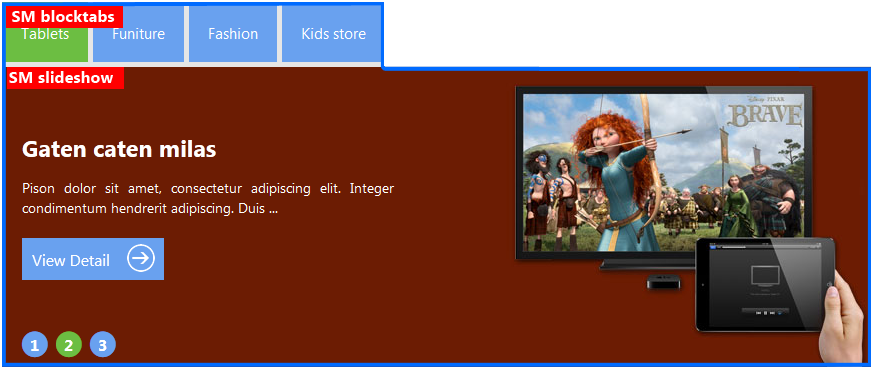
7.3 Configuration
Backend Settings: Click here
To get this SM Block Tabs and SM SlideShow to show onto the front page as DEMO, go to CMS > Pages >> Homepage >> In Design tab, please fill in Layout Update XML parameter -between tag as below :
<reference name="content-top">

	<block type="blocktabs/tabs" name="yeah" template="sm/blocktabs/tabs.phtml">

	        <block type="slideshow/list" name="tab1">

                       <action method="setConfig">

 				<values>

					<theme>theme1</theme>

                                        <product_limitation>3</product_limitation>

                                         <product_category>261</product_category>

                                        <product_description_max_characters>100</product_description_max_characters>

				</values>

			</action>

                       <action method="setData">

                                   <name>block_title</name>

                                   <value>Tablets</value>

                         </action>

		</block>

		<block type="slideshow/list" name="tab2">

                       <action method="setConfig">

 				<values>

					<theme>theme1</theme>

                                        <product_limitation>3</product_limitation>

                                          <product_category>262</product_category>

                                        <product_description_max_characters>100</product_description_max_characters>

				</values>

			</action>

                       <action method="setData">

                                   <name>block_title</name>

                                   <value>Furniture</value>

                         </action>

		</block>

                <block type="slideshow/list" name="tab3">

                       <action method="setConfig">

 				<values>

					<theme>theme1</theme>

                                        <product_limitation>3</product_limitation>

                                        <product_category>263</product_category>

                                        <product_description_max_characters>100</product_description_max_characters>

				</values>

			</action>

                       <action method="setData">

                                   <name>block_title</name>

                                   <value>Fashion</value>

                         </action>

		</block>

		<block type="slideshow/list" name="tab4">

                       <action method="setConfig">

 				<values>

					<theme>theme1</theme>

                                        <product_limitation>3</product_limitation>

                                        <product_category>264</product_category>

                                        <product_description_max_characters>100</product_description_max_characters>

				</values>

			</action>

                       <action method="setData">

                                   <name>block_title</name>

                                   <value>Kids store</value>

                         </action>

		</block>

	</block>

        <block type="cms/block" name="block-bannersupport">

		<action method="setBlockId"><block_id>block-bannersupport</block_id></action>

	</block>

</reference>
8. SM Scrollbar
8.1 Position
SM Scrollbar
8.2 Front-end appreance

8.3 Configuration
Backend: Click here
To get this SM Block Tabs and SM Bacsic Products to show onto the front page as DEMO, go to CMS > Pages >> Homepage >> In Design tab, please fill in Layout Update XML parameter -between tag as below :
<reference name="scrollbar">

<block type="scrollbar/list" name="scrollbar">

</block>

</reference>
How to configure blocks
The SM AmazAi??front-page has static blocks in the Theme:
- block-banersupport
- block-news
- block-banner-freeship
- block-community
- block-banner-green
- block-banner-blue
- block-info-footer
- block-info-services
- block-contact-us
- block-twitter
- block-payment
- block-user5
To create static blocks, go to CMS >> Static Blocks >>Ai??Add new block
1.Ai??block-banersupport
1.1.Ai?? Identifier
block-banersupport
1.2. Front-end Appearance

1.3. Backend settings: Click here
1.4. Code to display as demo
<div class="block-banner block-support"><em class="icon-support"></em>

<div class="support-info"><span>1-800-999-000</span><br />

<p>Call us Monday - Saturday: 8:30 am - 6:00 pm</p>

</div>

</div>
2. block-news
2.1.Ai?? Identifier
block-news
2.2. Front-end Appearance

2.3. Backend settings: Click here
2.4. Code to display as demo
<div class="block block-news"><em class="news-tit"></em>

<div class="block-title"><span>News</span></div>

<div class="news-content">

<ul class="list-news">

<li>

<div class="date-news fl"><span> 23 <br /> oct</span></div>

<div class="cont-news fl"><span class="news-title"> <a href="/index.php/admin/cms_wysiwyg/directive/___directive/e3tjb25maWcgcGF0aD0id2ViL3Vuc2VjdXJlL2Jhc2VfdXJsIn19/key/afe4a836e80c855e636d1cf60bc3f568/news-example">Magento theme SM Amaz </a> </span>

<div class="news-des">Fusce euismod consequat ante. Lorem dolor ...

<div class="readmore"><a href="/index.php/admin/cms_wysiwyg/directive/___directive/e3tjb25maWcgcGF0aD0id2ViL3Vuc2VjdXJlL2Jhc2VfdXJsIn19/key/afe4a836e80c855e636d1cf60bc3f568/news-example"> Read more </a></div>

</div>

</div>

</li>

<li>

<div class="date-news fl"><span> 23 <br /> oct</span></div>

<div class="cont-news fl"><span class="news-title"> <a href="/index.php/admin/cms_wysiwyg/directive/___directive/e3tjb25maWcgcGF0aD0id2ViL3Vuc2VjdXJlL2Jhc2VfdXJsIn19/key/afe4a836e80c855e636d1cf60bc3f568/news-example">Magento theme SM Amaz </a> </span>

<div class="news-des">Fusce euismod consequat ante. Lorem dolor ...

<div class="readmore"><a href="/index.php/admin/cms_wysiwyg/directive/___directive/e3tjb25maWcgcGF0aD0id2ViL3Vuc2VjdXJlL2Jhc2VfdXJsIn19/key/afe4a836e80c855e636d1cf60bc3f568/news-example"> Read more </a></div>

</div>

</div>

</li>

<li>

<div class="date-news fl"><span> 22 <br /> oct</span></div>

<div class="cont-news fl"><span class="news-title"> <a href="/index.php/admin/cms_wysiwyg/directive/___directive/e3tjb25maWcgcGF0aD0id2ViL3Vuc2VjdXJlL2Jhc2VfdXJsIn19/key/afe4a836e80c855e636d1cf60bc3f568/news-example">Magento theme SM Amaz </a> </span>

<div class="news-des">Fusce euismod consequat ante. Lorem dolor ...

<div class="readmore"><a href="/index.php/admin/cms_wysiwyg/directive/___directive/e3tjb25maWcgcGF0aD0id2ViL3Vuc2VjdXJlL2Jhc2VfdXJsIn19/key/afe4a836e80c855e636d1cf60bc3f568/news-example"> Read more </a></div>

</div>

</div>

</li>

<li>

<div class="date-news fl"><span> 23 <br /> oct</span></div>

<div class="cont-news fl"><span class="news-title"> <a href="/index.php/admin/cms_wysiwyg/directive/___directive/e3tjb25maWcgcGF0aD0id2ViL3Vuc2VjdXJlL2Jhc2VfdXJsIn19/key/afe4a836e80c855e636d1cf60bc3f568/news-example">Magento theme SM Amaz </a> </span>

<div class="news-des">Fusce euismod consequat ante. Lorem dolor ...

<div class="readmore"><a href="/index.php/admin/cms_wysiwyg/directive/___directive/e3tjb25maWcgcGF0aD0id2ViL3Vuc2VjdXJlL2Jhc2VfdXJsIn19/key/afe4a836e80c855e636d1cf60bc3f568/news-example"> Read more </a></div>

</div>

</div>

</li>

</ul>

</div>

</div>
3.Ai??block-banner-freeship
3.1. Ai??Identifier
block-banner-freeship
3.2. Front-end Appearance

3.3. Backend settings: Click here
3.4. Code to display as demo
<div class="block-banner block-freeship"><em class="icon-freeship"></em>

<div class="freeship"><span>Free Shipping</span><br /> On Orders Over $ 999</div>

</div>
4.Ai??block-community
4.1. Ai??Identifier
block-community
4.2. Front-end Appearance

4.3. Backend settings: Click here
4.4. Code to display as demo
<div class="block block-community"><br>

<ul><br>

<li class="community-fb"><a class="icon-facebook" href="http://www.facebook.com/MagenTech" mce_href="http://www.facebook.com/MagenTech"></a><br mce_bogus="1"></li><br>

<li class="community-rss"><a class="icon-rss" href="/{{config path=" mce_href="/{{config path="></a><br mce_bogus="1"></li><br>

<li class="community-youtube"><a class="icon-youtube" href="#" mce_href="#"></a><br mce_bogus="1"></li><br>

<li class="community-twitter"><a class="icon-twitter" href="https://twitter.com/magentech" mce_href="https://twitter.com/magentech"></a><br mce_bogus="1"></li><br>

</ul><br>

</div>
5.Ai??block-banner-green
5.1. Ai??Identifier
block-banner-green
5.2. Front-end Appearance

5.3. Backend settings: Click here
5.4. Code to display as demo
<div class="block block-banner-green">

<h1 class="product-tit">Lorem ipsum dolor</h1>

<span class="brief clearfix"> Lorem ipsum dolor sit amet conse ctetur adipisicing elit, sed do eiusmod tempor incididunt ut labore et dolore magna aliqua. Ut enim ad minim veniam... </span>

<div class="off clearfix"><span>Sale off 20 %</span></div>

<img title="" src="/index.php/admin/cms_wysiwyg/directive/___directive/e3tza2luIHVybD0iaW1hZ2VzL2ltZy1wcm8tc2FsZW9mZi5wbmcifX0,/key/afe4a836e80c855e636d1cf60bc3f568/" alt="" width="291" height="331" /></div>
6.Ai??block-banner-blue
6.1. Ai??Identifier
block-banner-blue
6.2. Front-end Appearance

6.3. Backend settings: Click here
6.4. Code to display as demo
<div class="block block-banner-blue">

<h1 class="product-tit">Lorem ipsum dolor</h1>

<img title="" src="/index.php/admin/cms_wysiwyg/directive/___directive/e3tza2luIHVybD0iaW1hZ2VzL2ltZy1wcm8tc2FsZW9mZjEucG5nIn19/key/afe4a836e80c855e636d1cf60bc3f568/" alt="" width="179" height="188" />

<div class="brief">Lorem ipsum dolor sit amet conse ctetur adipisicing elit, sed ...</div>

<div class="off"><span>Sale off 25 %</span></div>

</div>
7.Ai??block-info-footer

7.1. Ai??Identifier
block-info-footer
7.2. Front-end Appearance
7.3. Backend settings: Click here
7.4. Code to display as demo
<div class="block-footer-content">

<div class="block-title-footer">Information</div>

<div class="block-content-info">

<ul>

<li class="nav-item"><a href="/index.php/admin/cms_wysiwyg/directive/___directive/e3tjb25maWcgcGF0aD0id2ViL3Vuc2VjdXJlL2Jhc2VfdXJsIn19/key/afe4a836e80c855e636d1cf60bc3f568/contacts">Contact</a></li>

<li class="nav-item"><a href="/index.php/admin/cms_wysiwyg/directive/___directive/e3tjb25maWcgcGF0aD0id2ViL3Vuc2VjdXJlL2Jhc2VfdXJsIn19/key/afe4a836e80c855e636d1cf60bc3f568/catalog/seo_sitemap/category/">Sitemap</a></li>

<li class="nav-item"><a href="#">Legal Notice</a></li>

<li class="nav-item"><a href="#">Terms and Conditions</a></li>

<li class="nav-item"><a href="/index.php/admin/cms_wysiwyg/directive/___directive/e3tjb25maWcgcGF0aD0id2ViL3Vuc2VjdXJlL2Jhc2VfdXJsIn19/key/afe4a836e80c855e636d1cf60bc3f568/about-us">About Us</a></li>

</ul>

</div>

</div>
8.Ai??block-info-services
8.1. Ai??Identifier
block-info-services
8.2. Front-end Appearance

8.3. Backend settings: Click here
8.4. Code to display as demo
<div class="block-footer-content"> <div class="block-title-footer">Why Choose Us</div> <div class="block-content-info"> <ul> <li class="nav-item"><a href="# ">Shipping & Returns</a></li> <li class="nav-item"><a href="#">Secure Shopping</a></li> <li class="nav-item"><a href="#">International Shipping</a></li> <li class="nav-item"><a href="#">Affiliates</a></li> <li class="nav-item"><a href="#">Group Sales</a></li> </ul> </div> </div>
9.Ai??block-contact-us
9.1. Ai??Identifier
block-contact-us
9.2. Front-end Appearance

9.3. Backend settings: Click here
9.4. Code to display as demo
<div class="block-footer-content">

<div class="block-title-footer">Contact us</div>

<div class="block-content-info">

<ul>

<ul>

<li><span>Add 1</span> : 40th Street, Oakland, California, United States</li>

<li><span>Add 2</span> : 70th Street, Oakland, California, United States</li>

</ul>

</ul>

<br />

<ul>

<ul>

<li><span>Phone : </span>(084) - 00 - 12345678</li>

<li class="phone">(084) - 00 - 12345678</li>

</u

</ul>

<br/>

<ul>

<li><span>Email</span> : <a href="mailto:contact@ytcvn.com">contact@ytcvn.com</a></li>

</ul>

</div>

</div>
10.Ai??block-twitter
10.1. Ai??Identifier
block-news
10.2. Front-end Appearance

10.3. Backend settings: Click here
10.4. Code to display as demo
<p><a class="twitter-timeline" href="https://twitter.com/MagenTech" data-widget-id="334892754301755392" data-tweet-limit="2" data-link-color="#6CBE42" data-chrome="noheader nofooter noborders transparent " data-theme="dark">Tweets by @MagenTech</a></p>


<script type="text/javascript">// <![CDATA[


!function(d,s,id){var js,fjs=d.getElementsByTagName(s)[0],p=/^http:/.test(d.location)?'http':'https';if(!d.getElementById(id)){js=d.createElement(s);js.id=id;js.src=p+"://platform.twitter.com/widgets.js";fjs.parentNode.insertBefore(js,fjs);}}(document,"script","twitter-wjs");

// ]]></script>
11.Ai??block-payment
11.1. Ai??Identifier
block-payment
11.2. Front-end Appearance

11.3. Backend settings: Click here
11.4. Code to display as demo
<p><a href="#"><img src="/index.php/admin/cms_wysiwyg/directive/___directive/e3tza2luIHVybD0iaW1hZ2VzL3BheW1lbnQvbG9nby1lZ29sZC5wbmcifX0,/key/afe4a836e80c855e636d1cf60bc3f568/" alt="image" /> </a> <a href="#"><img src="/index.php/admin/cms_wysiwyg/directive/___directive/e3tza2luIHVybD0iaW1hZ2VzL3BheW1lbnQvbG9nby1kZWx0YS5wbmcifX0,/key/afe4a836e80c855e636d1cf60bc3f568/" alt="image" /> </a> <a href="#"><img src="/index.php/admin/cms_wysiwyg/directive/___directive/e3tza2luIHVybD0iaW1hZ2VzL3BheW1lbnQvbG9nby12aXNhLnBuZyJ9fQ,,/key/afe4a836e80c855e636d1cf60bc3f568/" alt="image" /><img src="/index.php/admin/cms_wysiwyg/directive/___directive/e3tza2luIHVybD0iaW1hZ2VzL3BheW1lbnQvbG9nby1tYXN0ZXIucG5nIn19/key/afe4a836e80c855e636d1cf60bc3f568/" alt="image" /> </a></p>
12.Ai??block-user5
12.1. Ai??Identifier
block-user5
12.2. Front-end Appearance

12.3. Backend settings: Click here
12.4. Code to display as demo
<div class="block block-newsletter"> <div class="newsletter-title"><em class="newsletter-tit"></em> <span>Get deal</span></div> <div class="block-content-info"><form id="newsletter-validate-detail" action="newsletter/subscriber/new/" method="post"> <p>Get exclusive deal offers delivered right to your inbox</p> <div class="input-box"><input id="newsletter" class="input-text required-entry validate-email" title="Sign up for our newsletter" onfocus="if(this.value=='Enter your email...') this.value='';" onblur="if(this.value=='') this.value='Enter your email...';" type="text" name="email" value="Enter your email..." /> <div class="actions"><button class="button" type="button"><span> </span></button></div> </div> </form></div> </div>
How to configure pages
Ai??Home Page
To config this page, please navigate to CMS >> Pages, create Home page, navigate to tab Design and update with the following settings:
- Layout : select 1Ai??columnAi??on drop down list
- Layout Update XML: Paste the code below
PHP Code:
<reference name="content-top">

	<block type="blocktabs/tabs" name="yeah" template="sm/blocktabs/tabs.phtml">


	        <block type="slideshow/list" name="tab1">

                       <action method="setConfig">

 				<values>

					<theme>theme1</theme>

                                        <product_limitation>3</product_limitation>

                                         <product_category>261</product_category>

                                        <product_description_max_characters>100</product_description_max_characters>

				</values>

			</action>

                       <action method="setData">

                                   <name>block_title</name>

                                   <value>Tablets</value>

                         </action>

		</block>


		<block type="slideshow/list" name="tab2">

                       <action method="setConfig">

 				<values>

					<theme>theme1</theme>

                                        <product_limitation>3</product_limitation>

                                          <product_category>262</product_category>

                                        <product_description_max_characters>100</product_description_max_characters>

				</values>

			</action>

                       <action method="setData">

                                   <name>block_title</name>

                                   <value>Furniture</value>

                         </action>

		</block>

                <block type="slideshow/list" name="tab3">

                       <action method="setConfig">

 				<values>

					<theme>theme1</theme>

                                        <product_limitation>3</product_limitation>

                                        <product_category>263</product_category>

                                        <product_description_max_characters>100</product_description_max_characters>

				</values>

			</action>

                       <action method="setData">

                                   <name>block_title</name>

                                   <value>Fashion</value>

                         </action>

		</block>

		<block type="slideshow/list" name="tab4">

                       <action method="setConfig">

 				<values>

					<theme>theme1</theme>

                                        <product_limitation>3</product_limitation>

                                        <product_category>264</product_category>

                                        <product_description_max_characters>100</product_description_max_characters>

				</values>

			</action>

                       <action method="setData">

                                   <name>block_title</name>

                                   <value>Kids store</value>

                         </action>

		</block>

	</block>

        <block type="cms/block" name="block-bannersupport">

		<action method="setBlockId"><block_id>block-bannersupport</block_id></action>

	</block>

</reference>


<reference name="content">

	   <block type="slider/list" name="slider.list" template="sm/slider/default.phtml">

			<action method="setConfig">

 				<values>

					<block_title></block_title>

					<slider_title_text>Featured Products</slider_title_text>

                                         <product_category>138</product_category>

                                        <product_image_width>270</product_image_width>

                                        <product_image_height>270</product_image_height>

                                        <product_limitation>6</product_limitation>

                                        <product_description_disp>1</product_description_disp>

                                        <duration>300</duration>

                                        <deviceclass_sfx>preset01-3 preset02-3 preset03-2 preset04-1 preset05-1</deviceclass_sfx>

				</values>

			</action>

           </block>

</reference>


<reference name="content-bottom">

<block type="blocktabs/tabs" name="yeah1" template="sm/blocktabs/tabs.phtml">

			<block type="basicproducts/home" name="tab1" template="sm/basicproducts/featured.phtml">

			<action method="setConfig">

 				<values>

					<block_title>Latest Products</block_title>

					<title></title>

                                        <product_source>catalog</product_source>

                                        <product_category>74</product_category>

                                        <product_limitation>6</product_limitation>

					<product_image_width>270</product_image_width>

					<product_image_height>270</product_image_height>

                                       <product_title_disp>1</product_title_disp>

					<product_price_disp>1</product_price_disp>

					<product_description_disp>1</product_description_disp>

					<product_rating_summary>1</product_rating_summary>

					<product_cart_or_status>1</product_cart_or_status>

					<product_addtocompare>1</product_addtocompare>

					<product_addtowishlist>1</product_addtowishlist>

				</values>

			</action>

                  </block>

                 <block type="basicproducts/home" name="tab2" template="sm/basicproducts/featured.phtml">

	        		<action method="setConfig">

				<values>

					<block_title>Popular Products</block_title>

					<title></title>

                                        <product_source>catalog</product_source>

                                        <product_category>121</product_category>

					<product_order_by>name</product_order_by>

                                         <product_order_dir>DESC</product_order_dir>

                                        <product_limitation>6</product_limitation>

					<product_image_width>270</product_image_width>

					<product_image_height>270</product_image_height>

                                         <product_title_disp>1</product_title_disp>

					<product_price_disp>1</product_price_disp>

					<product_description_disp>1</product_description_disp>

					<product_rating_summary>1</product_rating_summary>

					<product_cart_or_status>1</product_cart_or_status>

					<product_addtocompare>1</product_addtocompare>

					<product_addtowishlist>1</product_addtowishlist>

				</values>

        		</action>

				</block>

                 <block type="basicproducts/home" name="tab3" template="sm/basicproducts/featured.phtml">

        		<action method="setConfig">

				<values>

					<block_title>Best Sales</block_title>

					<title></title>

                                        <product_source>catalog</product_source>

                                        <product_category>137</product_category>

					<product_order_by>name</product_order_by>

                                        <product_limitation>10</product_limitation>

					<product_image_width>270</product_image_width>

					<product_image_height>270</product_image_height>

                                         <product_title_disp>1</product_title_disp>

					<product_price_disp>1</product_price_disp>

					<product_description_disp>1</product_description_disp>

					<product_rating_summary>1</product_rating_summary>

					<product_cart_or_status>1</product_cart_or_status>

					<product_addtocompare>1</product_addtocompare>

					<product_addtowishlist>1</product_addtowishlist>

				</values>

        		</action>

		</block>

	</block>

 <block type="cms/block" name="block-banner-freeship">

				<action method="setBlockId"><block_id>block-banner-freeship</block_id></action>

			</block>

</reference>

<reference name="banner-green">

 <block type="cms/block" name="block-banner-green">

				<action method="setBlockId"><block_id>block-banner-green</block_id></action>

			</block>

</reference>

<reference name="banner-blue">

 <block type="cms/block" name="block-banner-blue">

				<action method="setBlockId"><block_id>block-banner-blue</block_id></action>

			</block>

</reference>

<reference name="scrollbar">

<block type="scrollbar/list" name="scrollbar">

</block>

</reference>
Support
Support from MagenTech will be defined as following:
- Support time: Monday – Friday 8:30AM to 5:30PM UTC+7
- Response Time: Within 24 hours (1 business day)
Item support includes:
- Responding to questions or problems regarding the item and its features
- Fixing bugs and reported issues
- Providing updates to ensure compatibility with new software versions
Item support does not include:
- Customization and installation services
- Support for 3rd parties’ extensions
Installation Services-Quickstart installation services cost $25:
That’s it. Now you are ready for using!
Once again, thank you so much for purchasing this theme. As we said at the beginning, we would be glad to help you if you have any questions relating to this theme. No guarantees, but we’ll do the best to assist. If you have a more general question relating to the themes on ThemeForest, you might consider visiting the our ticket system and send support request via Support Tickets System.
Thanks so much!
SM Bakery – Responsive Magento Theme
Introduction
- Created: 09/15/2013
- Latest update: 09/17/2013
- By: MagenTech
- Email: themeforest@magentech.com
When you download theme from our store and unzip, you will be got full of main files for theme installation. They're:
-
Theme Package: Use this package to install to your current site. This contains the theme files only.
-
QuickStart Installation Package: This package included modules, theme, sample data.
-
Extension Packages: Modules in-house which we used for the demo.
-
PSD Sources: All PSD design themes
-
Documentation: Detail userguide to install and configure theme
INSTALLATION GUIDE
There are two ways to install a MagenTech theme:
-
Install quickstart: By using this package, you will set the theme exactly as Demo. This is applied when you need a fresh Magento with our theme.
-
Install Theme and Extensions: This is applied when you have already installed a Magento instance on your server. You will need only be using the zipped files in “Extensions” and “Theme” folders mentioned above. Please follow below instruction about how to install theme and extensions:
System Requirements
Magento Community Edition 1.7.x and 1.8.x
Download: http://www.magentocommerce.com/download
Magento Quickstart Installation
Magentech provides SM Quickstart package for each template which aims to ease the installation for users. It will help you save much time of installing and configuring if you plan to start your site from the beginning.
Please following steps below (we used images of SM Bakery theme installation to illustrate for general installations – Magento Quickstart Installation – Magento Theme Installation – Magento Extension Installation):
-
Step 1: Download the quickstart package
-
Step 2: Extract and Upload the whole Quickstart package to your server. In Quickstart folder you will see the extracted folder that include all sample data
-
Step 3: Create a database for your Magento (using phpmyadmin)
-
Step 4: Start installation by opening browser and navigate to your url (where the quickstart uploaded) to load default Magento installer.

-
Step 5: Finish installation
Important notes:
-
Do not use "localhost" in URL, otherwise you could not log in your admin (you should use your local IP if installing on your computer.).

-
At step 3 of installation – Configuration page: Leave "Tables prefix" blank
Magento Theme Installation
Before you start the installation process of this theme, we recommend to back up your current live Magento files and database. If your store has not been available yet, get it quickly following Magento Installation Guide
The installation of our theme is quite simple. You just need follow steps below to get our theme ready for your Magento store:
-
Step 1: Upload folders skin and app from our download package to your Web server's document root (from here on, referenced as {docroot}). These files will overwrite default folders skin and app in your Magento folder, you should see a directory layout like this:
{docroot} /magento/
app/
index.php
js/
lib/
LICENSE.txt
media/
pear/
skin/
var/
-
Step 2: Login your Magento Admin area (ex: access Magento Admin area: http://YOUR_DOMAIN/magento/index.php/admin/)
-
Step 3: Navigate to System =>Configuration =>Design as per screenshot below (steps in following images used SM Bakery theme for example)
-
Step 4: Fill texts to the "Package" and "Themes" sections as per screenshorts below:

-
Step 5: Finally, Refer here to configure Theme and then save your configuration
Magento Extension Installation
Before you start the installation process of this theme, we recommend to back up your current live Magento files and database. If your store has not been available yet, get it quickly following Magento Installation Guide
You just need following steps below to get our extensions ready for your Magento store:
-
Step 1: Upload folders skin and app from our download package to your Web server's document root (from here on, referenced as {docroot}). These files will overwrite default folders skin and app in your Magento folder, you should see a directory layout like this:
{docroot} /magento/
app/
index.php
js/
lib/
LICENSE.txt
media/
pear/
skin/
var/
-
Step 2: Login your Magento Admin area (ex: access Magento Admin area: http://YOUR_DOMAIN/magento/index.php/admin/)
-
Step 3: Navigate to System =>Configuration

-
Step 4: You will see installed extension, click extension's name tab to go to extension configuration page.
General Configuration
Configure homepage
1. Select the homepage from CMS Pages
2. Select Homepage >> Design on the left-hand menu.
3. In the Layout Update XML box, add the code as you want, this is our demo homepage:
<reference name="slideshow">


<block type="slickslider/list" name="slickslider.list"/></reference>


<reference name="content-top">


                <block type="basicproducts/home" name="tab1" template="smartaddons/basicproducts/feature.phtml">


			<action method="setConfig">


 				<values>


					<block_title>Featured Products</block_title>


					<title></title>


                                        <product_source>catalog</product_source>


                                        <product_category>68</product_category>


					<product_order_by>price</product_order_by>


                                        <num_columns>4</num_columns>


                                        <product_limitation>8</product_limitation>


					<product_image_width>200</product_image_width>


					<product_image_height>135</product_image_height>


					<product_price_disp>1</product_price_disp>


					<product_rating_summary>0</product_rating_summary>


					<product_cart_or_status>1</product_cart_or_status>


					<product_addtocompare>0</product_addtocompare>


					<product_addtowishlist>0</product_addtowishlist>


				</values>


			</action>


                  </block>


</reference>


<reference name="content-bottom">


        	<block type="basicproducts/home" name="basicproducts.bestsales" template="smartaddons/basicproducts/bestsales.phtml">


        		<action method="setConfig">


					<values>


						<product_limitation>20</product_limitation>


					        <product_cart_or_status>1</product_cart_or_status>


					</values>


        		</action>


		</block></reference>
4. Click the Save Page button.
Configure theme using admin back end
For easing the theme configuration, we has been created Cpanel in both backend and frontend, this is SM Bakery configuration in backend:
1. Under Magento admin panel, go to System >> Configuration
2. Select SM Bakery Theme on the left-hand menu
3. Tweak the theme as you want

Configure theme using Cpanel front end
This is fontend, identical to what has in backend:

Color Sample
5 presets to be chosen
1 Body
Background, Link and Text color
2 Header
Background image and color
3 Footer
Background image and color
4 Menu Style
3 options to be chosen: Mega, CSS or Split
5 Typography
Google Font, various font-size and font-family
How to configure Mega Menu
1. Position
To replace default main menu
2. Configuration
To config General settings, module parameters, Advance, login your administrator, go to SM Mega Menu >> Configuration


3. Mega Menu Items
In order to add menu items, Go to SM Mega Menu >> Menu items Manager
You must create add new Menu Group.
The settings below belong to SM Bakery group. Other group has similar settings menu item
3.1 Home Menu
Front-end appreance

Backend Settings: Click here
3.2 Paris Gateaux Menu
Front-end appreance

Backend Settings: Click here
3.3 Donus Menu
Front-end appreance

Backend Settings: Click here
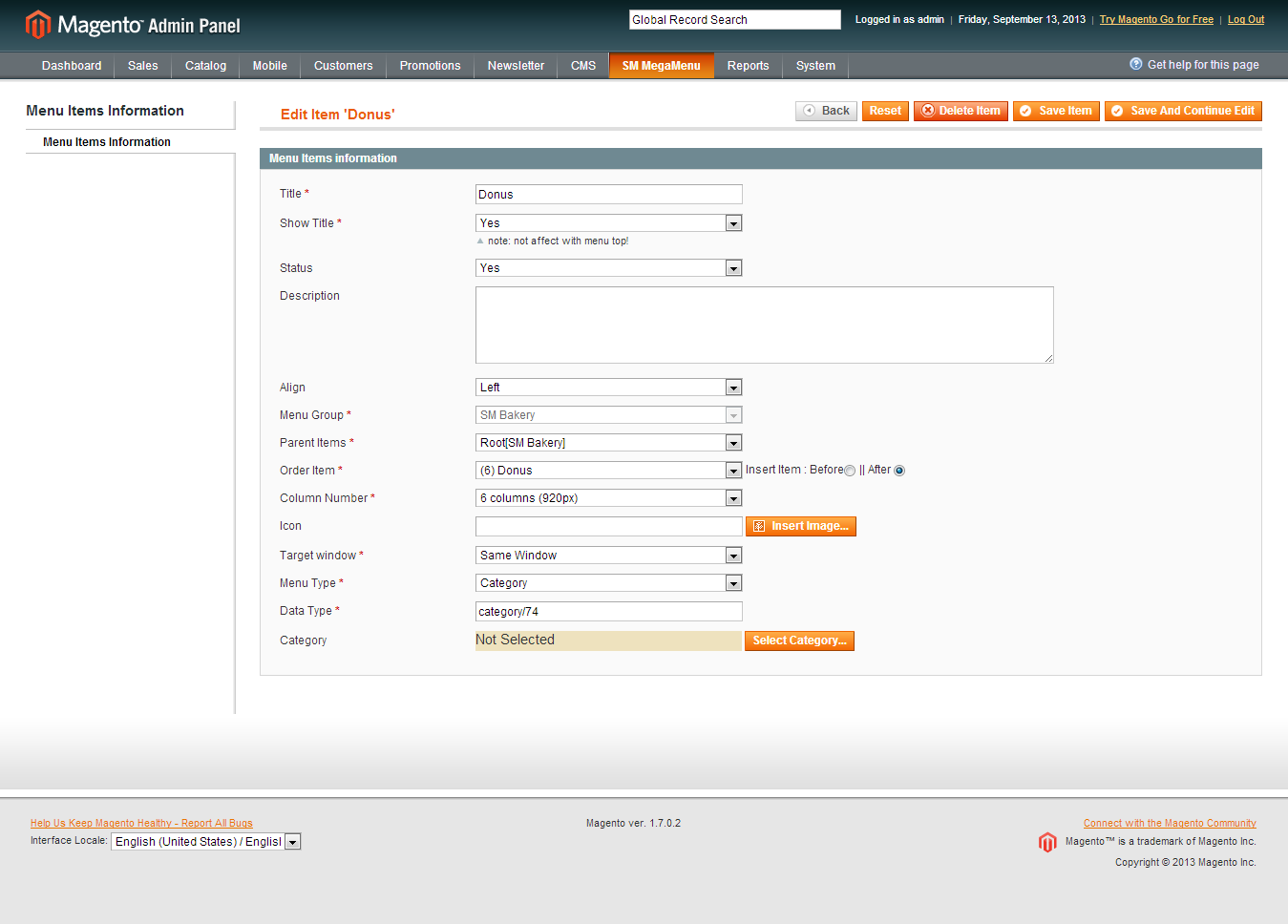
Category List: Backend
sub cat: Backend
3.4 Our cake Menu
Front-end appreance

Backend Settings: Click here
Category List: Backend
Feature Products: Backend
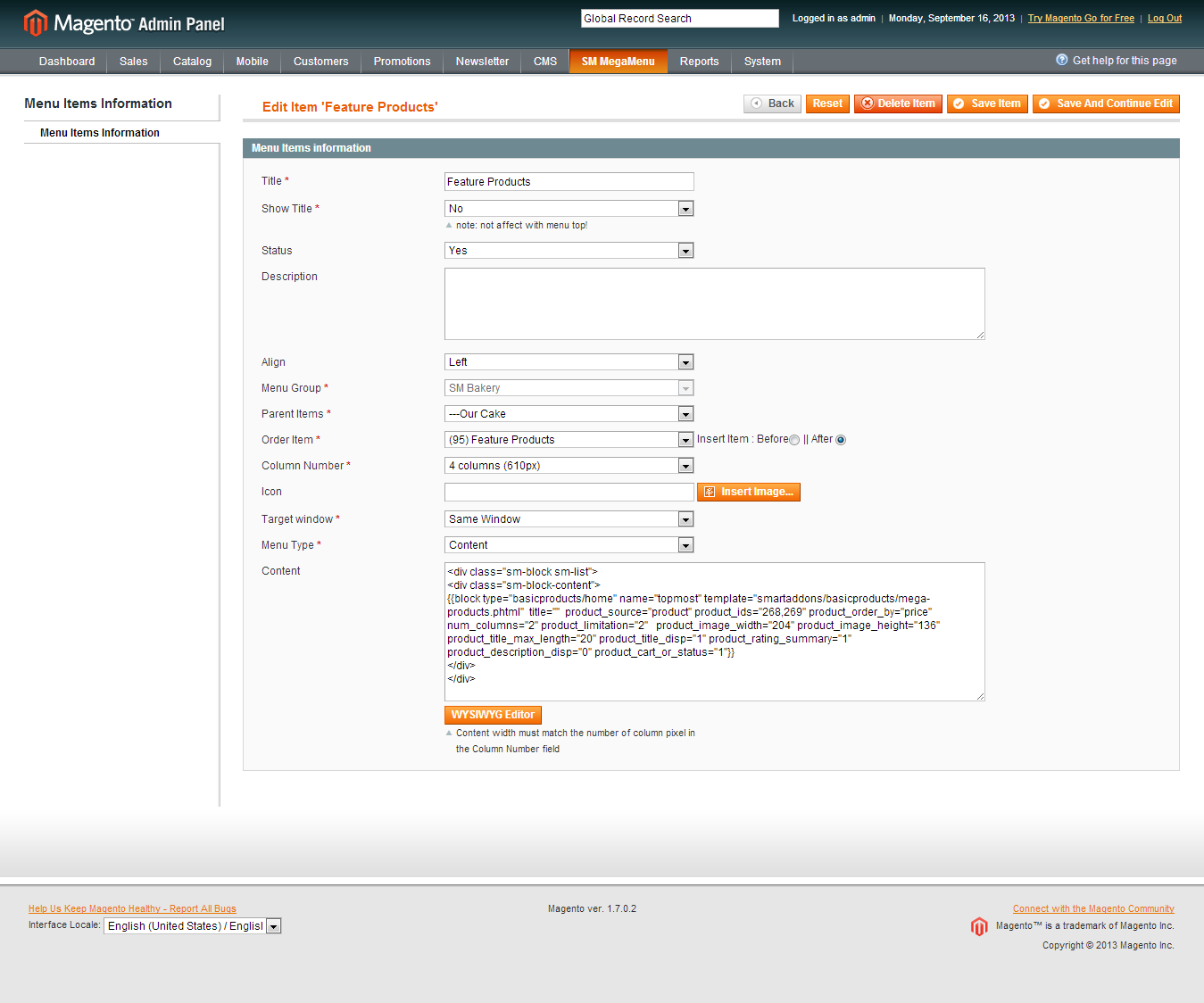
The below is the code of Feature Product Content:
<div class="sm-block sm-list">


<div class="sm-block-content">


{{block type="basicproducts/home" name="topmost" template="smartaddons/basicproducts/mega-products.phtml"  title=""  product_source="product" product_ids="268,269" product_order_by="price" num_columns="2" product_limitation="2"   product_image_width="204" product_image_height="136"  product_title_max_length="20" product_title_disp="1" product_rating_summary="1" product_description_disp="0" product_cart_or_status="1"}}


</div>


</div>
3.5 Contact and About us
Backend:
You should go to here for reading more configure:
Layout Positions

How to configure Extensions
1. SM Slick Slider Module
1.1 Position
slideshow
1.2 Front-end appreance

1.3 Configuration:
Backend: Click here
To get this extension to show onto the front page at the up top position, go to CMS > Pages >> Homepage >> In Design tab, please fill in Layout Update XML parameter -between tag as below :
<reference name="slideshow">


<block type="slickslider/list" name="slickslider.list">


                       <action method="setConfig">


                                <values>


<module_width>940</module_width>


</values>


</action>


</block>


</reference>
2. SM Basic Products
2.1 Position
tabs1
2.2 Front-end appreance

2.3 Configuration
Backend: Click here
To get this extension to show onto the front page at the up top position, go to CMS > Pages >> Homepage >> In Design tab, please fill in Layout Update XML parameter -between tag as below :
<reference name="topsl">


       <block type="blocktabs/tabs" name="tabs1" template="smartaddons/blocktabs/tabs.phtml">


                    <block type="basicproducts/home" name="tab1" template="smartaddons/basicproducts/home2.phtml">


			<action method="setConfig">


 				<values>


					<block_title></block_title>


					<title>Featured Cakes</title>


                                        <product_source>catalog</product_source>


                                        <product_category>87</product_category>


					<product_order_by>price</product_order_by>


                                        <num_columns>10</num_columns>


                                        <product_limitation>10</product_limitation>


					<product_image_width>204</product_image_width>


					<product_image_height>136</product_image_height>


					<product_price_disp>1</product_price_disp>


					<product_description_disp>1</product_description_disp>


					<product_description_max_length>50</product_description_max_length>


					<product_rating_summary>0</product_rating_summary>


					<product_cart_or_status>1</product_cart_or_status>


					<product_addtocompare>0</product_addtocompare>


					<product_addtowishlist>0</product_addtowishlist>


				</values>


			</action>


                  </block>


       </block>


</reference>
3. SM Block Tabs
3.1 Position
tabs1
3.2 Front-end appreance
3.3 Configuration
Backend: Click here
How to configure blocks
The SM Bakery front-page has static blocks in the Theme:
-
block-user1
-
block-user2
-
block-user4
-
block-info-footer
-
block-contact-us
-
block-popular-tags
-
block-freeshipping
-
block-custombox
-
block-likebox
To create static blocks, go to CMS >> Static Blocks >> Add new block
1. Block-user1
1.1. Identifier
block-user1
1.2. Front-end Appearance

1.3. Backend settings: Click here
1.4. Code to display as demo
<div class="block-title"><span>Opening Hours</span></div>


<div class="block-content"><span class="block-desc">Halvah apple pie cake lollipop lollipop cookie. Carrot cake bonbon.</span>


<ul>


<li><a href="#">MON to TUE - 10 AM to 10 PM</a></li>


<li><a href="#">SAT - 12 AM to 12 PM</a></li>


<li><a href="#">SUN - 12 AM to 12 PM</a></li>


</ul>


</div>
2.1. Identifier
block-user2
2.2. Front-end Appearance

2.3. Backend settings: Click here
2.4. Code to display as demo
<div class="block-title"><span>Why Choose Us</span></div> <div class="block-content"> <ul> <li><a href="#">Shipping & Returns</a></li> <li><a href="#">Secure Shopping</a></li> <li><a href="#">International Shipping</a></li> <li><a href="#">Affiliates</a></li> <li><a href="#">Group Sales</a></li> </ul> </div>
3. Block-user4
3.1. Identifier
block-user4
3.2. Front-end Appearance

3.3. Backend settings: Click here
3.4. Code to display as demo
<div class="block-title"><span>Social with Us</span></div>


<div class="block-content">


<ul>


<li><a class="logo-facebook logo-item" href="http://www.facebook.com/MagenTech"><span class="harrow"><span class="farrow">facebook</span></span></a></li>


<li><a class="logo-flick logo-item" href="http://www.flickr.com"><span class="harrow"><span class="farrow">flick</span></span></a></li>


<li><a class="logo-twitter logo-item" href="http://twitter.com/smartaddons"><span class="harrow"><span class="farrow">twitter</span></span></a></li>


<li><a class="logo-vimeo logo-item" href="http://vimeo.com/"><span class="harrow"><span class="farrow">vimeo</span></span></a></li>


<li><a class="logo-linkin logo-item" href="http://linkin.com/"><span class="harrow"><span class="farrow">linkin</span></span></a></li>


<li><a class="logo-rss logo-item" href="#"><span class="harrow"><span class="farrow">rss</span></span></a></li>


<!--<li><a class="logo-googleplus logo-item" href="#"><span class="harrow"><span class="farrow">google+</span></span></a></li>


<li><a class="logo-youtube logo-item" href="#"><span class="harrow"><span class="farrow">youtube</span></span></a></li>


<li><a class="logo-email logo-item" href="mailto:admin@magentech.com"><span class="harrow"><span class="farrow">email</span></span></a></li>--></ul>


<div class="logo-payment">Payment methods</div>


</div>
4. Block-contact-us
4.1. Identifier
block-contact-us
4.2. Front-end Appearance

4.3. Backend settings: Click here
4.4. Code to display as demo
<div class="block-contact-us">


<div class="block-title"><span>Contact Information</span></div>


<div class="block-content clearfix">


<ul>


<li><span class="mobi-contact">+ 084 - 04 - 1234567</span></li>


<li><span class="address-contact">Santiego Interpro Road - owando Madison District - East Englewood City</span></li>


<li class="last"><a class="linkcontact" href="mailto:contact@ytcvn.com">contact@ytcvn.com</a></li>


</ul>


</div>


</div>
5. Block-free-shipping
5.1. Identifier
5.2. Front-end Appearance

5.3. Backend settings: Click here
5.4. Code to display as demo
<div class="block-title"><span class="sub-title">Free Shipping</span><span>on orders over $99. This offer is valid on all our store items</span></div>


<div class="block-content">


<div class="block-regular">


<div class="row-fluid">


<div class="banner span3"><a href="#"> <img src="/index.php/admin/cms_wysiwyg/directive/___directive/e3ttZWRpYSB1cmw9Ind5c2l3eWcvYmFubmVyMS5wbmcifX0,/key/7a77b285a453332a33ff246493134a3b/" alt="" /> </a></div>


<div class="banner span5"><a href="#"> <img src="/index.php/admin/cms_wysiwyg/directive/___directive/e3ttZWRpYSB1cmw9Ind5c2l3eWcvYmFubmVyMi5wbmcifX0,/key/7a77b285a453332a33ff246493134a3b/" alt="" /> </a></div>


<div class="banner span4"><a href="#"> <img src="/index.php/admin/cms_wysiwyg/directive/___directive/e3ttZWRpYSB1cmw9Ind5c2l3eWcvYmFubmVyMy5wbmcifX0,/key/7a77b285a453332a33ff246493134a3b/" alt="" /> </a></div>


</div>


</div>


<div class="block-pure-slide">


<div id="a1">


<div id="a2">


<div id="a3"><!-- Top Navigation. Ya, tables are evil. --> <!-- Fallback -->


<div id="i0" class="page">


<h1>Your browser sucks.</h1>


</div>


<!-- First Page #a1 -->


<div id="i1" class="page"><a href="#"> <img src="/index.php/admin/cms_wysiwyg/directive/___directive/e3ttZWRpYSB1cmw9Ind5c2l3eWcvYmFubmVyMS5wbmcifX0,/key/7a77b285a453332a33ff246493134a3b/" alt="" /> </a></div>


<!-- Second Page #a2 -->


<div id="i2" class="page"><a href="#"> <img src="/index.php/admin/cms_wysiwyg/directive/___directive/e3ttZWRpYSB1cmw9Ind5c2l3eWcvYmFubmVyMi5wbmcifX0,/key/7a77b285a453332a33ff246493134a3b/" alt="" /> </a></div>


<!-- Third Page #a3 -->


<div id="i3" class="page"><a href="#"> <img src="/index.php/admin/cms_wysiwyg/directive/___directive/e3ttZWRpYSB1cmw9Ind5c2l3eWcvYmFubmVyMy5wbmcifX0,/key/7a77b285a453332a33ff246493134a3b/" alt="" /> </a></div>


</div>


</div>


</div>


</div>


<div class="block-regular">


<div class="row-fluid">


<div class="banner span4"><a href="#"> <img src="/index.php/admin/cms_wysiwyg/directive/___directive/e3ttZWRpYSB1cmw9Ind5c2l3eWcvYmFubmVyNC5wbmcifX0,/key/7a77b285a453332a33ff246493134a3b/" alt="" /> </a></div>


<div class="banner span8"><a href="#"> <img src="/index.php/admin/cms_wysiwyg/directive/___directive/e3ttZWRpYSB1cmw9Ind5c2l3eWcvYmFubmVyNS5wbmcifX0,/key/7a77b285a453332a33ff246493134a3b/" alt="" /> </a></div>


</div>


</div>


</div>
6. Block-info-footer
6.1. Identifier
block-info-footer
6.2. Front-end Appearance

6.3. Backend settings: Click here
6.4 Code to display as demo
<ul>


<li class="nav-item"><a href="/index.php/admin/cms_wysiwyg/directive/___directive/e3tjb25maWcgcGF0aD0id2ViL3Vuc2VjdXJlL2Jhc2VfdXJsIn19/key/7a77b285a453332a33ff246493134a3b/about-magento-demo-store">About Us</a></li>


<li class="nav-item"><a href="/index.php/admin/cms_wysiwyg/directive/___directive/e3tjb25maWcgcGF0aD0id2ViL3Vuc2VjdXJlL2Jhc2VfdXJsIn19/key/7a77b285a453332a33ff246493134a3b/customer-service ">Customer Service</a></li>


<li class="nav-item"><a href="/index.php/admin/cms_wysiwyg/directive/___directive/e3tjb25maWcgcGF0aD0id2ViL3Vuc2VjdXJlL2Jhc2VfdXJsIn19/key/7a77b285a453332a33ff246493134a3b/privacy-policy-cookie-restriction-mode">Privacy Policy </a></li>


<li class="nav-item"><a href="/index.php/admin/cms_wysiwyg/directive/___directive/e3tjb25maWcgcGF0aD0id2ViL3Vuc2VjdXJlL2Jhc2VfdXJsIn19/key/7a77b285a453332a33ff246493134a3b/catalog/seo_sitemap/category">Site Map</a></li>


<li class="nav-item"><a href="/index.php/admin/cms_wysiwyg/directive/___directive/e3tjb25maWcgcGF0aD0id2ViL3Vuc2VjdXJlL2Jhc2VfdXJsIn19/key/7a77b285a453332a33ff246493134a3b/catalogsearch/term/popular">Search Terms</a></li>


<li class="nav-item"><a href="/index.php/admin/cms_wysiwyg/directive/___directive/e3tjb25maWcgcGF0aD0id2ViL3Vuc2VjdXJlL2Jhc2VfdXJsIn19/key/7a77b285a453332a33ff246493134a3b/catalogsearch/advanced/">Advanced Search</a></li>


<li class="nav-item"><a href="/index.php/admin/cms_wysiwyg/directive/___directive/e3tjb25maWcgcGF0aD0id2ViL3Vuc2VjdXJlL2Jhc2VfdXJsIn19/key/7a77b285a453332a33ff246493134a3b/customer/account/login/">Orders and Returns</a></li>


<li class="nav-item last"><a href="/index.php/admin/cms_wysiwyg/directive/___directive/e3tjb25maWcgcGF0aD0id2ViL3Vuc2VjdXJlL2Jhc2VfdXJsIn19/key/7a77b285a453332a33ff246493134a3b/contacts">Contact Us</a></li>


</ul>
7. Custom Box
7.1. Identifer
block-custom
7.2. Front-end Appearance

7.3. Backend settings: Click here
7.4. Code to display as demo
<div class="block-custom">


<div class="block-title"><span>Custom box</span></div>


<div class="block-content">


<div class="custom-desc"><span>This is a CMS box edited from admin panel. You can display a box in the left or right side.</span></div>


<div class="custom-img" style="width: 216px; height: 150px; background: #CCC;"><img src="/index.php/admin/cms_wysiwyg/directive/___directive/e3ttZWRpYSB1cmw9Ind5c2l3eWcvaW1nLWN1c3RvbS5wbmcifX0,/key/7a77b285a453332a33ff246493134a3b/" alt="" /></div>


<div class="custom-desc"><span>Lorem ipsum dolor sit amet, consectetur adipiscing elit. Sed velit urna, elementum at dignissim varius, euismod a elit. Praesent ornare metus eget metus commodo rhoncus.</span></div>


<div class="custom-option"><a class="readmore" href="#"><span>Read details +</span></a></div>


</div>


</div>
8. Facebook LikeBox
8.1. Identifer
block-likebox
8.2. Front-end Appearance

<div class="block-custom block-likebox"> <div class="block-content"><iframe style="border: none; overflow: hidden; width: 237px; height: 258px;" src="//www.facebook.com/plugins/likebox.php?href=http%3A%2F%2Fwww.facebook.com%2Fmagentech&width=235&height=258&show_faces=true&colorscheme=light&stream=false&border_color&header=false" frameborder="0" scrolling="no" width="320" height="240"></iframe></div> </div>
How to configure pages
1. Home Page
To config this page, please navigate to CMS >> Pages, create Home page, navigate to tab Design and update with the following settings:
-
Layout : select 2 columns with right bar on drop down list
-
Layout Update XML: Paste the code below
PHP Code:
<reference name="slideshow">


	<block type="slickslider/list" name="slickslider.list">


                       <action method="setConfig">


                                <values>


					<module_width>940</module_width>


				</values>


			</action>


	</block>


</reference>


<reference name="topsl">


       <block type="blocktabs/tabs" name="tabs1" template="smartaddons/blocktabs/tabs.phtml">


                    <block type="basicproducts/home" name="tab1" template="smartaddons/basicproducts/home2.phtml">


			<action method="setConfig">


 				<values>


					<block_title></block_title>


					<title>Featured Cakes</title>


                                        <product_source>catalog</product_source>


                                        <product_category>87</product_category>


					<product_order_by>price</product_order_by>


                                        <num_columns>10</num_columns>


                                        <product_limitation>10</product_limitation>


					<product_image_width>204</product_image_width>


					<product_image_height>136</product_image_height>


					<product_price_disp>1</product_price_disp>


					<product_description_disp>1</product_description_disp>


					<product_description_max_length>50</product_description_max_length>


					<product_rating_summary>0</product_rating_summary>


					<product_cart_or_status>1</product_cart_or_status>


					<product_addtocompare>0</product_addtocompare>


					<product_addtowishlist>0</product_addtowishlist>


				</values>


			</action>


                  </block>


       </block>


</reference>


<reference name="right">


            <block type="checkout/cart_sidebar" name="cart_sidebar" template="checkout/cart/sidebar.phtml" after="catalog.leftnav">


                <action method="addItemRender"><type>simple</type><block>checkout/cart_item_renderer</block><template>checkout/cart/sidebar/default.phtml</template></action>


                <action method="addItemRender"><type>grouped</type><block>checkout/cart_item_renderer_grouped</block><template>checkout/cart/sidebar/default.phtml</template></action>


                <action method="addItemRender"><type>configurable</type><block>checkout/cart_item_renderer_configurable</block><template>checkout/cart/sidebar/default.phtml</template></action>


                <block type="core/text_list" name="cart_sidebar.extra_actions" as="extra_actions"/></block>


</reference>


<reference name="right">


	    <block type="catalog/product_compare_sidebar" name="catalog.compare.sidebar" template="catalog/product/compare/sidebar.phtml"/>


</reference>


<reference name="right">


            <block type="newsletter/subscribe" name="left.newsletter" template="newsletter/subscribe.phtml"/>


</reference>


<remove name="breadcrumbs" />
2. About Us
To config this page, please navigate to CMS >> Pages, then select About Us page to update the settings as below
3. Contact Us
To config this page, please navigate to CMS >> Pages, then select About Us page to update the settings as below
Support
Support from MagenTech will be defined as following:
-
Support time: Monday – Friday 8:30AM to 5:30PM UTC+7
-
Response Time: Within 24 hours (1 business day)
Item support includes:
-
Responding to questions or problems regarding the item and its features
-
Fixing bugs and reported issues
-
Providing updates to ensure compatibility with new software versions
Item support does not include:
-
Customization and installation services
-
Support for 3rd parties' extensions
Installation Services-Quickstart installation services cost $25:
That's it. Now you are ready for using!
Thank you so much for purchasing this theme. We would be glad to help you if you have any questions relating to this theme. No guarantees, but we'll do the best to assist. If you have a more general question relating to the themes on ThemeForest, you might consider visiting the our ticket system and send support request via Support Tickets System.
Thanks so much!
SM Saphi – Responsive Magento Theme
Introduction
- Created: 11/28/2013
- Latest update: 11/28/2013
- By: MagenTech
- Email: themeforest@magentech.com
When you download theme from our store and unzip, you will be got full of main files for theme installation. They're:
-
Theme Package: Use this package to install to your current site. This contains the theme files only.
-
QuickStart Installation Package: This package included modules, theme, sample data.
-
Extension Packages: Modules in-house which we used for the demo.
-
PSD Sources: All PSD design themes
-
Documentation: Detail userguide to install and configure theme
INSTALLATION GUIDE
There are two ways to install a MagenTech theme:
-
Install quickstart: By using this package, you will set the theme exactly as Demo. This is applied when you need a fresh Magento with our theme.
-
Install Theme and Extensions: This is applied when you have already installed a Magento instance on your server. You will need only be using the zipped files in “Extensions” and “Theme” folders mentioned above. Please follow below instruction about how to install theme and extensions:
System Requirements
Magento Community Edition 1.7.x and 1.8.0
Download: http://www.magentocommerce.com/download
Layout Positions
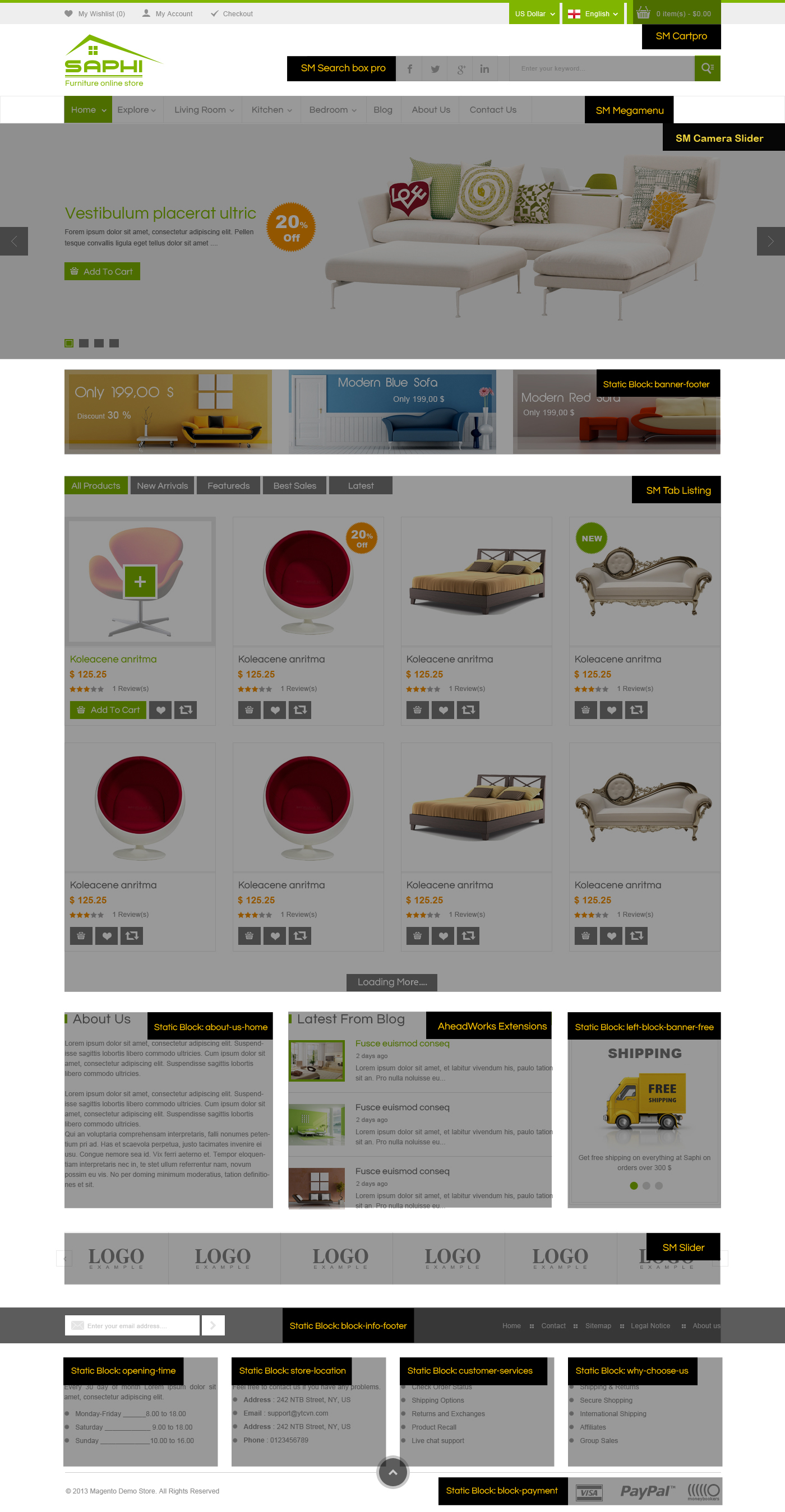
Magento Quickstart Installation
Magentech provides SM Quickstart package for each template which aims to ease the installation for users. It will help you save much time of installing and configuring if you plan to start your site from the beginning.
Please following steps below (we used images of SM Glasses theme installation to illustrate for general installations – Magento Quickstart Installation – Magento Theme Installation – Magento Extension Installation):
-
Step 1: Download the quickstart package
-
Step 2: Extract and Upload the whole Quickstart package to your server. In Quickstart folder you will see the extracted folder that include all sample data
-
Step 3: Create a database for your Magento
-
Step 4: Start installation by opening browser and navigate to your url (where the quickstart uploaded) to load default Magento installer.
-
Step 5: Finish installation
Magento Theme Installation
Before you start the installation process of this theme, we recommend to back up your current live Magento files and database. If your store has not been available yet, get it quickly following Magento Installation Guide
The installation of our theme is quite simple. You just need follow steps below to get our theme ready for your Magento store:
-
Step 1: Upload folders skin and app from our download package to your Web server's document root (from here on, referenced as {docroot}). These files will overwrite default folders skin and app in your Magento folder, you should see a directory layout like this:
{docroot} /magento/
app/
index.php js/
lib/
LICENSE.txt media/
pear/
skin/
var/
-
Step 2: Login your Magento Admin area (ex: access Magento Admin area on a stage localhost: http://yourdomain/index.php/admin/)
-
Step 3: Navigate to System =>Configuration =>Design as per screenshort below (steps in following images used SM Glasses theme for example)
-
Step 4: Fill texts to the "Package" and "Themes" sections as per screenshorts below:
-
Step 5: Finally, Click button "Save Config" to save your configuration
Magento Extension Installation
Before you begin the SM Saphi installation process, we recommend to back up your current live Magento files and database. If your store has not been available yet, get it quickly following Magento Installation Guide
You just need following steps below to get our extensions ready for your Magento store:
-
Step 1: Upload folders skin and app from our download package to your Web server's document root (from here on, referenced as {docroot}). These files will overwrite default folders skin and app in your Magento folder, you should see a directory layout like this:
{docroot} /magento/
app/
index.php js/
lib/
LICENSE.txt media/
pear/
skin/
var/
-
Step 2: Login your Magento Admin area (ex: access Magento Admin area on a stage localhost: http://yourdomain/index.php/admin/)
-
Step 3: Navigate to System =>Configuration (steps in following images used SM Glasses theme for example)
-
Step 4: You will see installed extension, click extension's name tab to go to extension configuration page.
Important Note:
- After install extension or theme, you should logout first and then login Admin Panel to ensure all functions work normally.
- You should disable all caches in cache management in the installation and configuration process.
General Configuration
Configure homepage
1. Select the homepage from CMS Pages
2. Select Homepage >> Design on the left-hand menu.
3. In the Layout Update XML box, add the code as you want, this is our demo homepage:
<reference name="content-top">

<!-- banner footer-->

<block type="cms/block" name="bannerfooter">

		  <action method="setBlockId"><block_id>banner-footer</block_id></action>

</block>

<!-- showproduct home -->

              <block type="tablisting/list" name="tablisting">

				<action method="setConfig">

				</action>

		</block>

<!-- end-->

</reference>
4. Click the Save Page button.
Configure theme using admin back end
For easing the theme configuration, we has been created Cpanel in both backend and frontend, this is SM Saphi configuration in backend:
1. Under Magento admin panel, go to System >> Configuration
2. Select SM Saphi Theme on the left-hand menu
3. Tweak the theme as you want

Configure theme using Cpanel front end
This is fontend, identical to what has in backend:

1 Color Sample
5 presets to be chosen
2 Body
Background and Text color
3 Menu Style
3 options to be chosen: Mega, CSS or Split
4 Typography
Google Font, various font-size and font-family
How to configure Mega Menu
1. Position
To replace default main menu
2. Configuration
To config General settings, module parameters, Advance, login your administrator, go to SM Mega Menu >> Configuration

To view more guide about how to install, set up and configure SM Mega Menu as you want, please click HERE
3. Mega Menu Items
In order to add menu items, Go to SM Mega Menu >> Menu items Manager
You must create add new Menu Group.
The settings below belong to Menu Group group. Other group has similar settings menu item
3.1 Home
Front-end appreance

Backend Settings: Click here
Home Menu Items Tree:

Code of content used in About us:
<div class="w-about-us">

<h2>About Us</h2>

<p>All about my company</p>

<div class="s-au">

<p><img src="{{media url="wysiwyg/img-custom-1.png"}}" alt="" />Nulla auctor mauris ut dui luctus semper. In hac habitasse platea dictumst. Duis pellentesque ligula a risus suscipit dignissim. Nunc non nisl lacus. Integer pharetra lacinia dapibus. Donec eu dolor dui, vel posuere mauris auctor mauris ut dui luctus semper. Pellentesque semper congue sodales. In consequat, metus eget con sequat ornare, augue dolor blandit purus, vitae lacinia nisi tellus in erat. Nulla ac justo eget massa aliquet sodales. Maecenas mattis male duia Nulla auctor mauris ut dui luctus semper. In hac habitasse platea dictumst. Duis pellentesque ligula a risus suscipit dignissim. Nunc non nisl lacus. Integer pharetra lacinia dapibus. Donec eu dolor dui, vel posuere mauris auctor mauris ut dui luctus semper</p>

<p>Pellentesque semper congue sodales. In consequat, metus eget con sequat ornare, augue dolor blandit purus, vitae lacinia nisi tellus in erat. Nulla ac justo eget massa aliquet sodales. Maecenas mattis male duia</p>

</div>

</div>
Code of content used in Video:
<div class="w_video"> <h2>Video</h2> <p>Lorem ipsum dolor sit amet</p> <div class="block_video"> <iframe src="//player.vimeo.com/video/58894324?title=0&byline=0&portrait=0" width="100%" height="270" frameborder="0" webkitallowfullscreen mozallowfullscreen allowfullscreen></iframe> </div> </div>
How to configure Home Page: Refer here
3.2 Product Types Menu
Front-end appreance

Backend Settings: Click here
Category/87: (To config: Go to Catalog >> Manager Categories > Product Types > Display Settings > Display Mode = "Products Only")
For getting more information about product types, please refer here
Product Types Menu Tree:

Code of content used in Category:
<div class="wc1-content">

<ul class="g-product">

<li><a href="{{store url="explore/nace-rimas-fance-polas.html"}}">Simple product</a></li>

<li><a href="{{store url="explore/grouped-product.html"}}">Grouped product</a></li>

<li><a href="{{store url="explore/configurable-product.html"}}">Configurable product</a></li>

<li><a href="{{store url="explore/virtual-product.html"}}">Virtualable product</a></li>

<li><a href="{{store url="explore/downloadable-product.html"}}">Downloadable product</a></li>

<li><a href="{{store url="explore/bundle-product.html"}}">Bundle product</a></li>

</ul>

</div>
3.3 Living Room Menu
Front-end appreance

Backend Settings: Click here
Category/323: (To config: Go to Catalog >> Manager Categories > Living Room > Display Settings > Display Mode = "Products Only")
Living Room Menu Items Tree:

Code of content used in Column 1:
<div class="wc1-content">

<h2>Column 1</h2>

<ul>

<li><a href="#">Category 1</a></li>

<li><a href="#">Category 2</a></li>

<li><a href="#">Category 3</a></li>

<li><a href="#">Category 4</a></li>

<li><a href="#">Category 5</a></li>

<li><a href="#">Category 6</a></li>

<li><a href="#">Category 7</a></li>

<li><a href="#">Category 8</a></li>

</ul>

</div>
Code of content used in column 2:
<div class="wc1-content">

<h2>Column 2</h2>

<ul>

<li><a href="#">Category 9</a></li>

<li><a href="#">Category 10</a></li>

<li><a href="#">Category 11</a></li>

<li><a href="#">Category 12</a></li>

<li><a href="#">Category 13</a></li>

<li><a href="#">Category 14</a></li>

<li><a href="#">Category 15</a></li>

<li><a href="#">Category 16</a></li>

</ul>

</div>
Code of content used in Review new products
<h2>Review new products</h2>

<div class="r-content">

<div class="w-img">

<a href="#">

<img src="{{media url="wysiwyg/img-review.png"}}" alt="img-review" />

</a>

</div>

<p>

Cras aliquet. Integer faucibus, eros ac molestie placerat, enim tellus varius lacus, nec dictum nunc tortor id urna. Suspendisse dapibus ullamcorper pede.

</p>

</div>
Code of content used in Best sales
<div class="w-bestsales">

<h2>Best sales</h2>

<div class="sm-block-content">{{block type="basicproducts/home" name="topbestsales" template="sm/basicproducts/bestseller.phtml" product_source="catalog" product_category="137" product_limitation="2" product_image_height="85" product_image_width="85" product_order_by="name"}}</div>

</div>

<div style="clear:both;"></div>
3.4 Kitchen Menu
Front-end appreance

Backend Setting: Click here
Category/324: (To config: Go to Catalog >> Manager Categories > Kitchen > Display Settings > Display Mode = "Products Only")
Kitchen Menu Items Tree:

Code of content used in column 1:
<div class="wc1-content">

<h2>Column 1</h2>

<ul>

<li><a href="#">Category 1</a></li>

<li><a href="#">Category 2</a></li>

<li><a href="#">Category 3</a></li>

<li><a href="#">Category 4</a></li>

<li><a href="#">Category 5</a></li>

<li><a href="#">Category 6</a></li>

<li><a href="#">Category 7</a></li>

<li><a href="#">Category 8</a></li>

</ul>

</div>
Code of content used in Top Content:
<div class="w-new w-topcontent">

<div class="sm-block-content">{{block type="slider/list" template="sm/slider/topcontent.phtml" name="topcontent"  product_source="catalog" product_category="137"  product_image_height="204" product_image_width="220" product_order_by="name" scroll="1" slider_title_text="" deviceclass_sfx="preset01-3 preset02-3 preset03-2 preset04-1 preset05-1"}}</div>

</div>

<div style="clear:both;"></div>
3.5 Bedroom Menu
Front-end appreance

-
Backend Settings: Click here
Category/137: (To config: Go to Catalog >> Manager Categories > Bedroom > Display Settings > Display Mode = "Products Only")
Bedroom Menu Items Tree:

Code of content used in column 1:
<div class="wc1-content">

<h2>Column 1</h2>

<ul>

<li><a href="#">Category 1</a></li>

<li><a href="#">Category 2</a></li>

<li><a href="#">Category 3</a></li>

<li><a href="#">Category 4</a></li>

<li><a href="#">Category 5</a></li>

<li><a href="#">Category 6</a></li>

<li><a href="#">Category 7</a></li>

<li><a href="#">Category 8</a></li>

</ul>

</div>
Code of content used in new product:
<div class="w-new">

<h2>New Products</h2>

<div class="sm-block-content">{{block type="basicproducts/home" name="topnewproduct" template="sm/basicproducts/new-product-top.phtml" product_source="catalog" product_category="322" product_limitation="2" product_image_height="204" product_image_width"220" product_order_by="name"}}</div>

</div>

<div style="clear:both;"></div>
Code of content used in custom text:
<h2>Custom Text</h2>

<div class="w-custext">

<p>Lorem ipsum, libero et luctus molestie, turpis mi sagittis nisl, a scelerisque leo nulla et lectus pendisse dictum posuere elit, in congue nisl varius quis lentesque a tellus eget quam varius aliquet. Cras ac hendrerit dui. Duis lacus ligula, luctus ac tristique eget Posuere id erat.Lorem ipsum, libero et luctus molestie, turpis mi sagittis nisl, a scelerisque leo nulla et lectus pendisse dictum posuere elit, in congue nisl varius quis lentesque a tellus eget.</p><div class="w-img"><img src="{{media url="wysiwyg/img-custext.png"}}" alt="" /></div>

</div>
3.6 Blog Menu
Front-end appreance

Backend Settings: Refer here
3.7 About us Menu
Backend Settings: Refer here
3.8 Contact us Menu
Backend Settings: Refer here
How to configure Extensions
1. SM Cart Pro
1.1 Position
SM Cart Pro
1.2 Front-end appreance

1.3 Configuration
Backend of SM Cart Pro: Click here
To view more guide about how to install, set up and configure SM Cart Pro as you want, please click HERE
2. SM Search Box Pro
2.1 Position:
SM Search Box Pro
2.2 Front-end appreance

2.3 Configuration
Backend: Click here
To view more guide about how to install, set up and configure SM Search Box Pro as you want, please click HERE
2.4. Configuration Social Network Icon.
To edit or remove the social icon, you can unzip theme installation file and go to the path: app\design\frontend\default\sm_saphi\template\sm\searchboxpro
Find the code below and edit:
<div class="block-links-social">

<ul>

<li><a class="icon-facebook" href="https://www.facebook.com/magentech" target="_blank"></a></li>

<li><a class="icon-twitter" href="https://twitter.com/magentech" target="_blank"></a></li>

<li><a class="icon-google-plus" href="https://plus.google.com/111936609376399911024/posts" target="_blank"></a></li>

<li><a class="icon-linkedin" href="https://vn.linkedin.com/in/magentech/" target="_blank"></a></li>

</ul>

<?php //echo $this->getLayout()->createBlock('cms/block')->setBlockId('block-social')->toHtml(); ?></div>
3.SM Camera Slider
3.1 Position
SM Camera Slider
3.2 Front-end appreance

3.3 Configuration
Backend:
- In the Administrator Panel page, go to SM Camera Slider >> Manage Sliders to add New Slide or Edit Slide
- General Options: Click here
- Sliders: You could see the backend settings of Slide 1 as following and do the same with other slides. Click here
- In the Administrator Panel page, go to SM Camera Slider >> Settings to configure this module: Click here
To view more guide about how to install, set up and configure as you want, please click HERE
4.SM Tab Listing
4.1 Position
SM Tab Lising
4.2 Front-end appreance

4.3 Configuration
Backend: Click here
5.SM Quickview
5.1 Position
SM Tab Lising
5.2 Front-end appreance

5.3 Configuration
Backend: Click here
6.SM Slider
6.1 Position
SM Slider
6.2 Front-end appreance

6.3 Configuration
Backend: Click here
To view more guide about how to install, set up and configure as you want, please click HERE
How to configure blocks
The SM Saphi front-page has static blocks in the Theme:
-
Banner Footer
-
About us home
-
Left Block Banner Free
-
Block information footer
-
Opening Time
-
Store Location
-
Customer Services
-
Why Choose Us
-
Block Payment
To create static blocks, go to CMS >> Static Blocks >> Add new block
1. Banner Footer
1.1. Identifier
banner-footer
1.2. Front-end Appearance

1.3. Backend settings: Click here
1.4. Code to display as demo
<ul class="banner-footer">

<li>

<div class="bg-img"> </div>

<a href="#">Shop Now</a><img src="/index.php/admin/cms_wysiwyg/directive/___directive/e3ttZWRpYSB1cmw9Ind5c2l3eWcvYmFubmVyLWZvb3Rlci9pbWcxLnBuZyJ9fQ,,/key/3861411254b278c69e938c7ac557770d/" alt="" /></li>

<li>

<div class="bg-img"> </div>

<a href="#">Shop Now</a><img src="/index.php/admin/cms_wysiwyg/directive/___directive/e3ttZWRpYSB1cmw9Ind5c2l3eWcvYmFubmVyLWZvb3Rlci9pbWcyLnBuZyJ9fQ,,/key/3861411254b278c69e938c7ac557770d/" alt="" /></li>

<li>

<div class="bg-img"> </div>

<a href="#">Shop Now</a><img src="/index.php/admin/cms_wysiwyg/directive/___directive/e3ttZWRpYSB1cmw9Ind5c2l3eWcvYmFubmVyLWZvb3Rlci9pbWczLnBuZyJ9fQ,,/key/3861411254b278c69e938c7ac557770d/" alt="" /></li>

</ul>
2. About us home
2.1. Identifier
about-us-home
2.2. Front-end Appearance

2.3. Backend settings: Click here
2.4. Code to display as demo
<p>Lorem ipsum dolor sit amet, consectetur adipiscing elit. Suspendisse sagittis lobortis libero commodo ultricies. Cum ipsum dolor sit amet, consectetur adipiscing elit. Suspendisse sagittis lobortis libero commodo ultricies.</p>

<p>Lorem ipsum dolor sit amet, consectetur adipiscing elit. Suspendisse sagittis lobortis libero commodo ultricies. Cum ipsum dolor sit amet, consectetur adipiscing elit. Suspendisse sagittis lobortis libero commodo ultricies.<br />Qui an voluptaria comprehensam interpretaris, falli nonumes petentium pri ad. Has et scaevola perpetua, justo tacimates invenire ei usu. Congue nemore sea id. Vix ferri aeterno et. Tempor eloquentiam interpretaris nec in, te stet ullum referrentur nam, novum possim eu vis. No per doming minimum moderatius, tation definitiones et sit.</p>
3. Left Block Banner Free
3.1. Identifier
left-block-banner-free
3.2. Front-end Appearance

3.3. Backend settings: Click here
3.4. Code to display as demo
<div id="myCarousel" class=" block carousel slide" data-interval="0">

<div class="w-cin">

<div class="carousel-inner">

<div class="active item frs">

<p class="p-first">free</p>

<p class="p-last">shipping</p>

<p><img src="/index.php/admin/cms_wysiwyg/directive/___directive/e3ttZWRpYSB1cmw9Ind5c2l3eWcvaW1nLXNoaXBwaW5nLnBuZyJ9fQ,,/key/4245495ce418be85ffac28637446ba65/" alt="" /></p>

<p>Get free shipping on everything at Saphi on orders over 300 $</p>

</div>

<div class="item mbg">

<p class="p-first">100<span>%</span></p>

<p class="p-last">Money Back Guarantee</p>

<p><img src="/index.php/admin/cms_wysiwyg/directive/___directive/e3ttZWRpYSB1cmw9Ind5c2l3eWcvaW1nLW1vbmV5LnBuZyJ9fQ,,/key/4245495ce418be85ffac28637446ba65/" alt="" /></p>

<p>All purchases at Macyshop are covered by our " 7 days No Questions Asked Refund Policy"</p>

</div>

<div class="item aug">

<p class="p-first">100<span>%</span></p>

<p class="p-last">authenticity guaranteed</p>

<p><img src="/index.php/admin/cms_wysiwyg/directive/___directive/e3ttZWRpYSB1cmw9Ind5c2l3eWcvaW1nLWF1dGhlbnRpY2l0eS5wbmcifX0,/key/4245495ce418be85ffac28637446ba65/" alt="" /></p>

<p>Lorem ipsum dolor sit amet, consectetuer adipiscing elit. Aenean commodo ligula eget</p>

</div>

</div>

</div>

<div class="w-ci"><ol class="carousel-indicators">

<li class="active" data-target="#myCarousel" data-slide-to="0"></li>

<li data-target="#myCarousel" data-slide-to="1"></li>

<li data-target="#myCarousel" data-slide-to="2"></li>

</ol></div>

</div>
4. Block information footer
4.1. Identifier
block-info-footer
4.2. Front-end Appearance

4.3. Backend settings: Click here
4.4. Code to display as demo
<div class="block-info-footer">

<ul>

<li class="first"><a href="/index.php/admin/cms_wysiwyg/directive/___directive/e3tzdG9yZSB1cmw9Jyd9fQ,,/key/4245495ce418be85ffac28637446ba65/">Home</a></li>

<li><a href="/index.php/admin/cms_wysiwyg/directive/___directive/e3tjb25maWcgcGF0aD0id2ViL3Vuc2VjdXJlL2Jhc2VfdXJsIn19/key/4245495ce418be85ffac28637446ba65/contacts">Contact</a></li>

<li><a href="/index.php/admin/cms_wysiwyg/directive/___directive/e3tjb25maWcgcGF0aD0id2ViL3Vuc2VjdXJlL2Jhc2VfdXJsIn19/key/4245495ce418be85ffac28637446ba65/catalog/seo_sitemap/category/">Sitemap</a></li>

<li><a href="#">Legal Notice</a></li>

<li><a href="#">Terms and Conditions</a></li>

<li class="last"><a href="/index.php/admin/cms_wysiwyg/directive/___directive/e3tjb25maWcgcGF0aD0id2ViL3Vuc2VjdXJlL2Jhc2VfdXJsIn19/key/4245495ce418be85ffac28637446ba65/about-us">About Us</a></li>

</ul>

</div>
5. Opening Time
5.1. Identifier
opening-time
5.2. Front-end Appearance

5.3. Backend settings: Click here
5.4. Code to display as demo
<div class="open-time">

<h2>Opening Time</h2>

<p>Every 30 day of month Lorem ipsum dolor sit amet, consectetur adipiscing elit.</p>

<ul>

<li>Monday-Friday ______8.00 to 18.00</li>

<li>Saturday ____________ 9.00 to 18.00</li>

<li>Sunday _____________10.00 to 16.00</li>

</ul>

</div>
6. Store Location
6.1. Identifier
store-location
6.2. Front-end Appearance

6.3. Backend settings: Click here
6.4. Code to display as demo
<div class="open-time">

<h2>Store Location</h2>

<p>Feel free to contact us if you have any problems.</p>

<ul>

<li><strong>Address</strong> : 242 NTB Street, NY, US</li>

<li><strong>Email</strong> : <a href="mailto:support@saphi.com">support@saphi.com</a></li>

<li><strong>Address</strong> : 250 NTB Street, CL, US</li>

<li><strong>Phone</strong> : 0123456789</li>

</ul>

</div>
7. Customer Services
7.1. Identifier
customer-services
7.2. Front-end Appearance

7.3. Backend settings: Click here
7.4. Code to display as demo
<div class="open-time">

<h2>Customer Services</h2>

<ul>

<li><a href="#">Check Order Status</a></li>

<li><a href="#">Shipping Options</a></li>

<li><a href="#">Returns and Exchanges</a></li>

<li><a href="#">Product Recall</a></li>

<li><a href="#">Live chat support</a></li>

</ul>

</div>
8. Why Choose Us

8.1. Identifier
why-choose-us
8.2. Front-end Appearance
8.3. Backend settings: Click here
8.4. Code to display as demo
<div class="open-time"> <h2>Why Choose Us</h2> <ul> <li><a href="#">Shipping & Returns</a></li> <li><a href="#">Secure Shopping</a></li> <li><a href="#">International Shipping</a></li> <li><a href="#">Affiliates</a></li> <li><a href="#">Group Sales</a></li> </ul> </div>
9. Block Payment

9.1. Identifier
block-payment
9.2. Front-end Appearance
9.3. Backend settings: Click here
9.4. Code to display as demo
<p><img src="/index.php/admin/cms_wysiwyg/directive/___directive/e3tza2luIHVybD0iaW1hZ2VzL3BheW1lbnQvdmlzYS5wbmcifX0,/key/3861411254b278c69e938c7ac557770d/" alt="image" /><img src="/index.php/admin/cms_wysiwyg/directive/___directive/e3tza2luIHVybD0iaW1hZ2VzL3BheW1lbnQvcGF5cGFsLnBuZyJ9fQ,,/key/3861411254b278c69e938c7ac557770d/" alt="image" /><img src="/index.php/admin/cms_wysiwyg/directive/___directive/e3tza2luIHVybD0iaW1hZ2VzL3BheW1lbnQvYm9va2VyLnBuZyJ9fQ,,/key/3861411254b278c69e938c7ac557770d/" alt="image" /></p>
How to configure pages
To config this page, please navigate to CMS >> Pages, create Home page, navigate to tab Design and update with the following settings:
-
Layout : select 1 column with left bar
-
Layout Update XML: Paste the code below
PHP Code:
<reference name="content-top">

<!-- banner footer-->

<block type="cms/block" name="bannerfooter">

		  <action method="setBlockId"><block_id>banner-footer</block_id></action>

</block>

<!-- showproduct home -->

              <block type="tablisting/list" name="tablisting">

				<action method="setConfig">

				</action>

		</block>

<!-- end-->

</reference>
Blog page
-
Category/138: ( To config: Go to Catalog >> Manager Categories >> Blog >> Custom Design Tab): Click here
-
Code of content used in Blog page:
<reference name="content">

<block type="blog/blog" name="blog" as= "blog-list" template="aw_blog/blog.phtml">

<block type="blog/product_toolbar" name="aw_blog_list_toolbar" template="catalog/product/list/toolbar.phtml">

<block type="page/html_pager" name="product_list_toolbar_pager"/></block>

</block>

</reference>
Contact us page
-
Category/216: ( To config: Go to Catalog >> Manager Categories >> Contact Us >> Custom Design Tab): Click here
-
Code of content used in Contact Us page:
<reference name="content">

<block type="core/template" name="contactForm" template="contacts/form.phtml"/>

</reference>
About us page
-
Category/139: ( To config: Go to Catalog >> Manager Categories ): Click here
-
CMS Block: About us ( To config: Go to CMS >> Statistic Block ): Click here
-
Code of content used in About us page:
<div class="w-aboutus"> <h2 class="title-aboutus">About us</h2> <div class="w-top"> <div class="w-left"> <div class="w-left-title"> <h2>Welcome To Saphi</h2> <div class="two-line"> </div> </div> <!--end w-left-title --> <div class="w-left-content"><img src="/index.php/admin/cms_wysiwyg/directive/___directive/e3ttZWRpYSB1cmw9Ind5c2l3eWcvaW1nLWFib3V0LXVzLnBuZyJ9fQ,,/key/4245495ce418be85ffac28637446ba65/" alt="" /> <p>Nulla auctor mauris ut dui luctus semper. In hac habitasse platea dictumst. Duis pellentesque ligula a risus suscipit dignissim. Nunc non nisl lacus. Integer pharetra lacinia dapibus. Donec eu dolor dui, vel posuere mauris.</p> <p>Pellentesque semper congue sodales. In consequat, metus eget con sequat ornare, augue dolor blandit purus, vitae lacinia nisi tellus in erat. Nulla ac justo eget massa aliquet sodales. Maecenas mattis male suada sem, in fringilla massa dapibus quis. Suspendisse aliquam leo id neque auctor molestie. Etiam at nulla tellus.</p> <p>Nulla auctor mauris ut dui luctus semper. In hac habitasse platea dictumst. Duis pellentesque ligula a risus suscipit dignissim.</p> </div> </div> <div class="w-right"> <div class="w-left-title"> <h2>Why Choose Us</h2> <div class="two-line"> </div> </div> <div class="w-right-content"> <ul> <li>Shipping & Returns</li> <li>Secure Shopping</li> <li>International Shipping</li> <li>Affiliates</li> <li class="lasts">Group Sales</li> </ul> </div> <!--end w-right-content--></div> </div> <div class="w-middle"> <div class="w-middle-title"> <h2>Our Member</h2> <div class="two-line"> </div> <p>Consectetur adipiscing elit. Donec pellentesque venenatis elit, quis aliquet mauris malesuada vel. Donec vitae libero dolor, eget dapibus justo. Aenean facilisis aliquet feugiat. Suspendisse lacinia congue est ac semper. Nulla ut elit magna, vitae volutpat magna.</p> </div> <div class="w-middle-content">{{block type="basenews/list" name="aboutus" template="sm/basenews/member.phtml" nb_column1="4" product_image_disp"0" item_desc_max_characs="100" product_image_width="194" product_image_height="194" product_details_page_link_disp="0" item_description_striptags="0"}}</div></div> <div class="w-footer"> <div id="happycs" class="carousel slide" data-interval="0"> <div class="icon-dp"> </div> <div class="title"> <h2>Happy Customer Say</h2> <ul> <li><a class="minus" href="#happycs" data-slide="prev">‹</a></li> <li><a class="plus" href="#happycs" data-slide="next">›</a></li> </ul> </div> <div class="w-footer-content"> <div class="carousel-inner"> <div class="active item"> <p>Lorem ipsum dolor sit amet, consectetur adipiscing elit. In congue, justo non cursus adipiscing, dui nibh scelerisque justo, quis pretium turpis neque eget nulla. Curabitur dictum consectetur metus nec dignissim. Lorem ipsum dolor sit amet, consectetur adipiscing elit. Lorem ipsum dolor sit amet, consectetur adipiscing elit. In congue, justo non cursus adipiscing, dui nibh scelerisque justo non cursus adipiscing, dui nibh scelerisque justo, quis pretium turpis.</p> <p class="item-tg">- <span class="s-name">Mama Duo</span> - <span class="s-name-r">Social Media Strategist</span></p> </div> <div class="item"> <p>Lorem ipsum dolor sit amet, consectetur adipiscing elit. In congue, justo non cursus adipiscing, dui nibh scelerisque justo, quis pretium turpis neque eget nulla. Curabitur dictum consectetur metus nec dignissim. Lorem ipsum dolor sit amet, consectetur adipiscing elit. Lorem ipsum dolor sit amet, consectetur adipiscing elit. In congue, justo non cursus adipiscing, dui nibh scelerisque justo non cursus adipiscing, dui nibh scelerisque justo, quis pretium turpis.</p> <p class="item-tg">- <span class="s-name">Mama Duo</span> - <span class="s-name-r">Social Media Strategist</span></p> </div> </div> </div> </div> </div> </div>
Support
Support from MagenTech will be defined as following:
-
Support time: Monday – Friday 8:30AM to 5:30PM UTC+7
-
Response Time: Within 24 hours (1 business day)
Item support includes:
-
Responding to questions or problems regarding the item and its features
-
Fixing bugs and reported issues
-
Providing updates to ensure compatibility with new software versions
Item support does not include:
-
Customization and installation services
-
Support for 3rd parties' extensions
Installation Services-Quickstart installation services cost $25:
Once again, thank you so much for purchasing this theme. As we said at the beginning, we would be glad to help you if you have any questions relating to this theme. No guarantees, but we'll do the best to assist. If you have a more general question relating to the themes on ThemeForest, you might consider visiting the our ticket system and send support request via Support Tickets System.
Thanks so much!
SM Macy – Responsive Magento Theme
Introduction
- Created: 11/01/2013
- Latest update: 11/01/2013
- By: MagenTech
- Email: themeforest@magentech.com
When you download theme from our store and unzip, you will be got full of main files for theme installation. They’re:
- Theme Package: Use this package to install to your current site. This contains the theme files only.
- QuickStart Installation Package: This package included modules, theme, sample data.
- Extension Packages: Modules in-house which we used for the demo.
- PSD Sources: All PSD design themes
- Documentation: Detail userguide to install and configure theme
INSTALLATION GUIDE
There are two ways to install a MagenTech theme:
- Install quickstart: By using this package, you will set the theme exactly as Demo. This is applied when you need a fresh Magento with our theme.
- Install Theme and Extensions: This is applied when you have already installed a Magento instance on your server. You will need only be using the zipped files in ai???Extensionsai??? and ai???Themeai??? folders mentioned above. Please follow below instruction about how to install theme and extensions:
System Requirements
Magento Community Edition 1.7.x and 1.8.x
Magento Quickstart Installation
Magentech provides SM Quickstart package for each template which aims to ease the installation for users. It will help you save much time of installing and configuring if you plan to start your site from the beginning.
Please following steps below (we used images of SM Glasses theme installation to illustrate for general installations – Magento Quickstart Installation – Magento Theme Installation – Magento Extension Installation):
- Step 1: Download the quickstart package
- Step 2: Extract and Upload the whole Quickstart package to your server. In Quickstart folder you will see the extracted folder that include all sample data
- Step 3: Create a database for your Magento
- Step 4: Start installation by opening browser and navigate to your url (where the quickstart uploaded) to load default Magento installer.
- Step 5:Ai?? Finish installation
Magento Theme Installation
Before you start the installation process of this theme, we recommend to back up your current live Magento files and database. If your store has not been available yet, get it quickly following Magento Installation Guide
The installation of our theme is quite simple. You just need follow steps below to get our theme ready for your Magento store:
- Step 1: Upload folders skin and app from our download package to your Web server’s document root (from here on, referenced as {docroot}). These files will overwrite default folders skin and app in your Magento folder, you should see a directory layout like this:
{docroot} /magento/app/
index.php js/
lib/
LICENSE.txt media/
pear/
skin/
var/ - Step 2: Login your Magento Admin area (ex: Access Magento Admin area: http://yourdomain/index.php/admin/)
- Step 3: Navigate to System =>Configuration =>Design as screenshort below (All steps in the following images used SM Glasses theme for example)
- Step 4: Fill all theme information as screenshort below:
- Step 5: Finally, Refer here to configure Theme SM Macy and then save your configuration
Magento Extension Installation
Before you begin the SM Macy installation process, we recommend to back up your current live Magento files and database. If your store has not been available yet, get it quickly following Magento Installation Guide
You just need following steps below to get our extensions ready for your Magento store:
- Step 1: Upload folders skin and app from our download package to your Web server’s document root (from here on, referenced as {docroot}). These files will overwrite default folders skin and app in your Magento folder, you should see a directory layout like this:
{docroot} /magento/
app/
index.php js/
lib/
LICENSE.txt media/
pear/
skin/
var/
- Step 2: Login your Magento Admin area (ex: Access Magento Admin area: http://yourdomain/index.php/admin/)
- Step 3: Navigate to System =>Configuration (All steps in the following images used SM Glasses theme for example)

- Step 4: You will see installed extension, click extension’s name tab to go to extension configuration page.
Important Note:
- After install extension or theme, you should logout first and then login Admin Panel to ensure all functions work normally.
- You should disable all caches in cache management in the installation and configuration process.
General Configuration
Configure homepage
1. Select the homepage from CMS Pages
2. Select Homepage >> Design on the left-hand menu.
3. In the Layout Update XML box, add the code as you want, this is our demo homepage:
<reference name="slideshow">

<block type="dynamicslideshow/list" name="dynamicslideshow.list.default"/>

</reference>

<reference name="content-bottom">

            <block type="basicproducts/home" name="tab1" template="sm/basicproducts/feature.phtml">

			<action method="setConfig">

 				<values>

					<block_title>Featured Products</block_title>

					<title></title>

                                        <product_source>catalog</product_source>

                                        <product_category>68</product_category>

					<product_order_by>price</product_order_by>

                                        <num_columns>5</num_columns>

                                        <product_limitation>4</product_limitation>

					<product_image_width>270</product_image_width>

					<product_image_height>270</product_image_height>

					<product_price_disp>1</product_price_disp>

					<product_description_disp>0</product_description_disp>

					<product_rating_summary>1</product_rating_summary>

					<product_cart_or_status>1</product_cart_or_status>

					<product_addtocompare>1</product_addtocompare>

					<product_addtowishlist>1</product_addtowishlist>

				</values>

			</action>

                  </block>

</reference>

<reference name="botsl">

        	<block type="basicproducts/home" name="basicproducts.bestsales" template="sm/basicproducts/bestsales.phtml">

        		<action method="setConfig">

				<values>

					<block_title>New Arrivals</block_title>

					<title></title>

                                        <product_source>catalog</product_source>

                                        <product_category>80</product_category>

					<product_order_by>price</product_order_by>

                                        <product_limitation>20</product_limitation>

					<product_image_width>270</product_image_width>

					<product_image_height>270</product_image_height>

					<product_price_disp>1</product_price_disp>

					<product_description_disp>0</product_description_disp>

					<product_rating_summary>1</product_rating_summary>

					<product_cart_or_status>1</product_cart_or_status>

					<product_addtocompare>1</product_addtocompare>

					<product_addtowishlist>1</product_addtowishlist>

				</values>

        		</action>

		</block>

</reference>
4. Click the Save Page button.
Configure theme using admin back end
For easing the theme configuration, we has been created Cpanel in both backend and frontend, this is SM Macy configuration in backend:
1. Under Magento admin panel, go to System >> Configuration
2. Select SM Macy Theme on the left-hand menu
3. Tweak the theme as you want

Configure theme using Cpanel front end
This is fontend, identical to what has in backend:

Color Sample
6 presets to be chosen
1 Body
Background, Link and Text color, Background image
2 Header
Background image and color
3 Footer
Background image and color
4 Menu Style
3 options to be chosen: Mega, CSS or Split
5 Typography
Google Font, various font-size and font-family
How to configure Mega Menu
1. Position
To replace default main menu
2. Configuration
To config General settings, module parameters, Advance, login your administrator, go to SM Mega Menu >> Configuration

To view more guide about how to install, set up and configure SM Mega Menu as you want, please click HERE
3. Mega Menu Items
In order to add menu items, Go toAi??SM Mega MenuAi??>> Menu items Manager
You must create add new Menu Group.
The settings below belong to SM MacyAi??group. Other group has similar settings menu item
3.1 Home
Front-end appreanceAi??

Backend Settings: Click here
How to configure Home Page: Refer here
3.2 Women’s Jewelry Menu
Front-end appreanceAi??

Backend Settings: Click here
Category/80: (To config: Go to Catalog >> Manager Categories > Women’s Jewelry > Display Settings > Display Mode = “Products Only”)
Women’s Jewelry Menu Items Tree:

Categories 1: Backend
Most popular: Backend
Code of content used in Most popular:
<div class="sm-block sm-grid">

<div class="sm-block-content">

{{block type="basicproducts/home" name="topmost" template="sm/basicproducts/mega-products.phtml"  title=""  product_source="product" product_ids="275,375" product_order_by="price" num_columns="2" product_limitation="2" product_image_width="170" product_image_height="170"   product_title_max_length="20" product_title_disp="1" product_rating_summary="1" product_description_disp="0" product_cart_or_status="1"}}

</div>

</div>
3.3 Men’s Jewelry Menu
Front-end appreanceAi??

Backend Settings: Click here
Category/68: (To config: Go to Catalog >> Manager Categories > Men’s Jewelry > Display Settings > Display Mode = “Products Only”)
Men’s Jewelry Menu Items Tree:

- Top Content: Backend
Code of content used in Top Content:
<div class="sm-block sm-grid">

<div class="sm-block-title">

<span class="title-desc">TOP CONTENT</span>

<p class="content-desc">Lorem ipsum, libero et luctus molestie, turpis mi sagittis nisl, a scelerisque leo nulla et lectus pendisse dictum posuere elit, in congue nisl varius quis lentesque a tellus eget quam varius aliquet. Cras ac hendrerit dui. Duis lacus ligula, luctus ac tr</p>

</div>

<div class="sm-block-content">

{{block type="basicproducts/home" name="topmost" template="sm/basicproducts/mega-products.phtml"  title=""  product_source="product" product_ids="232,233,234,235" product_order_by="price" num_columns="4" product_limitation="4" product_image_width="170" product_image_height="170"   product_title_max_length="20" product_title_disp="1" product_rating_summary="1" product_description_disp="0" product_cart_or_status="1"}}

</div>

</div>
3.4 Weddings Menu
Front-end appreanceAi??

Backend Settings: Click here
WedAi??ings Menu Items Tree:

- Brands: Backend
- Video: Backend
Menu type: CMS Block
CMS Block: banner-ads-menu ( To config: Go to CMS >> Statistic Block ): Click here
Code of content used in banner-ads-menu:
<div class="banner"><a href="#"><img src="/index.php/admin/cms_wysiwyg/directive/___directive/e3ttZWRpYSB1cmw9Ind5c2l3eWcvYmFubmVyLW1lbnUuanBnIn19/key/2b4dea108e747c0c5e9a0ba8927530c6/" alt="" /><span class="hover_shine">Ai??</span></a></div>
3.5 Bracelets Menu
Front-end appreanceAi??

Backend Settings: Click here
3.6 Brands Menu
Front-end appreanceAi??

Backend Settings: Click here
Brands Menu Items Tree:

- Brands: Backend
- Categories 1: Backend
- Categories 2: Backend
3.7 About Us and Contact Us Menu
You should go to here for reading more configure:
- About Us: Refer here
- Contact Us: Refer here
Layout Positions

How to configure Extensions
1. SM Cart Pro
1.1 Position
mini-cartpro
1.2 Front-end appreance

1.3 Configuration
Backend of SM Cart Pro: Click here
To view more guide about how to install, set up and configure SM Cart Pro as you want, please click HERE
2. SM Dynamic Slideshow
2.1 Position:
slide-show
2.2 Front-end appreance

2.3 Configuration
Backend of SM Dynamic Slideshow: Click here
To view more guide about how to install, set up and configure SM Dynamic Slideshow as you want, please click HERE
To get this extension to show onto the front page at the up top position, go to CMS > Pages >> Homepage >> In Design tab, please fill in Layout Update XML parameter -between tag as below :
<reference name="slideshow">

<block type="dynamicslideshow/list" name="dynamicslideshow.list.default"/>

</reference>
3. SM Basic Product
3.1 Position:
content-bottom
3.2 Front-end appreance

3.3 Configuration
Backend of SM Basic Product: Click here
To get this extension to show onto the front page at the up top position, go to CMS > Pages >> Homepage >> In Design tab, please fill in Layout Update XML parameter -between tag as below :
   <reference name="content-bottom">

            <block type="basicproducts/home" name="tab1" template="sm/basicproducts/feature.phtml">

			<action method="setConfig">

 				<values>

					<block_title>Featured Products</block_title>

					<title></title>

                                        <product_source>catalog</product_source>

                                        <product_category>68</product_category>

					<product_order_by>price</product_order_by>

                                        <num_columns>5</num_columns>

                                        <product_limitation>4</product_limitation>

					<product_image_width>270</product_image_width>

					<product_image_height>270</product_image_height>

					<product_price_disp>1</product_price_disp>

					<product_description_disp>0</product_description_disp>

					<product_rating_summary>1</product_rating_summary>

					<product_cart_or_status>1</product_cart_or_status>

					<product_addtocompare>1</product_addtocompare>

					<product_addtowishlist>1</product_addtowishlist>

				</values>

			</action>

                  </block>

</reference>
4. SM Basic Product
4.1 Position:
botsl
4.2 Front-end appreance

4.3 Configuration
To get this extension to show onto the front page at the up top position, go to CMS > Pages >> Homepage >> In Design tab, please fill in Layout Update XML parameter -between tag as below :
<reference name="botsl">

        	<block type="basicproducts/home" name="basicproducts.bestsales" template="sm/basicproducts/bestsales.phtml">

        		<action method="setConfig">

				<values>

					<block_title>New Arrivals</block_title>

					<title></title>

                                        <product_source>catalog</product_source>

                                        <product_category>80</product_category>

					<product_order_by>price</product_order_by>

                                        <product_limitation>20</product_limitation>

					<product_image_width>270</product_image_width>

					<product_image_height>270</product_image_height>

					<product_price_disp>1</product_price_disp>

					<product_description_disp>0</product_description_disp>

					<product_rating_summary>1</product_rating_summary>

					<product_cart_or_status>1</product_cart_or_status>

					<product_addtocompare>1</product_addtocompare>

					<product_addtowishlist>1</product_addtowishlist>

				</values>

        		</action>

		</block>

</reference>
How to configure blocks
The SM Macy front-page has static blocks in the Theme:
- banner1
- block-user6
- block-user7
- block-user8
- position-4
- block-user5
- block-social
- block-user1
- block-user2
- block-user3
- block-user4
- block-payment
To create static blocks, go to CMS >> Static Blocks >>Ai??Add new block
1. banner1
1.1.Ai?? Identifier
banner1
1.2. Front-end Appearance

1.3. Backend settings: Click here
1.4. Code to display as demo
<div class="row">

<div class="banner span4"><a href="#"><img src="/index.php/admin/cms_wysiwyg/directive/___directive/e3ttZWRpYSB1cmw9Ind5c2l3eWcvYmFubmVyMS5wbmcifX0,/key/7e17bb702970cb600143e0d1b5ee46e4/" alt="" /><span class="hover_shine">Ai??</span></a></div>

<div class="banner span4"><a href="#"><img src="/index.php/admin/cms_wysiwyg/directive/___directive/e3ttZWRpYSB1cmw9Ind5c2l3eWcvYmFubmVyMi5wbmcifX0,/key/7e17bb702970cb600143e0d1b5ee46e4/" alt="" /><span class="hover_shine">Ai??</span></a></div>

<div class="banner span4"><a href="#"><img src="/index.php/admin/cms_wysiwyg/directive/___directive/e3ttZWRpYSB1cmw9Ind5c2l3eWcvYmFubmVyMy5wbmcifX0,/key/7e17bb702970cb600143e0d1b5ee46e4/" alt="" /><span class="hover_shine">Ai??</span></a></div>

</div>
2. block-user6
2.1.Ai?? Identifier
block-user6
2.2. Front-end Appearance

2.3. Backend settings: Click here
2.4. Code to display as demo
<div class="block block-freeshipping">

<div class="block-title"><span>Free Shipping</span></div>

<div class="block-content clearfix"><span>Get free shipping on everything at Macyshop, on orders over 999 $</span></div>

</div>
3. block-user7
3.1. Identifier
block-user7
3.2. Front-end Appearance

3.3. Backend settings: Click here
3.4. Code to display as demo
<div class="block block-guarantee">

<div class="block-title"><span>Money Back Guarantee</span></div>

<div class="block-content clearfix"><span>All purchases at Macyshop are covered by our " 7 days No Questions Asked Refund Policy"</span></div>

</div>
4. block-user8
4.1. Ai??Identifier
block-user8
4.2. Front-end Appearance

4.3. Backend settings: Click here
4.4. Code to display as demo
<div class="block block-promotions">

<div class="block-title"><span>Promotions</span></div>

<div class="block-content clearfix"><span>Lorem ipsum dolor sit amet, consectetur adipiscing elit. In congue, justo non cursus.</span></div>

</div>
5. position-4
5.1. Identifier
position-4
5.2. Front-end Appearance

5.3. Backend settings: Click here
5.4. Code to display as demo
<p>{{block type="slider/list" name="slider.list"}}</p>
6. block-user5

6.1. Identifier
block-user5
6.2. Front-end Appearance
6.3. Backend settings: Click here
6.4. Code to display as demo
<div class="block block-newsletter">

<div class="block-content"><span class="title">Subscribe :</span><form id="newsletter-validate-detail" action="newsletter/subscriber/new/" method="post">

<div class="input-box"><button class="button" title="Subscribe" type="submit"><span><span>Subscribe</span></span></button> <input id="newsletter" class="input-text required-entry validate-email" title="Sign up for our newsletter" onfocus="if(this.value=='Enter your email address') this.value='';" onblur="if(this.value=='') this.value='Enter your email address';" type="text" name="email" value="Enter your email address" /></div>

</form></div>

</div>
7. block-social
7.1. Identifier
block-social
7.2. Front-end Appearance

7.3. Backend settings: Click here
7.4. Code to display as demo
<div class="block-social">

<div><span class="title">Connect Us :</span>

<ul>

<li><a class="facebook" href="https://www.facebook.com/MagenTech.page" data-icon="F"><span>facebook</span></a></li>

<li><a class="twitter" href="http://twitter.com/magentech" data-icon="L"><span>twitter</span></a></li>

<li><a class="linkedin" href="#" data-icon="I"><span>linkedin</span></a></li>

<li><a class="flickr" href="#" data-icon="N"><span>flickr</span></a></li>

<li><a class="wordpress" href="#" data-icon="W"><span>wordpress</span></a></li>

</ul>

</div>

</div>
8. block-user1
8.1. Ai??Identifier
block-user1
8.2. Front-end Appearance

8.3. Backend settings: Click here
8.4. Code to display as demo
<div class="block block-about-us">

<div class="block-title"><span>About Us</span></div>

<div class="block-content clearfix"><span>Lorem ipsum, libero et luctus molestie, turpis mi sagittis nisl, a scelerisque leo nulla et lectus pendisse dictum posuere elit, in congue nisl varius quis lentesque a tellus eget quam varius aliquet. Cras ac hendrerit dui. Duis lacus ligula, luctus ac tristique eget, posuere id erat. </span></div>

</div>
9. block-user2
9.1. Identifier
block-user2
9.2. Front-end Appearance

9.3. Backend settings: Click here
9.4. Code to display as demo
<div class="block contact-us">

<div class="block-title"><span>Store Location</span></div>

<div class="block-content"><span class="desc">Feel free to contact us if you have any problems.</span>

<ul class="contact-info">

<li><span class="title">Address</span> : 242 NTB Street, NY, US</li>

<li><span class="title">Email</span> : <a class="linkcontact" href="mailto:contact@ytcvn.com">contact@ytcvn.com</a></li>

<li><span class="title">Address</span> : 242 NTB Street, NY, US</li>

<li><span class="title">Phone</span> : (084) - 00 - 12345678254</li>

</ul>

</div>

</div>
10. block-user3

10.1. Identifier
block-user3
10.2. Front-end Appearance
10.3. Backend settings: Click here
10.4. Code to display as demo
<div class="block custom-services">

<div class="block-title"><span>Customer Services</span></div>

<div class="block-content">

<ul>

<li><a href="#">Check Order Status</a></li>

<li><a href="#">Shipping Options</a></li>

<li><a href="#">Returns and Exchanges</a></li>

<li><a href="#">Product Recall</a></li>

<li><a href="#">Live chat support</a></li>

</ul>

</div>

</div>
11. block-user4
11.1. Identifier
block-user4
11.2. Front-end Appearance

11.3. Backend settings: Click here
11.4. Code to display as demo
<div class="block choose-us">

<div class="block-title"><span>Why choose us</span></div>

<div class="block-content">

<ul>

<li><a href="#">Shipping & Returns</a></li>

<li><a href="#">Secure Shopping</a></li>

<li><a href="#">International Shipping</a></li>

<li><a href="#">Affiliates</a></li>

<li><a href="#">Group Sales</a></li>

</ul>

</div>

</div>
12. block-payment
12.1. Ai??Identifier
block-payment
12.2. Front-end Appearance

12.3. Backend settings: Click here
12.4. Code to display as demo
<div class="block-payment">

<div>

<ul class="payment-logo">

<li><a href="#"><img src="/index.php/admin/cms_wysiwyg/directive/___directive/e3ttZWRpYSB1cmw9Ind5c2l3eWcvdmlzYS5wbmcifX0,/key/7e17bb702970cb600143e0d1b5ee46e4/" alt="" /> </a></li>

<li><a href="#"><img src="/index.php/admin/cms_wysiwyg/directive/___directive/e3ttZWRpYSB1cmw9Ind5c2l3eWcvbWFlc3Ryby5wbmcifX0,/key/7e17bb702970cb600143e0d1b5ee46e4/" alt="" /> </a></li>

<li><a href="#"><img src="/index.php/admin/cms_wysiwyg/directive/___directive/e3ttZWRpYSB1cmw9Ind5c2l3eWcvcGF5cGFsLnBuZyJ9fQ,,/key/7e17bb702970cb600143e0d1b5ee46e4/" alt="" /> </a></li>

<li><a href="#"><img src="/index.php/admin/cms_wysiwyg/directive/___directive/e3ttZWRpYSB1cmw9Ind5c2l3eWcvY2lycnVzLnBuZyJ9fQ,,/key/7e17bb702970cb600143e0d1b5ee46e4/" alt="" /> </a></li>

<li><a href="#"><img src="/index.php/admin/cms_wysiwyg/directive/___directive/e3ttZWRpYSB1cmw9Ind5c2l3eWcvZWdvbGQucG5nIn19/key/7e17bb702970cb600143e0d1b5ee46e4/" alt="" /> </a></li>

</ul>

</div>

</div>
How to configure pages
<id=”how_to_configure_pages_1_home_page”>Ai??Home Page
To config this page, please navigate to CMS >> Pages, create Home page, navigate to Design tab and update with the following settings:
- Layout : select 1 column
- Layout Update XML: Paste the code below
PHP Code:
<reference name="slideshow">

<block type="dynamicslideshow/list" name="dynamicslideshow.list.default"/>

</reference>

<reference name="content-bottom">

            <block type="basicproducts/home" name="tab1" template="sm/basicproducts/feature.phtml">

			<action method="setConfig">

 				<values>

					<block_title>Featured Products</block_title>

					<title></title>

                                        <product_source>catalog</product_source>

                                        <product_category>68</product_category>

					<product_order_by>price</product_order_by>

                                        <num_columns>5</num_columns>

                                        <product_limitation>4</product_limitation>

					<product_image_width>270</product_image_width>

					<product_image_height>270</product_image_height>

					<product_price_disp>1</product_price_disp>

					<product_description_disp>0</product_description_disp>

					<product_rating_summary>1</product_rating_summary>

					<product_cart_or_status>1</product_cart_or_status>

					<product_addtocompare>1</product_addtocompare>

					<product_addtowishlist>1</product_addtowishlist>

				</values>

			</action>

                  </block>

</reference>

<reference name="botsl">

        	<block type="basicproducts/home" name="basicproducts.bestsales" template="sm/basicproducts/bestsales.phtml">

        		<action method="setConfig">

				<values>

					<block_title>New Arrivals</block_title>

					<title></title>

                                        <product_source>catalog</product_source>

                                        <product_category>80</product_category>

					<product_order_by>price</product_order_by>

                                        <product_limitation>20</product_limitation>

					<product_image_width>270</product_image_width>

					<product_image_height>270</product_image_height>

					<product_price_disp>1</product_price_disp>

					<product_description_disp>0</product_description_disp>

					<product_rating_summary>1</product_rating_summary>

					<product_cart_or_status>1</product_cart_or_status>

					<product_addtocompare>1</product_addtocompare>

					<product_addtowishlist>1</product_addtowishlist>

				</values>

        		</action>

		</block>

</reference>
About page:
To config this page, please navigate to CMS >> Pages, create About us page, navigate to Content tab and update with the following settings:
- Content: Paste the code below
PHP Code:
<div class="page-head">

<h3>About Magento Demo Store</h3>

</div>

<div class="col3-set">

<div class="col-1">

<p style="line-height: 1.2em;"><small>Lorem ipsum dolor sit amet, consectetuer adipiscing elit. Morbi luctus. Duis lobortis. Nulla nec velit. Mauris pulvinar erat non massa. Suspendisse tortor turpis, porta nec, tempus vitae, iaculis semper, pede.</small></p>

<p style="color: #888; font: 1.2em/1.4em georgia, serif;">Lorem ipsum dolor sit amet, consectetuer adipiscing elit. Morbi luctus. Duis lobortis. Nulla nec velit. Mauris pulvinar erat non massa. Suspendisse tortor turpis, porta nec, tempus vitae, iaculis semper, pede. Cras vel libero id lectus rhoncus porta.</p>

</div>

<div class="col-2">

<p><strong style="color: #de036f;">Lorem ipsum dolor sit amet, consectetuer adipiscing elit. Morbi luctus. Duis lobortis. Nulla nec velit.</strong></p>

<p>Vivamus tortor nisl, lobortis in, faucibus et, tempus at, dui. Nunc risus. Proin scelerisque augue. Nam ullamcorper. Phasellus id massa. Pellentesque nisl. Pellentesque habitant morbi tristique senectus et netus et malesuada fames ac turpis egestas. Nunc augue. Aenean sed justo non leo vehicula laoreet. Praesent ipsum libero, auctor ac, tempus nec, tempor nec, justo.</p>

<p>Maecenas ullamcorper, odio vel tempus egestas, dui orci faucibus orci, sit amet aliquet lectus dolor et quam. Pellentesque consequat luctus purus. Nunc et risus. Etiam a nibh. Phasellus dignissim metus eget nisi. Vestibulum sapien dolor, aliquet nec, porta ac, malesuada a, libero. Praesent feugiat purus eget est. Nulla facilisi. Vestibulum tincidunt sapien eu velit. Mauris purus. Maecenas eget mauris eu orci accumsan feugiat. Pellentesque eget velit. Nunc tincidunt.</p>

</div>

<div class="col-3">

<p>Lorem ipsum dolor sit amet, consectetuer adipiscing elit. Morbi luctus. Duis lobortis. Nulla nec velit. Mauris pulvinar erat non massa. Suspendisse tortor turpis, porta nec, tempus vitae, iaculis semper, pede. Cras vel libero id lectus rhoncus porta. Suspendisse convallis felis ac enim. Vivamus tortor nisl, lobortis in, faucibus et, tempus at, dui. Nunc risus. Proin scelerisque augue. Nam ullamcorper</p>

<p><strong style="color: #de036f;">Maecenas ullamcorper, odio vel tempus egestas, dui orci faucibus orci, sit amet aliquet lectus dolor et quam. Pellentesque consequat luctus purus.</strong></p>

<p>Nunc et risus. Etiam a nibh. Phasellus dignissim metus eget nisi.</p>

<div class="divider">Ai??</div>

<p>To all of you, from all of us at Magento Demo Store - Thank you and Happy eCommerce!</p>

<p style="line-height: 1.2em;"><strong style="font: italic 2em Georgia, serif;">John Doe</strong><br /><small>Some important guy</small></p>

</div>

</div>
Navigate to tab Design and update with the following settings:
- Layout : select 2 columns with left bar
Contact page:
To config this page, please navigate to CMS >> Pages, create Contact us page, navigate to Content tab and update with the following settings:
- Content: Paste the code below
PHP Code:
<p>{{block type="core/template" name="contactForm" form_action="/contacts/index/post" template="contacts/form.phtml"}}</p>
Navigate to tab Design and update with the following settings:
- Layout : select 1 column
Support
Support from MagenTech will be defined as following:
- Support time: Monday – Friday 8:30AM to 5:30PM UTC+7
- Response Time: Within 24 hours (1 business day)
Item support includes:
- Responding to questions or problems regarding the item and its features
- Fixing bugs and reported issues
- Providing updates to ensure compatibility with new software versions
Item support does not include:
- Customization and installation services
- Support for 3rd parties’ extensions
Installation Services-Quickstart installation services cost $25:
That’s it. Now you are ready for using!
Thank you so much for purchasing this theme. We would be glad to help you if you have any questions relating to this theme. No guarantees, but we’ll do the best to assist. If you have a more general question relating to the themes on ThemeForest, you might consider visiting the our ticket system and send support request via Support Tickets System.
SM Parna
This document is for SM Parna Magento Version 2.2.x
Firstly, a huge thanks for purchasing this theme, your support is truly appreciated!
This document covers the installation and use of this theme, reveals some answers to common problems and issues. We encourage you to read throughout this document if you are experiencing any difficulties. If you have any questions that are beyond the scope of document, please feel free to contact us via our Support Tickets System.
Note: This theme has versions for Magento 1.9.x, 2.1.x and Magento 2.2.x.
| Version | Userguide |
|---|---|
| SM Parna Magento Version 1.9.x | Please click Here to view |
| SM Parna Magento Version 2.2.x | Please click Here to view |
1 SYSTEM REQUIREMENT
At the basic level, this theme will require the following conditions:
- Compatible with Magento Community Edition 1.9.x, 2.1.x, 2.2.x
- Composer (latest stable version)
- PHP 5.6.5 and above
- PHP 7.0.2, 7.0.6 up to 7.1
- MySQL 5.6
- Apache 2.2 or 2.4
- nginx 1.8 (or latest mainline version)
- Memory_limit no less than 2GB
- In the future if the conditions change, please check the Magento technology stack requirements
2INSTALLATION
There are two ways to install a Magento Theme:
- Quickstart Installation: Suitable if you have your first installation and want to get a whole new fresh site as our Demo.
- Manual Installation (including Theme Installation): Suitable if your store is full with content that you don’t want to overwrite.
2.1 Quickstart Installation:
Magentech provides SM Quickstart package for each theme which aims to ease the installation for users. Please note that with Quickstart, all your existing data will be overwritten. Thus, if you plan to start your site from the beginning, it will help you save much time of installing and configuring.
Note: Follow Magento 2.0 Installation Guide to install the Composer before doing this Quickstart installation.
Please follow steps below:
- Step 1: Download the quickstart package named as sm_parna_quickstart_pl_m2.2.0_v2.6.0
- Step 2: Extract and Upload the whole Quickstart package to your server. In Quickstart folder you will see the extracted folder that include all sample data
- Step 3: Create a Database for your Magento site
- Step 4:Import database sample_data.sql under the folder sm_parna_quickstart_pl_m2.2.0_v2.6.0\data_quickstart
- Step 5: Run installation process by opening browser and navigate to your URL (where the Quickstart uploaded) to load default Magento installer and follow each step of the Installer so that the installation process can be set.
- Step 6: Choose Start Readiness Check. After Start Readiness Check is completed, select Next .
- ;extension=php_intl.dll
- ;extension=php_xsl.dll
- Step 7: Enter server and database in step 2 and then click on Next.
- Step 8: Put your website link and continue to click on Next.
- Step 9: Customize your store: you can choose Time Zone, Currency and Languages.
- Step 10: You need to Create Admin Account. Enter your information and move to the next step.
- Step 11: In this step, you should click on the button: Install Now.
- Step 1: Please unzip ‘sm_parna_theme_m2.1.x-2.2.x_v2.6.0′ file and upload folders app; pub from the theme package to the root of your Magento site folder on your server.
Note: You could change the name of this folder. However, if you want your website run correctly, it need to have the same name as the database.
- Step 2:
- 1. Now to verify Composer installation in above directory, type composer install.
- 2. In this step, we are setting up static content to deploy on our Magento store. To perform this, type php bin/magento setup:static-content:deploy.
-
3. Clear compiled code and the cache by typing php bin/magento setup:upgrade in CMD. Typically, you use magento this command line to update components and each component can require different compiled classes.
-
4. And finally, to Reindex Magento Static Blocks type php bin/magento indexer:reindex.
- Step 3: Log in to your Admin Panel (e.g. http://yourdomain.com/admin/)
Note: If you are using the Admin Panel when copying folders in step 1, you need to log out and log in back.
- Step 4: Disable Cache: Go to System >> Tools >> Cache Management, click ‘Sellect All’ button, then choose ‘Disable’ and click ‘Submit’ button to complete the action.
- Step 5: Select “SM Parna” theme in Content>> Design>> Configuration page for Magento 2.1 version.
- Step 6: Click “Save Config” button to save your changes.
- Configure General Options with Color (of theme), Body Font, Elements Google Font, Menu for any store.
- Configure Theme Layout with Layout style
- Configure the Product Listing with Layout 1 Column, Layout 2 Columns, Layout 3 Columns
- Configure the Product Detail To zoom image of product, adjust Zoom Mode, Custom tab, and content, etc.
- Configure Socials : To connect with social networks such as Facebook, Twitter, Google Plus, Linkedin, Pinterest
- Configure Advanced : To Show Go to Top, Add to Cart, Add to Wishlist, Add to Compare
- Configure Developer: To Custom Css or Javascript
- Configure Theme Installation: To Import Static Blocks, Pages and Demo
Note: You need to remember the database name to use in the next steps
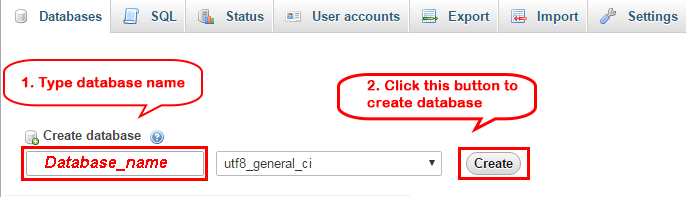
Note:
After successful import DO NOT run magento.
Now we are going to Set file system ownership and permissions. To perform all actions, you should use PuTTY – a free SSH and telnet client for Windows on your computer. When you have the command-line access, enter the following commands in the order shown:
cd <your Magento install dir>
chmod -R 777 pub
chmod -R 777 var
chmod -R 777 app/etc
Go Here to readmore about the action.
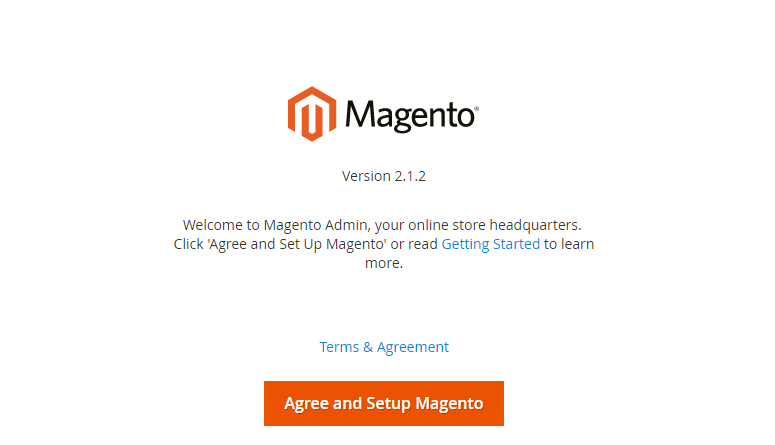
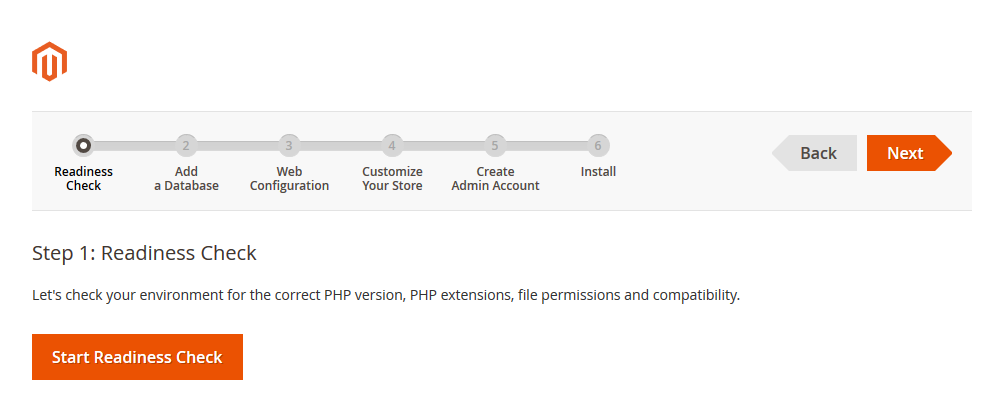
When you click on “Start Readiness Check”,the error could occur like the below image
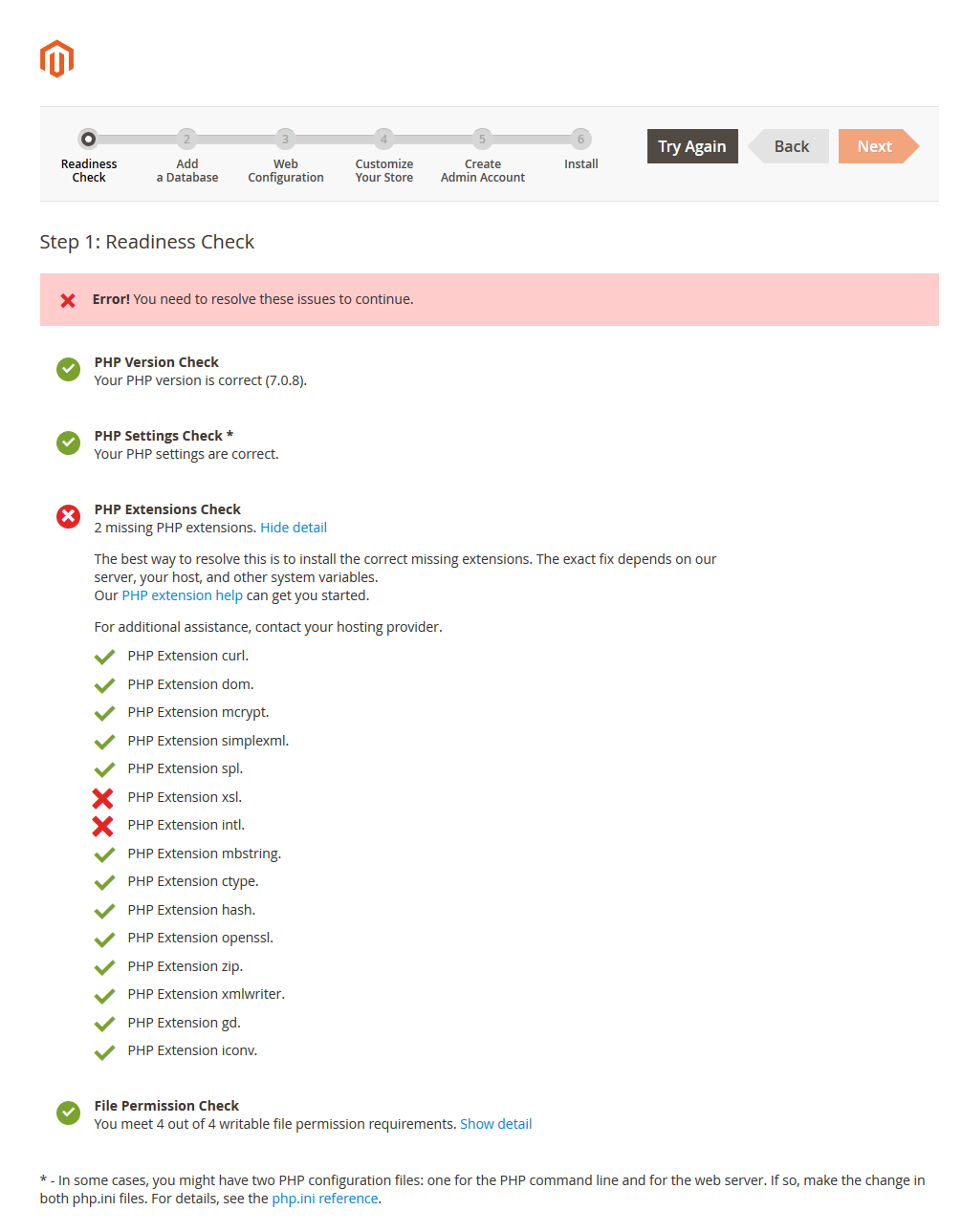
You need to open your php.ini file and remove semicolon (;) in front of the following lines:
After modification, need to save the file(php.ini) as well as need to restart the Apache Server and check out the result.
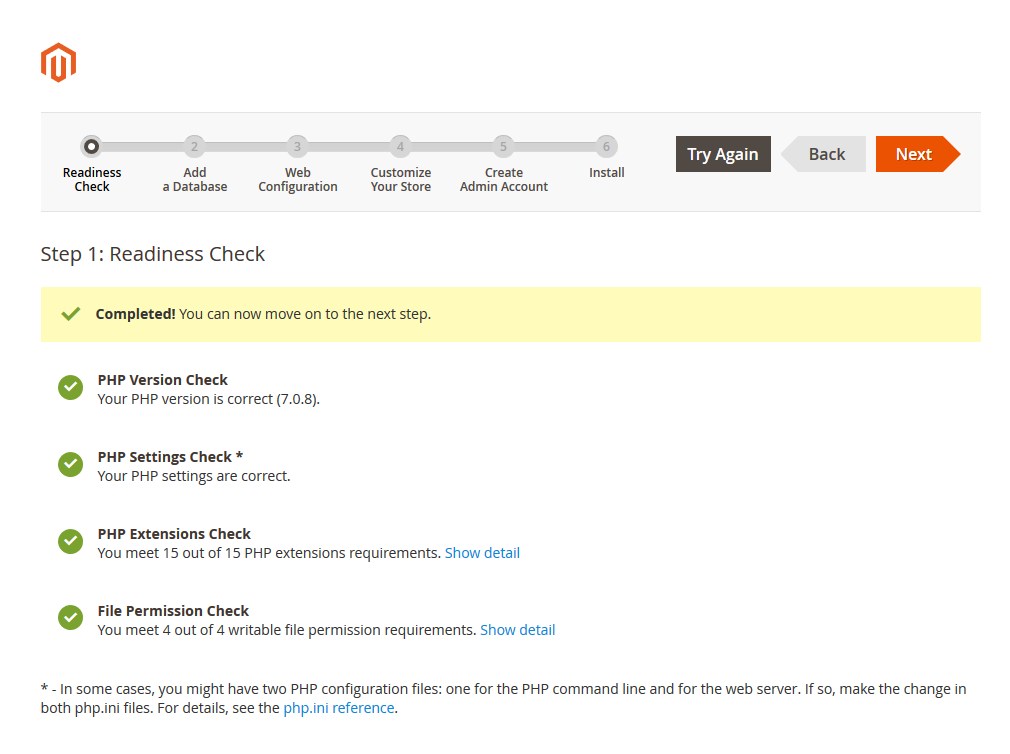
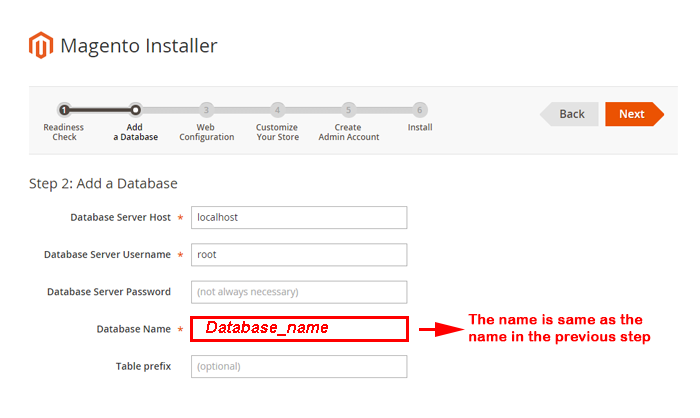
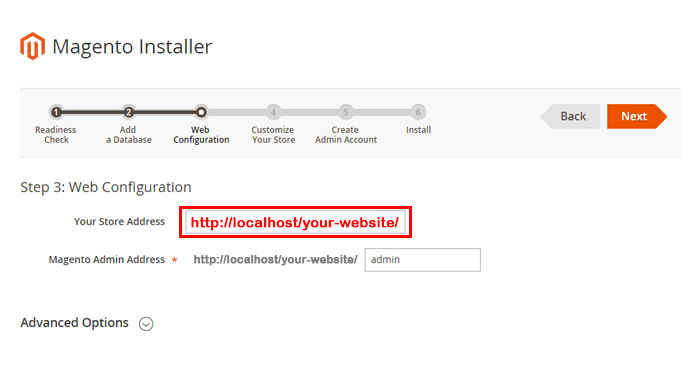
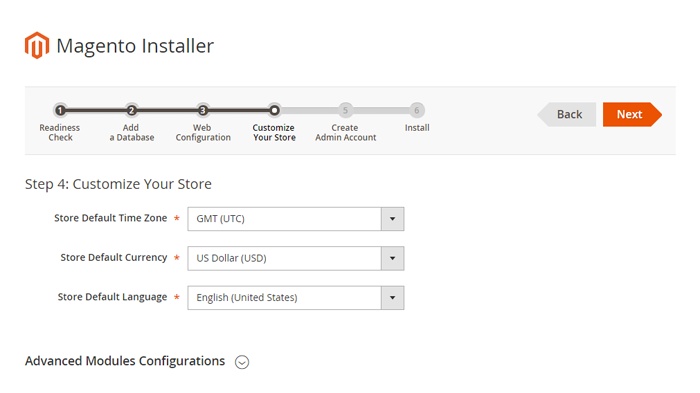
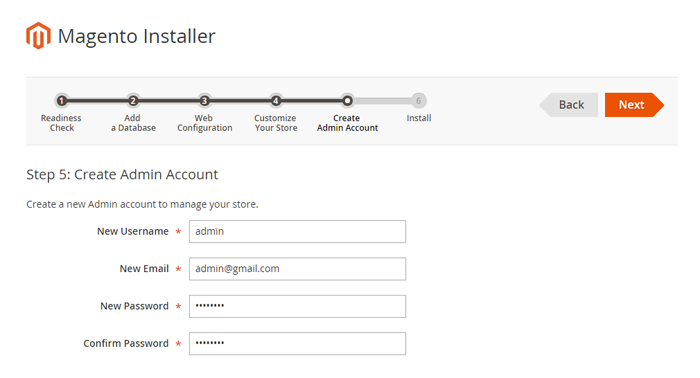
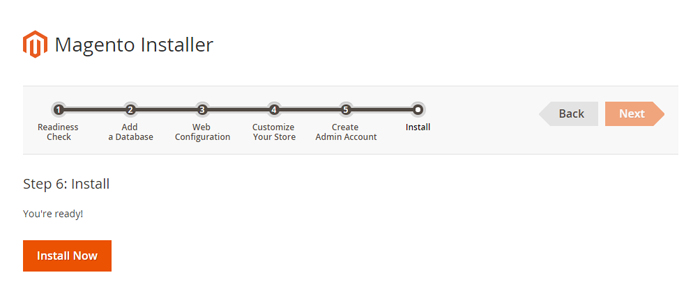
It will take some minutes to complete this installation process. If your window is the same as below, CONGRAT! You install this quickstart package successfully
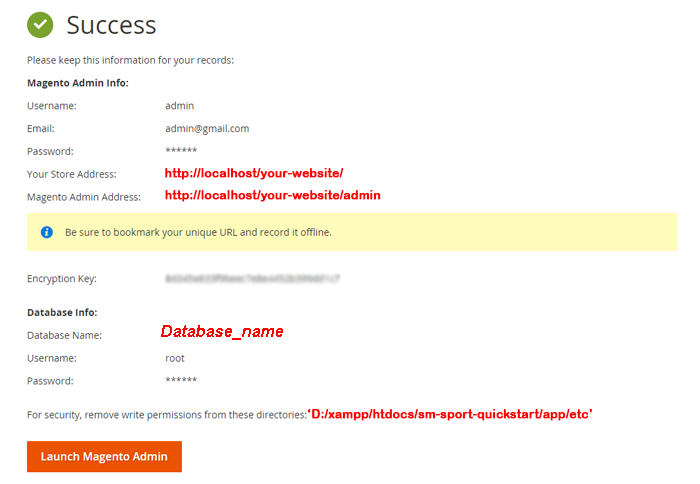
After clicking on the button, the Admin Login screen will be opened and you can use admin credentials to login on this screen. It will open Admin panel after successful authentication.
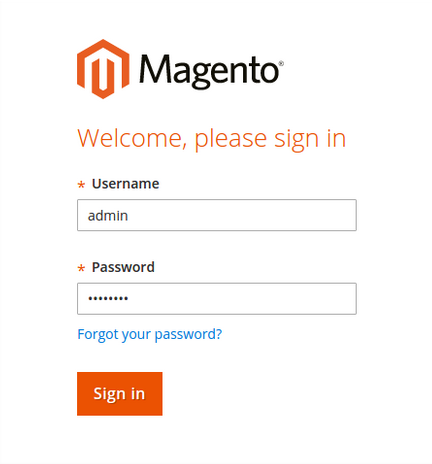
2.2 Manual Installation
Now we are going to verify Composer installation, Deploy static content, Clear compiled code and the cache, Reindex the Magento 2 blocks. Remember that you have had the Composer before doing this step by following Magento 2.0 Installation Guide to get the Composer.
On Windows server environment, to perform all above actions, press WINDOWS KEY + R to open RUN dialog and type cmd to open Command Prompt.
Type cd PATH_TO_YOUR_MAGENTO2_FILES to enter in Magento 2 ROOT directory.
If you get any error in this step, please check your Composer installation.
If you get any error, check your PHP.EXE and PHP.INI Environment Variable
Note:
1. Now we are going to Set file system ownership and permissions. To perform all actions, you should use PuTTY – a free SSH and telnet client for Windows on your computer. When you have the command-line access, enter the following commands in the order shown:
cd <your Magento install dir>
chmod -R 777 pub
chmod -R 777 var
chmod -R 777 app/etc
Go Here to readmore about the action.
2. Command usage:php/bin/magento catalog:images:resize The magento “catalog images:resize” command enables you to resize images for display on your storefront.
The message “Product images resized successfully” displays to confirm the command succeeded.
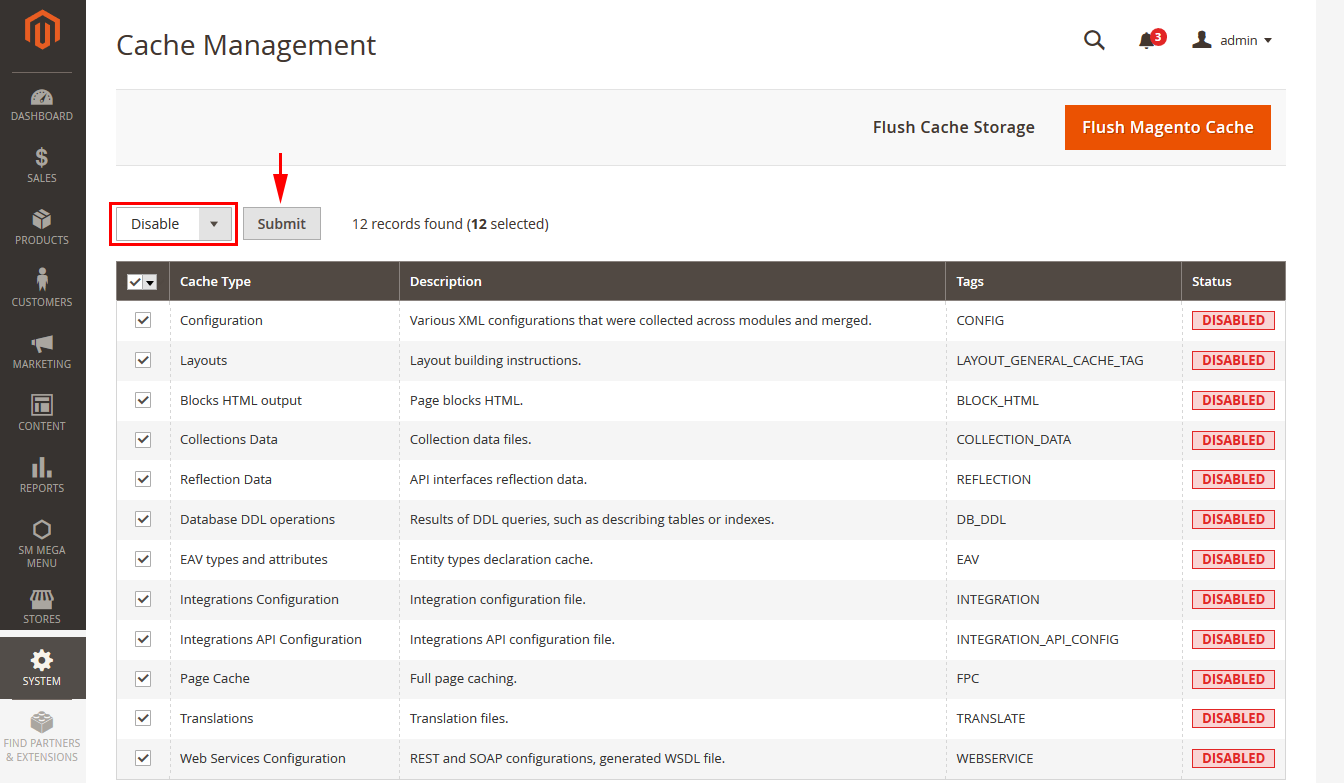
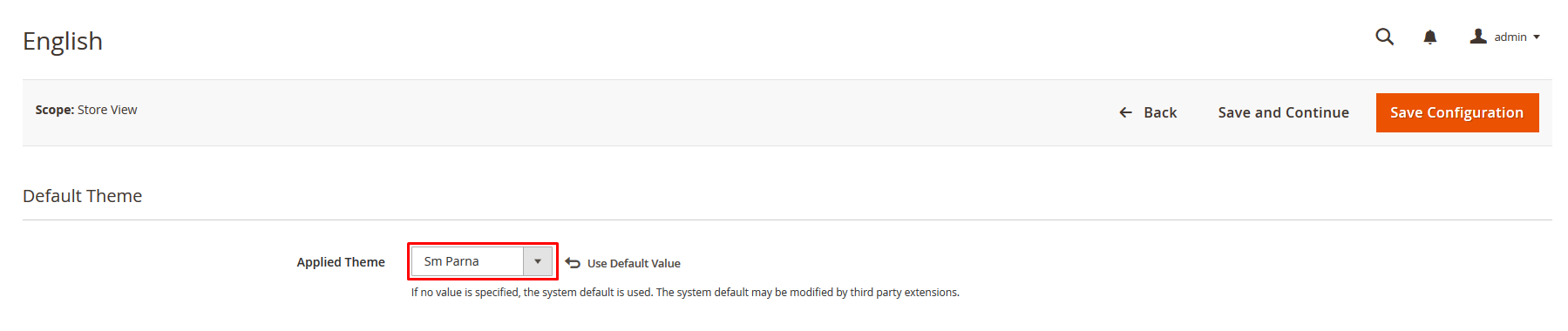
2.3 Theme Setting
In Magento admin panel, navigate to Stores>> Settings>> Configuration >> MAGENTECH.COM >> SM Parna and configure its settings as you want.
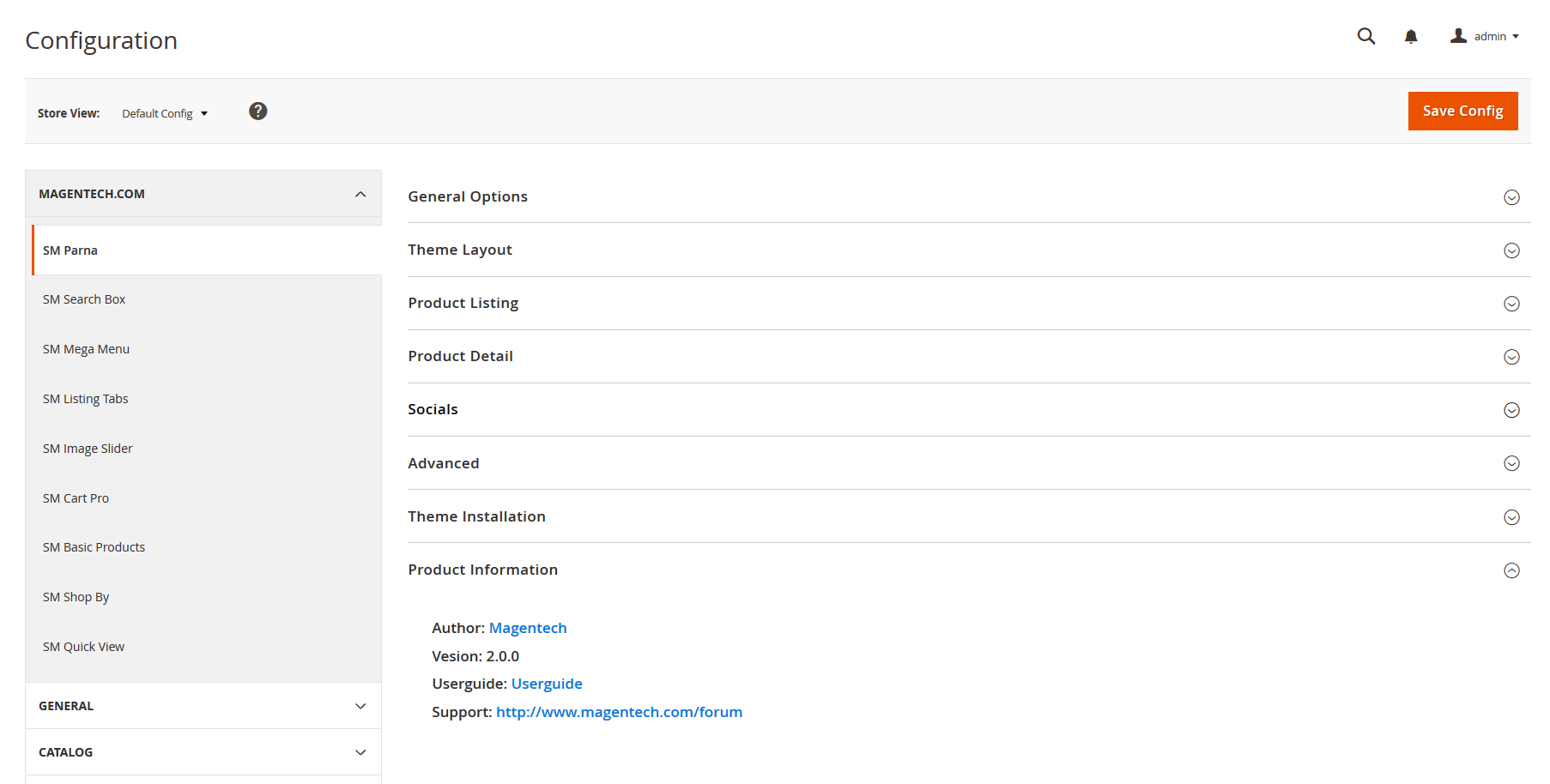
Please click Here to view the theme settings.
Set Below options
2.4 Demo Installation
We have created One Click Installation for users to quickly set up your theme the same way our demo is set up.
In order to do demo installation, you should import Static Blocks, CMS Pages and Demo in Stores>> Settings>> Configuration >> MAGENTECH.COM >> SM Parna >> Theme Installation.
1. Press the buttons named ‘Static CMS Blocks’ and ‘Pages’ to import all default blocks and pages.
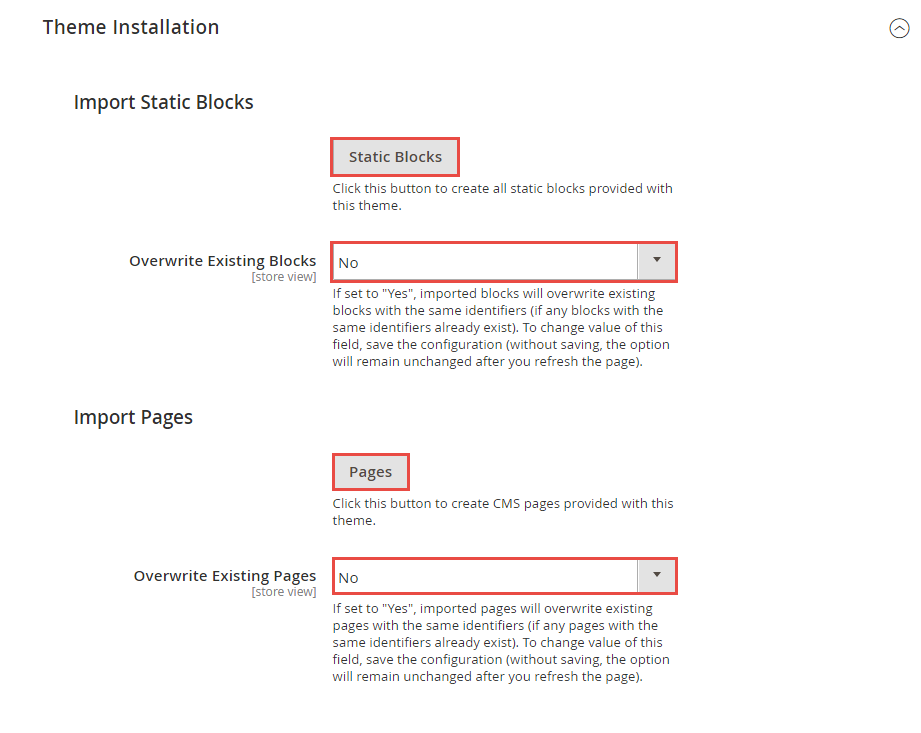
2. Click “Import Demo” button to install demo version that you prefer to install.

3. Please remember that: If you have imported these Static Blocks, Pages successfully, you would have all blocks and pages provided with this theme and you do not need to create any static blocks or pages manually as the following instruction of this document.
4. Flush Cache: After successfully import your demo, save Theme Settings and Design Settings and clear the cache by using this command as php bin/magento cache:flush in Command Prompt. Or you could go to System >> Tools >> Cache Management, click ‘Flush Magento Cache’ button to flush all the cache.
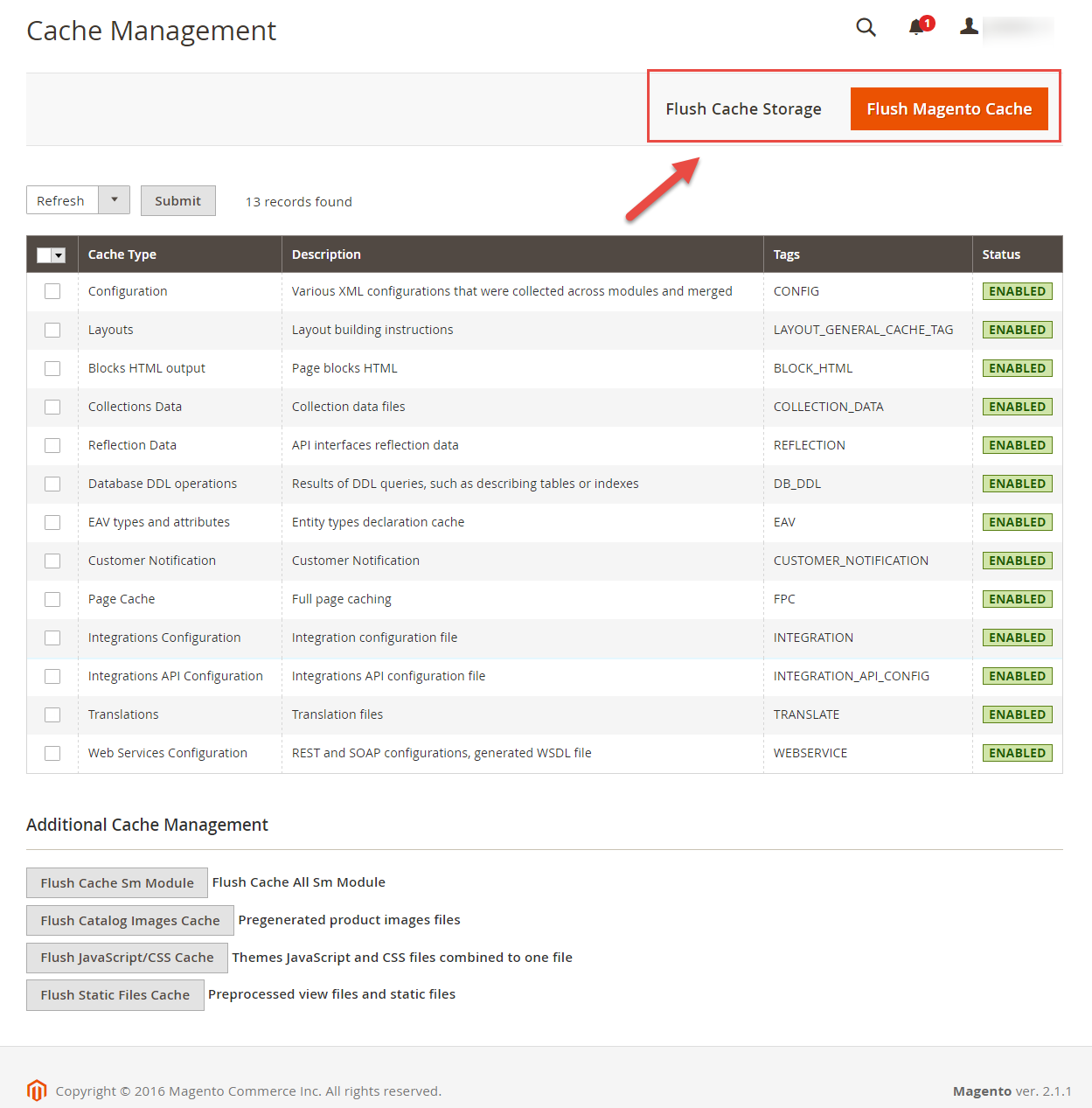
3.1 Layout Position
The layout of SM Parna can be illustrated as follows.
In the image, you could see how our extensions and static blocks are placed in our layouts after importing Static Blocks, Pages and Demo.
3.1.1 Home Style 1
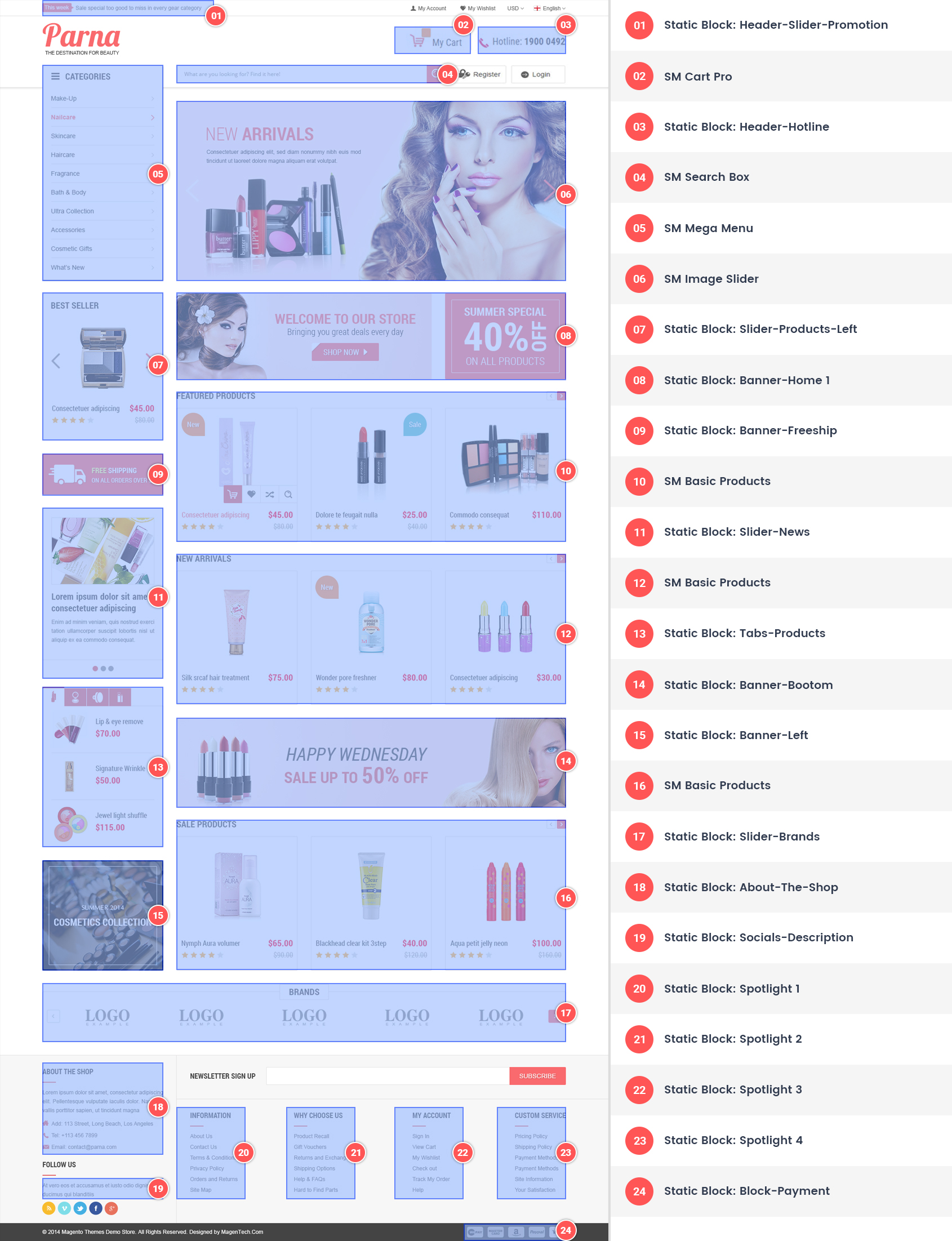
3.2 Page Configuration
3.2.1 Set Default Page
- To configure the default home page for your store, please go to Stores>> Settings >>Configuration>>General>>Web>>Default Pages tab, select the desired page in the CMS Home Page field and save configuration.
- You need to change to the website / store view that you want to change (the dropdown menu in the upper left corner). You will probably have to create a new CMS page if you want to have something different from your default home page.
3.2.2 Edit Homepage
From the top menu, please select Content >> Elements >> Pages. Here you can find all the store pages that you have imported, so you don’t need to add them. You only need to update the pages HTML and XML content as you wish.
- Step 1. Open any of them in order to get the access to the content.
- Step 2. Edit the content as you desire
- Step 3. Press Save Page button to save your configuration
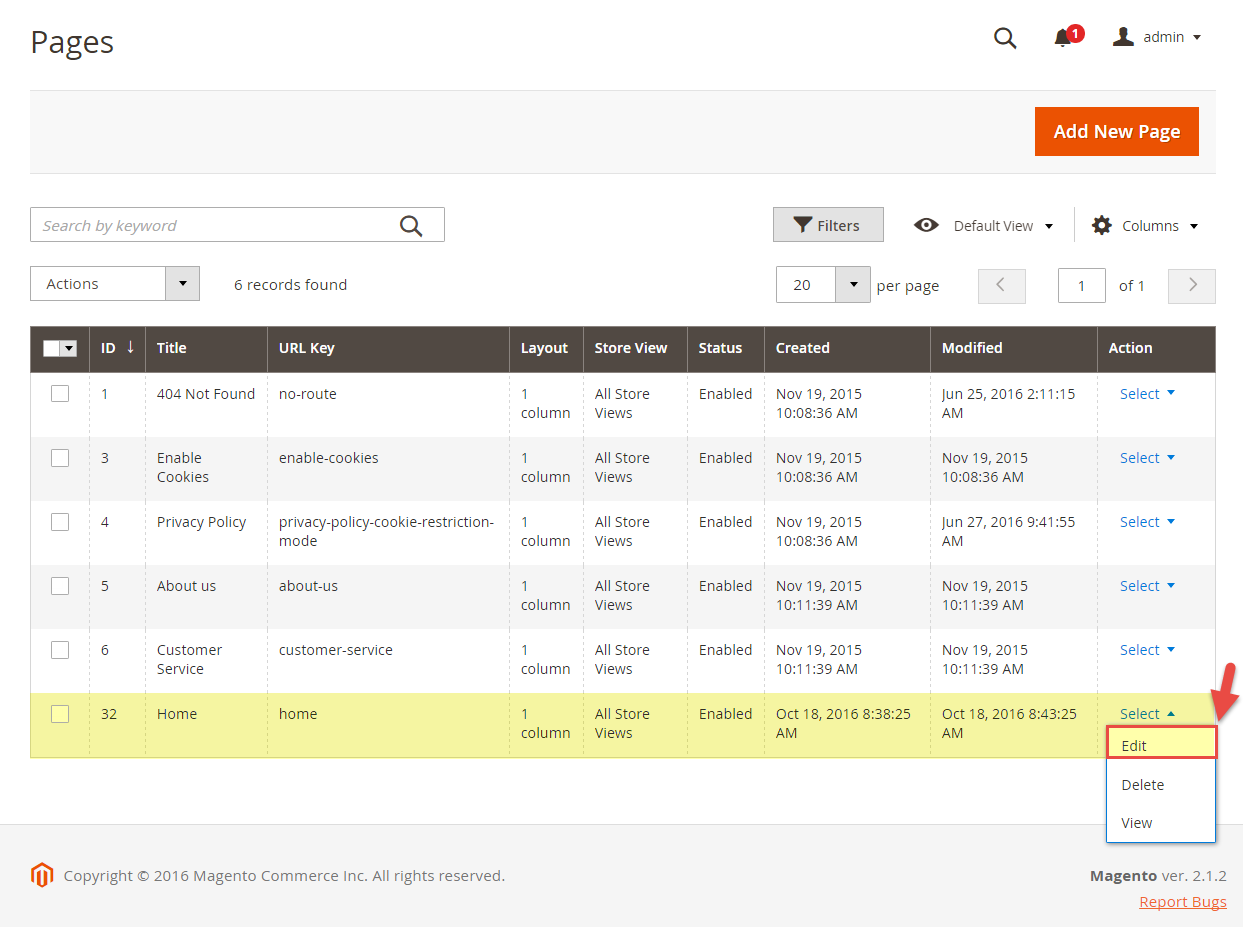
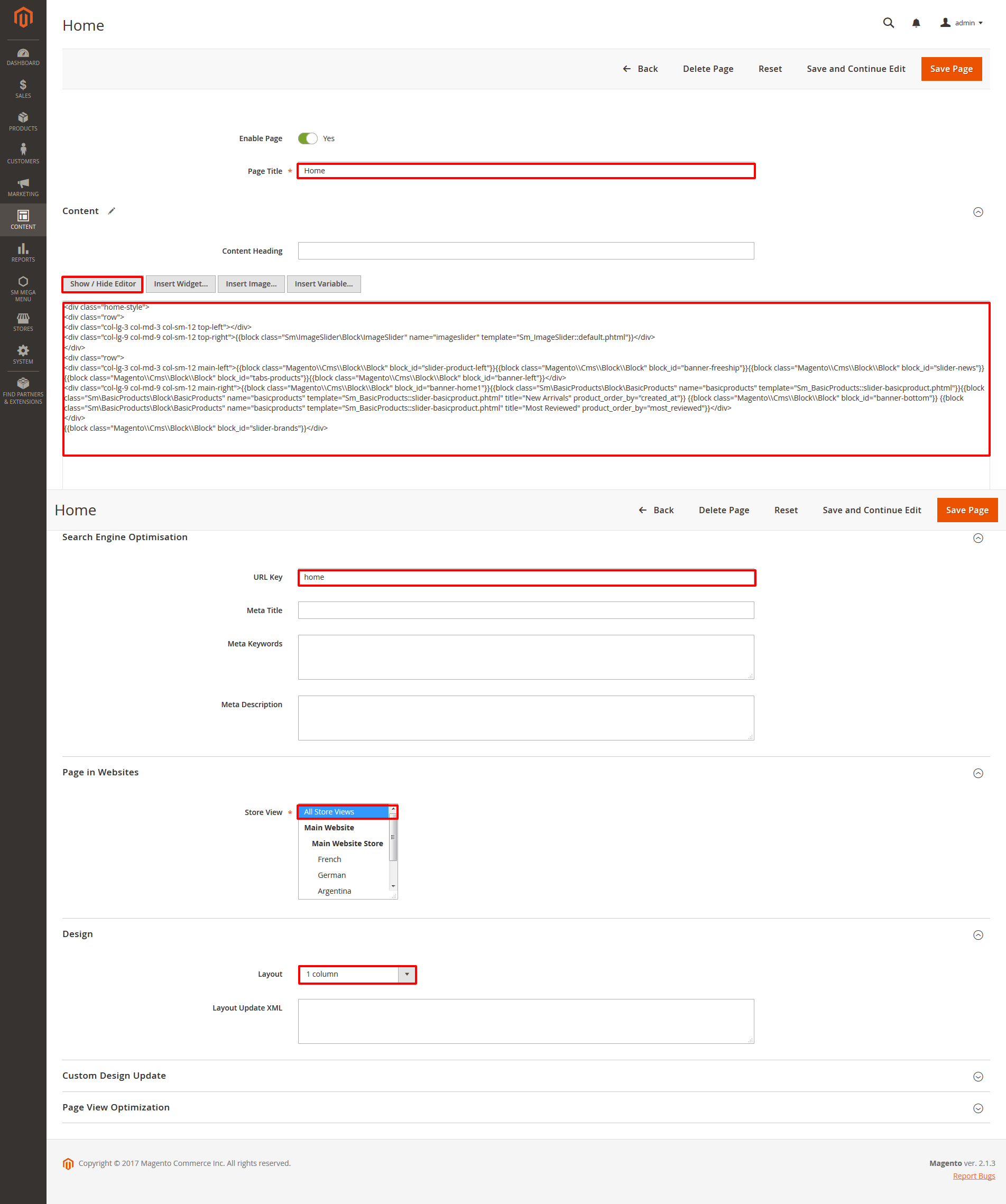

3.3 Configure Extensions
3.3.1 List of extensions
The SM Parna front-page has been integrated with the extensions in the following list:
- SM Megamenu
- SM Cart Pro
- SM Image Slider
- SM Basic Products
- SM Listing Tabs
- SM Search Box
- SM Shop By
- SM Quickview
In SM Parna Administration Page, please navigate to Stores>> Settings>> Configuration >> MAGENTECH.COM to configure extensions as you want.
Here you can find all the extensions that you have imported successfully, so you don’t need to add them. You only need to look at our layout position, check the name of the extension you want to edit and update their settings as you wish.
- Step 1. Choose any of them in order to get the access to the extension’s settings. For example, please choose SM Cart Pro to edit
- Step 2. Edit the content as you desire: Please click here to view
- Step 3. Press Save Block button to save your configuration
- Step 4. Checkout the frontend to see the result. For example, the SM Cart Pro:
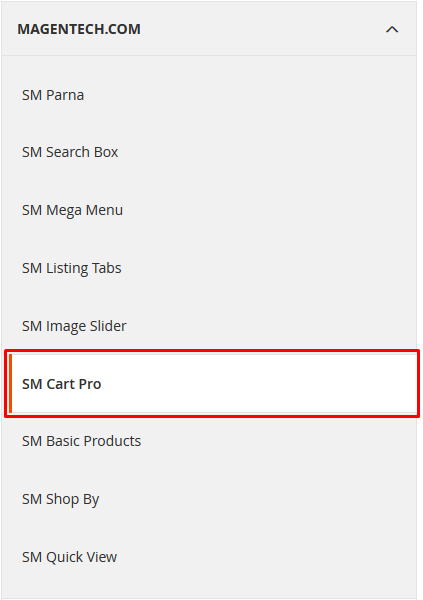


3.3.2 SM Megamenu
- Position: SM Megamenu
- Frontend Appearance
Horizontal Megamenu: 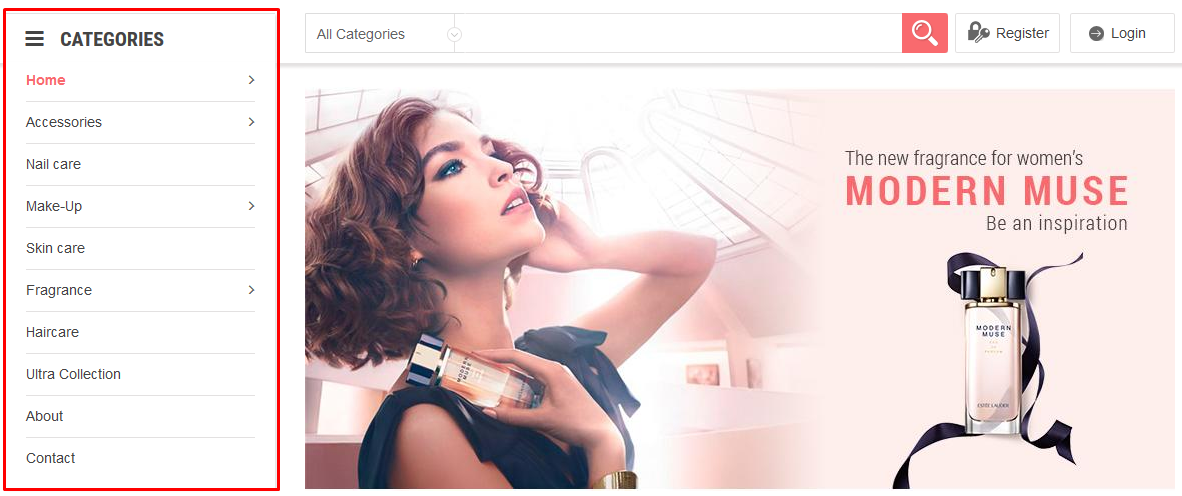
- In order to add menu items, go to SM Megamenu >> Menu Manager >> click on ‘Edit’to open Menu Items to add items as you want. Or you could edit the imported items in the mega menu list
3.4 Configure Static Blocks
The SM Parna front-page has the following static blocks in the theme:
- Static Block: header-slider-promotion
- Static Block: header-hotline
- Static Block: banner-home1
- Static Block: slider-product-left
- Static Block: banner-freeship
- Static Block: slider-news
- Static Block: tabs-products
- Static Block: banner-left
- Static Block: banner-bottom
- Static Block: slider-brands
- Static Block: about-the-shop
- Static Block: socials-description
- Static Block: spotlight1
- Static Block: spotlight2
- Static Block: spotlight3
- Static Block: spotlight4
- Static Block: block-payment
From the top menu, please select Content >> Elements >> Blocks. Here you can find all the static blocks that you have imported successfully, so you don’t need to add them. You only need to look at our layout position, check the identifiers of the static blocks you want to edit and update their HTML content as you wish.
- Step 1. Open any of them in order to get the access to the content. For example, if you want to edit the static block of the static block having the identifier as header-slider-promotion, please type the identifier in the search box and choose the block to edit
- Step 2. Edit the content as you desire
- Step 3. Press Save Block button to save your configuration
- Step 4. Checkout the frontend to see the result
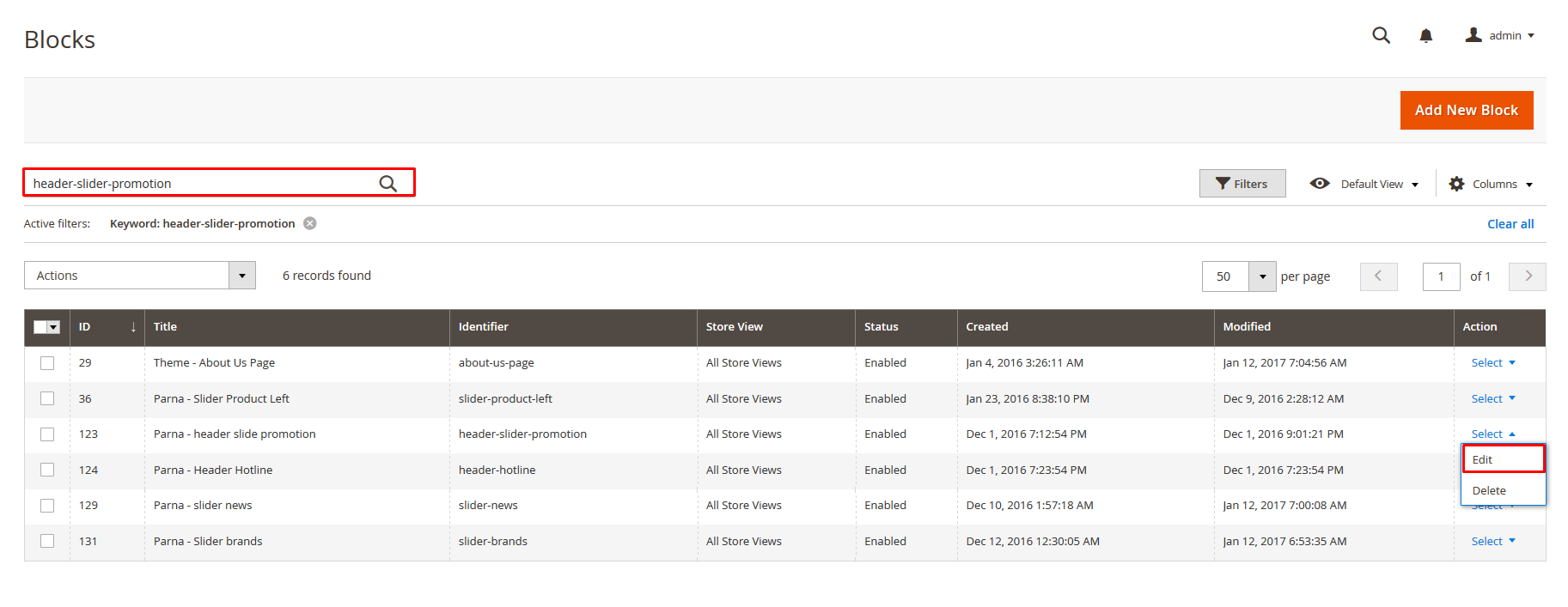
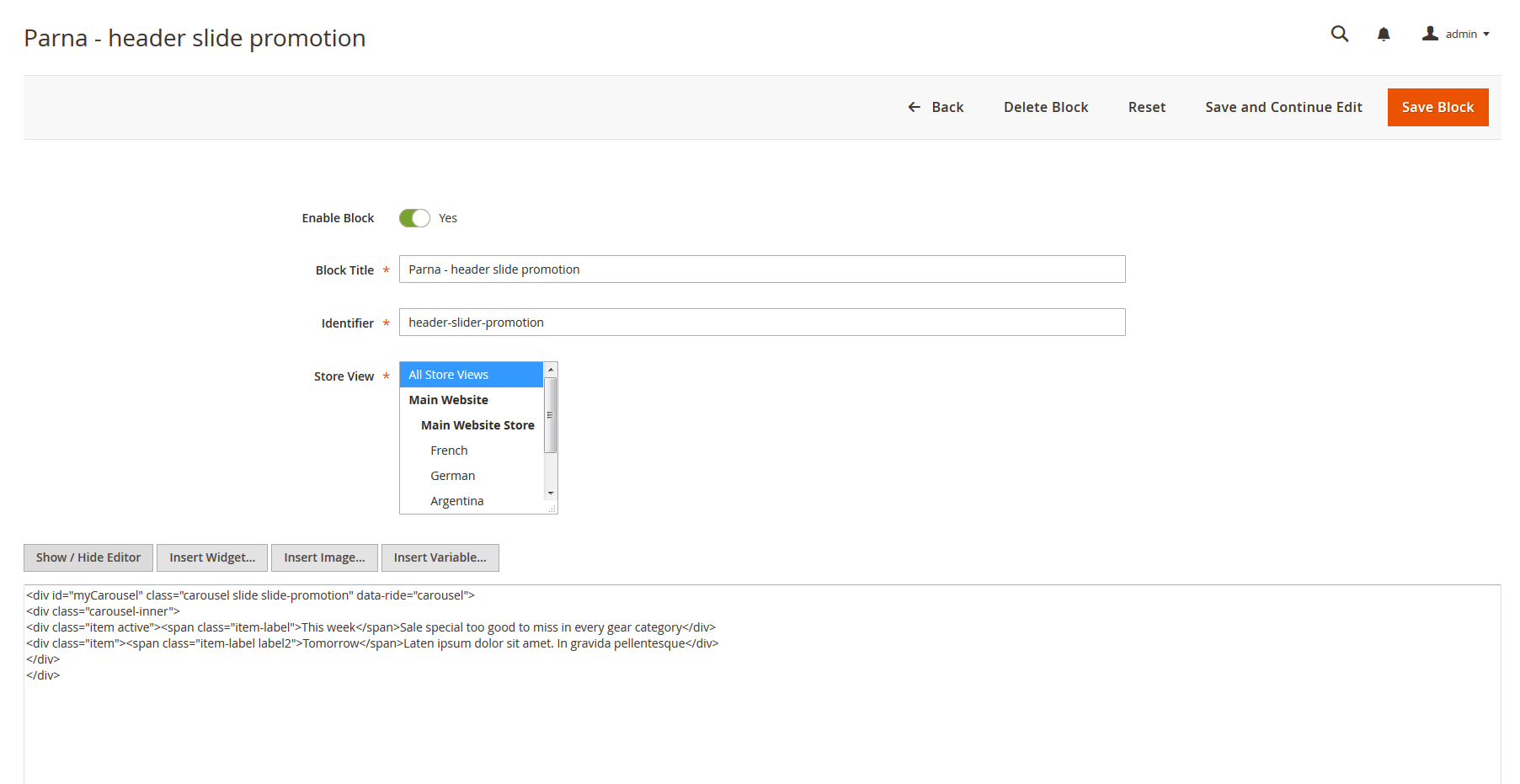

3.5 How To Customize the Social symbols in admin panel
Frontend Appearance
In SM Parna Administration Page, please navigate to Stores>> Settings >> Configuration >> MAGENTECH.COM >> SM Parna >> Socials.
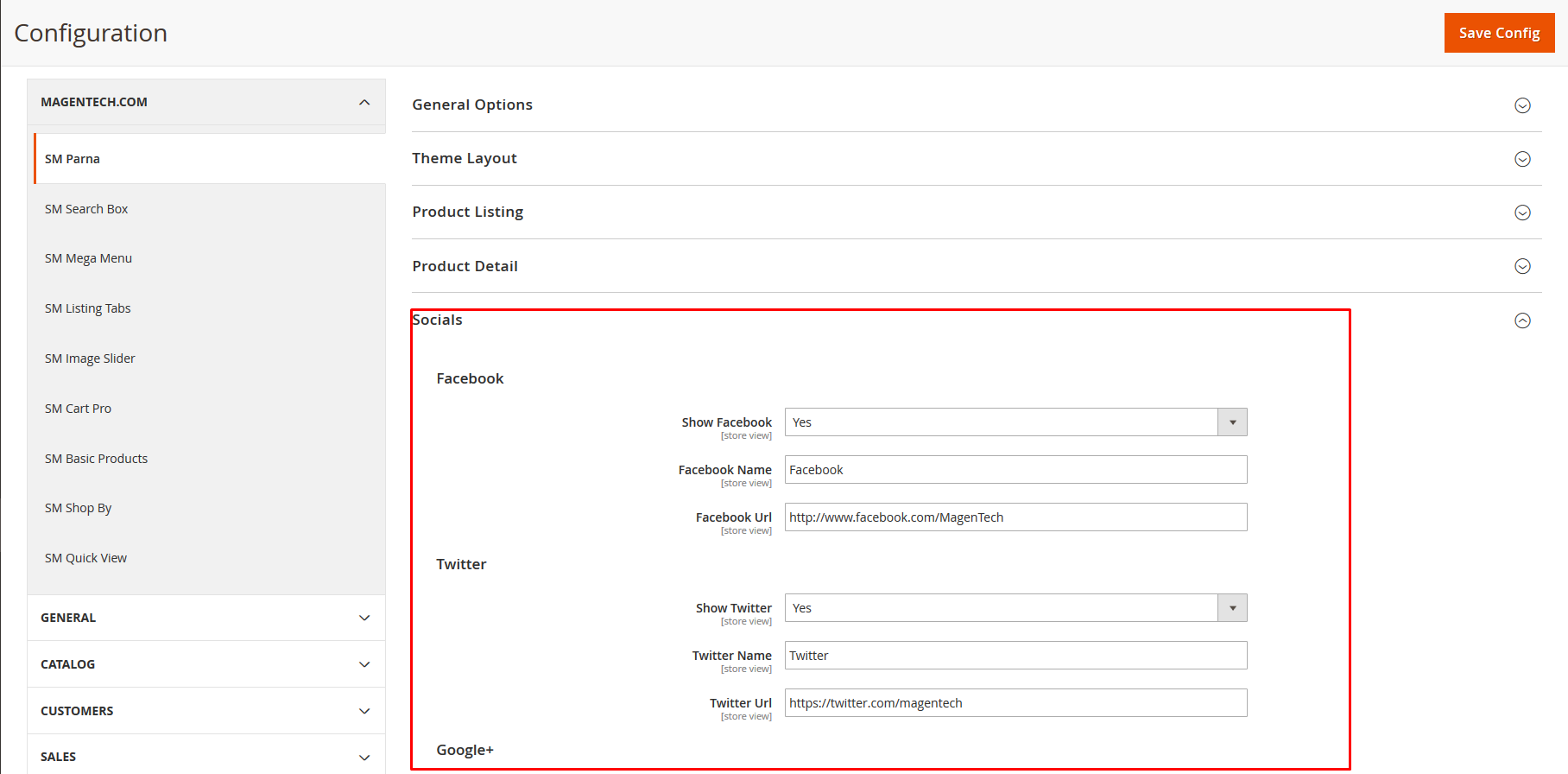
4SUPPORT
- SUPPORT – If you have any questions that are beyond the scope of this help file, please feel free to send us via: Support Tickets System
- FAQs – Go to Here to view more the Frequently Asked Questions.